Passwords are the weakest part of most servers. Bots find your IP within hours of provisioning, then grind through credential lists around the clock. SSH keys end that problem outright — there is nothing left to guess. This guide walks through how to set up SSH keys on Ubuntu from a clean start: generating a modern key pair, installing the public half on your server, testing it properly, and only then turning password logins off.
The same six steps work unchanged on Debian, which Ubuntu is built on, and almost unchanged on AlmaLinux, Rocky Linux and Fedora. A later section covers the handful of places those distributions genuinely differ, including the SELinux trap that silently breaks key logins on the RHEL family.
If you are still logging in with a password and want the groundwork first, our companion guide on how to connect to a Linux VPS using SSH covers the connection basics. This article picks up where that one stops and focuses purely on SSH keys.
Everything below is written against Ubuntu 26.04 LTS and tested on a standard cloud VPS, but the commands are identical on Ubuntu 24.04 and 22.04.
Why SSH keys beat passwords every time
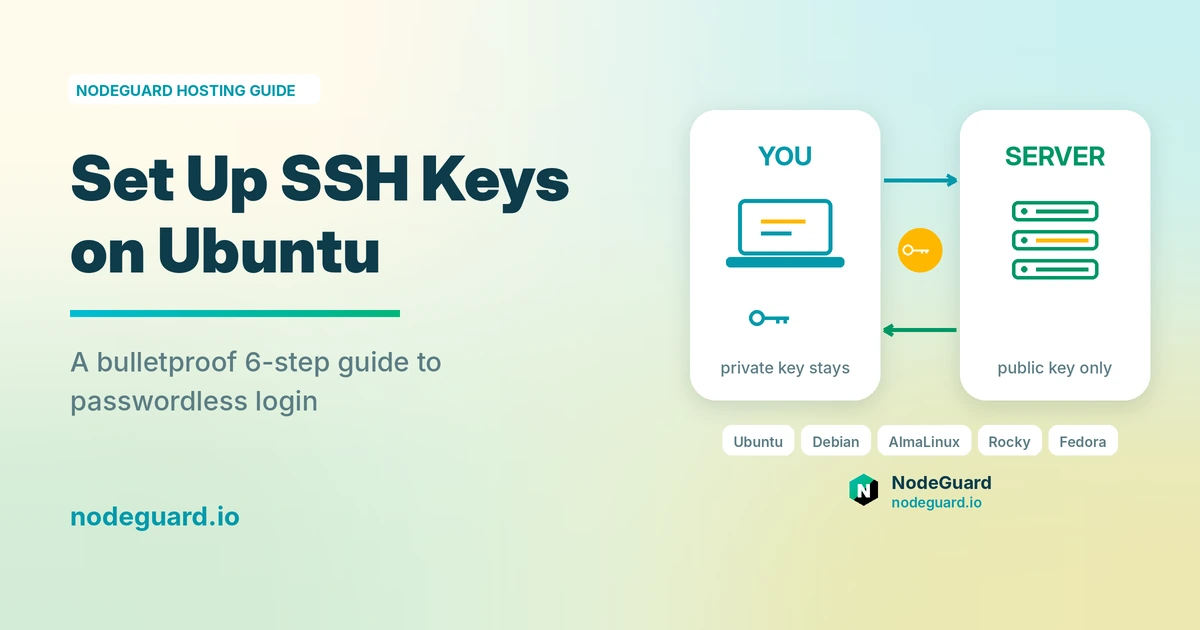
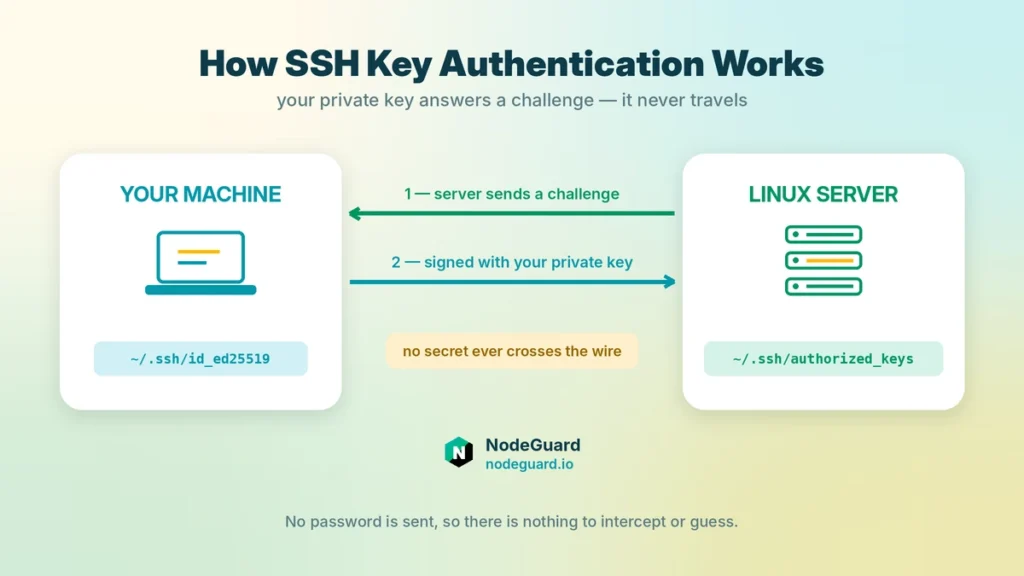
SSH keys come in pairs: two mathematically linked files. The private key stays on your laptop and never moves. The public key goes onto the server, into a file called authorized_keys. When you connect, the server sends a challenge that only the holder of the matching private key can answer. Your secret is never transmitted, so there is nothing for an attacker to capture in transit or brute-force at the login prompt.
The practical difference is stark. A strong 16-character password has maybe 100 bits of entropy and can be phished, reused, or shoulder-surfed. A modern Ed25519 key offers security comparable to a 3072-bit RSA key in a 68-byte file, and it cannot be typed into a convincing fake prompt. This is why every serious hardening checklist — including Mozilla’s OpenSSH guidelines — treats SSH keys as the baseline rather than an upgrade.
There is an operational win too. Once you set up SSH keys on Ubuntu, logins become instant, deployment scripts and CI runners can authenticate without storing a secret in plain text, and you can revoke one person’s access by deleting one line from one file. Password rotation policies stop being something you manage, because there is no password left to rotate.
What you need before you start
Three things, and nothing else:
- An Ubuntu server you can already reach — a Cloud VPS, a dedicated box, or a local virtual machine. You need working password access, or console access through your provider’s panel, for this first run only.
- A terminal on your own machine. Linux and macOS have one built in. Windows 10 and 11 ship the OpenSSH client with Windows Terminal or PowerShell, so you can create SSH keys there natively without PuTTY.
- A non-root user with
sudoon the server. If you are still logging in as root, create a normal user first — our walkthrough of how to set up an Ubuntu VPS covers that in the opening steps.
One rule before anything else: keep your existing session open the whole way through. Every lockout story starts with someone closing the only working terminal they had.
How to set up SSH keys on Ubuntu in 6 steps
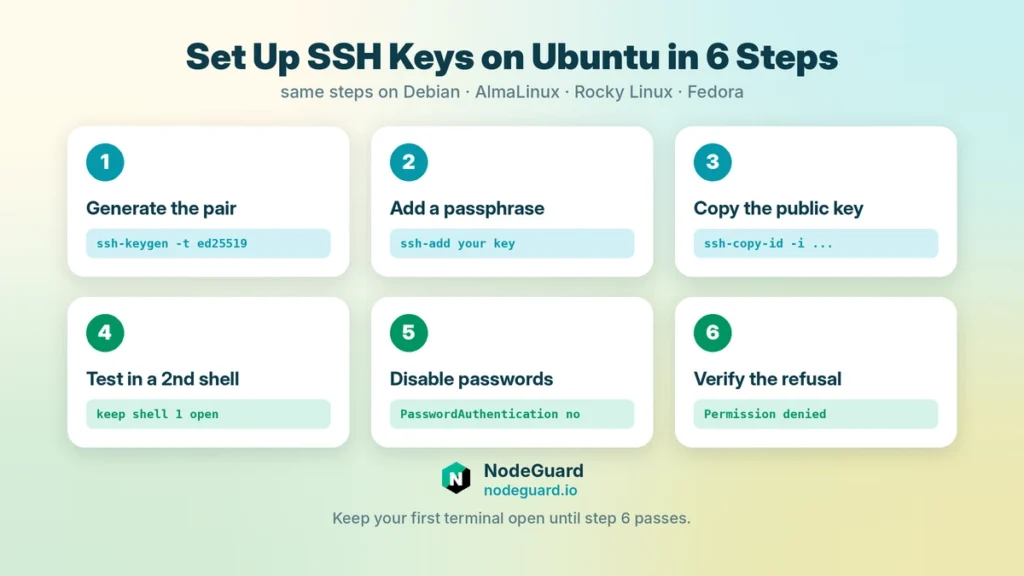
Steps 1 to 3 create and install your SSH keys, step 4 proves they work, and steps 5 and 6 close the door behind you.
Step 1 — Generate your SSH key pair
Run this on your local machine, not the server. Generating the pair on the wrong box is the single most common mistake people make on their first attempt.
ssh-keygen -t ed25519 -C "alex@laptop-2026"
Press Enter to accept the default path, ~/.ssh/id_ed25519. You now have two files: the private key with no extension, and id_ed25519.pub, the public half.
Use Ed25519 unless you have a specific reason not to. It is faster, the keys are tiny, and it has been the sensible default for years. If you must talk to something ancient that predates it, generate RSA SSH keys instead:
ssh-keygen -t rsa -b 4096 -C "alex@laptop-2026"
Avoid DSA and ECDSA entirely. The -C comment is free text and does nothing cryptographically, but it is what tells you six months from now which laptop a line in authorized_keys belongs to. Label your SSH keys properly from day one. The full option list lives in the ssh-keygen manual.
Step 2 — Set a passphrase and load the agent
When ssh-keygen asks for a passphrase, give it one. SSH keys without a passphrase are plaintext credentials: anyone who copies that file owns every server it touches.
The usual objection is that typing a passphrase on every connection defeats the point. It does not, because ssh-agent holds the decrypted key in memory for the session:
eval "$(ssh-agent -s)"
ssh-add ~/.ssh/id_ed25519
You type the passphrase once per boot and connect freely after that. On macOS, add --apple-use-keychain to store it in the Keychain. On Ubuntu desktop, GNOME Keyring usually unlocks your SSH keys automatically at login.
Step 3 — Copy the public key to your server
ssh-copy-id handles installation correctly — it creates ~/.ssh, appends to authorized_keys, and sets permissions in one shot:
ssh-copy-id -i ~/.ssh/id_ed25519.pub alex@your-server-ip
Enter your password one last time. If SSH runs on a non-standard port, add -p 2222 before the username.
Note the -i flag pointing at the .pub file. Without it, ssh-copy-id will happily push every one of the SSH keys loaded in your agent, which quietly grants more access than you intended.
From Windows, or without ssh-copy-id. Windows has no ssh-copy-id. This PowerShell one-liner does the same job:
type $env:USERPROFILE\.ssh\id_ed25519.pub | ssh alex@your-server-ip "mkdir -p ~/.ssh && chmod 700 ~/.ssh && cat >> ~/.ssh/authorized_keys && chmod 600 ~/.ssh/authorized_keys"
The same command works from any Unix shell with cat in place of type. If you only have console access through your host’s panel, open ~/.ssh/authorized_keys in an editor and paste the public key as a single unbroken line. A line wrapped in the middle is a dead key — the most frequent failure when people install SSH keys by hand.
Already provisioned the server with a key through your provider’s control panel? Then this step is done, and you can jump straight to testing.
Step 4 — Test before you change anything
Open a second terminal and leave the first one connected:
ssh alex@your-server-ip
You should land on the server with no password prompt. If something looks wrong, ask SSH to explain itself:
ssh -v alex@your-server-ip
The verbose output names which of your SSH keys it offered and what the server said back. Do not continue to step 5 until this login works cleanly.
Step 5 — Disable password authentication
Now that your SSH keys work, close the password door. Rather than editing the main config file, drop a small override into the include directory — it survives package upgrades and keeps your changes in one readable place:
sudo nano /etc/ssh/sshd_config.d/00-hardening.conf
Add:
PubkeyAuthentication yes
PasswordAuthentication no
PermitEmptyPasswords no
KbdInteractiveAuthentication no
PermitRootLogin prohibit-password
Check the syntax before applying it — sshd -t prints nothing at all if the config is valid:
sudo sshd -t && sudo systemctl restart ssh
Watch for one trap. Cloud images frequently ship /etc/ssh/sshd_config.d/50-cloud-init.conf containing PasswordAuthentication yes. Files load in alphabetical order and the first setting wins in OpenSSH, so a 50- file silently overrides a 99- one. Naming yours 00-hardening.conf, as above, keeps you ahead of it. Confirm what is actually live rather than trusting the file:
sudo sshd -T | grep -iE "passwordauth|pubkeyauth|permitrootlogin"
Step 6 — Verify from a fresh session
With your original terminal still open, start a new connection and deliberately ask for a password:
ssh -o PreferredAuthentications=password alex@your-server-ip
A Permission denied (publickey) response is the result you want — it proves passwords are genuinely refused and your SSH keys are the only way in. Then connect normally one more time to confirm key login still works. Only now is it safe to close the original session.
Six steps, and your server no longer has a guessable front door.
Setting up SSH keys on Debian, AlmaLinux, Rocky Linux and Fedora
Key generation is completely distribution-agnostic. ssh-keygen, ssh-agent, ssh-copy-id and ~/.ssh/config behave identically everywhere, because they are all OpenSSH, not Ubuntu. What changes is the handful of things around them.
Debian: the same steps, two things to check first
Debian and Ubuntu share the same packaging, the same ssh service name, and the same /etc/ssh/sshd_config.d/ include directory. Every command above transfers across with no edits at all.
Two caveats catch people moving from Ubuntu to Debian. A minimal Debian netinst installation often ships without sudo, and sometimes without an SSH server at all — you log in as root and add both yourself:
apt update && apt install -y sudo openssh-server
usermod -aG sudo alex
Second, Debian does not use socket activation for SSH, so systemctl restart ssh behaves the way you expect and the Port directive in sshd_config is honoured normally. If you are scripting against both distributions, that is a difference worth knowing.
AlmaLinux, Rocky Linux and Fedora: four real differences
The RHEL family needs the same six steps plus four adjustments:
| Ubuntu / Debian | AlmaLinux / Rocky Linux / Fedora | |
|---|---|---|
| Service name | ssh | sshd |
| Restart command | sudo systemctl restart ssh | sudo systemctl restart sshd |
| SELinux | not enforcing | enforcing by default |
| Firewall | ufw | firewalld |
| Crypto policy | n/a | update-crypto-policies can refuse key types |
| Socket activation | yes on Ubuntu 26.04 | no — classic sshd.service |
SELinux is the one that will cost you an afternoon. On AlmaLinux, Rocky Linux and Fedora, SELinux is enforcing out of the box and expects ~/.ssh to carry the ssh_home_t context. Create that directory by hand, restore it from a backup, or copy files in from elsewhere, and the context comes out wrong. The login then fails with a plain Permission denied (publickey) and absolutely nothing useful in the SSH logs — the denial happens below SSH, so it never explains itself.
The fix is one command:
restorecon -R -v ~/.ssh
Check whether SELinux is the culprit before you go hunting elsewhere:
ls -Z ~/.ssh
sudo ausearch -m AVC -ts recent
Using ssh-copy-id avoids the problem entirely, because it creates the directory in place with the correct context. It only bites when you build authorized_keys manually — which is exactly what people do from a provider console.
The crypto-policy difference matters less often but is worth knowing: on the RHEL family, update-crypto-policies --show reports the system-wide policy, and a FUTURE or FIPS setting will reject key types that work fine on Ubuntu. Ed25519 is accepted under the default policy, which is another reason to prefer it.
Three problems that catch almost everyone
Permissions. OpenSSH refuses keys stored in world-readable locations, and gives a vague error when it does. Fix both ends:
chmod 700 ~/.ssh && chmod 600 ~/.ssh/authorized_keys
chown -R $USER:$USER ~/.ssh
A home directory set to 777 breaks key authentication too, even when ~/.ssh itself is correct. chmod 750 ~ resolves it.
Socket activation. Ubuntu 26.04 starts SSH through ssh.socket rather than ssh.service. For key authentication this changes nothing — new connections pick up config changes immediately — but if you are also changing the listening port, editing Port in sshd_config will appear to do nothing, because the socket unit owns the port. Check with systemctl status ssh.socket.
The wrong key offered. If you hold several SSH keys, the client tries them in order and some servers cut the connection after too many attempts. Pin the right one per host in ~/.ssh/config:
Host prod
    HostName 203.0.113.10
    User alex
    IdentityFile ~/.ssh/id_ed25519
    IdentitiesOnly yes
After that, ssh prod is the whole command. IdentitiesOnly yes is the important line — it stops the agent from offering every key it holds.
Add a second key before you need it
The one failure mode SSH keys introduce is losing the private key. A dead laptop with no backup means no login, and no password fallback either, because you just disabled it.
The fix takes two minutes. Generate a second pair on another device — a desktop, a work machine, even a phone with a decent SSH client — and append that public key to authorized_keys as well:
cat ~/.ssh/id_ed25519_backup.pub | ssh alex@your-server-ip "cat >> ~/.ssh/authorized_keys"
Hardware-backed keys are worth a look here too. ssh-keygen -t ed25519-sk creates a key bound to a FIDO2 security token, so the private half physically cannot be copied off the device. Enrol one as your recovery key and store it somewhere safe.
Keep your provider’s console or recovery mode in mind as the last resort. It is slower than SSH, but it is how you add new SSH keys when every other route is gone.
Managing SSH keys across a team and multiple servers
A single authorized_keys file scales further than people expect, because it holds one line per key. Adding a colleague means appending their public key; removing them means deleting that line. No shared secret ever changes hands, and nobody has to be told a new password.
Two habits keep this manageable once you pass a handful of machines. First, give every person and every device its own key rather than copying one private key around — shared SSH keys cannot be revoked without locking out everyone who uses them. Second, audit periodically. NIST’s guidance on SSH key management exists precisely because abandoned SSH keys for departed staff are one of the most common ways access outlives employment.
You can also restrict what a key is allowed to do. Prefixing a line in authorized_keys with options such as from="203.0.113.0/24" or command="/usr/local/bin/backup.sh" limits that key to one source network or one command — ideal for automation credentials that should never get an interactive shell.
For a quick health check, ssh-audit grades the algorithms and settings your server actually advertises and flags anything weak. Canonical’s OpenSSH server documentation is the reference for anything Ubuntu-specific, and Red Hat’s SELinux documentation covers the context rules behind the RHEL-family fix above.
If you run more than a few boxes, add key deployment to your provisioning step so a new server is never password-accessible even briefly.
Frequently asked questions
Can I use the same SSH keys on several servers? Yes, and for one person that is normal practice. One key per device, reused across your fleet, is a reasonable balance. What you should not do is share a private key between people.
Do I need to generate separate SSH keys for Ubuntu and AlmaLinux servers? No. A key pair is just maths — the same public key works on every distribution. Only the server-side service name and SELinux handling differ.
What happens if I lose my private key? You lose access through that key. Recovery means console access from your provider’s panel, where you add a new public key to authorized_keys. This is the argument for enrolling a backup key from a second device before you need it.
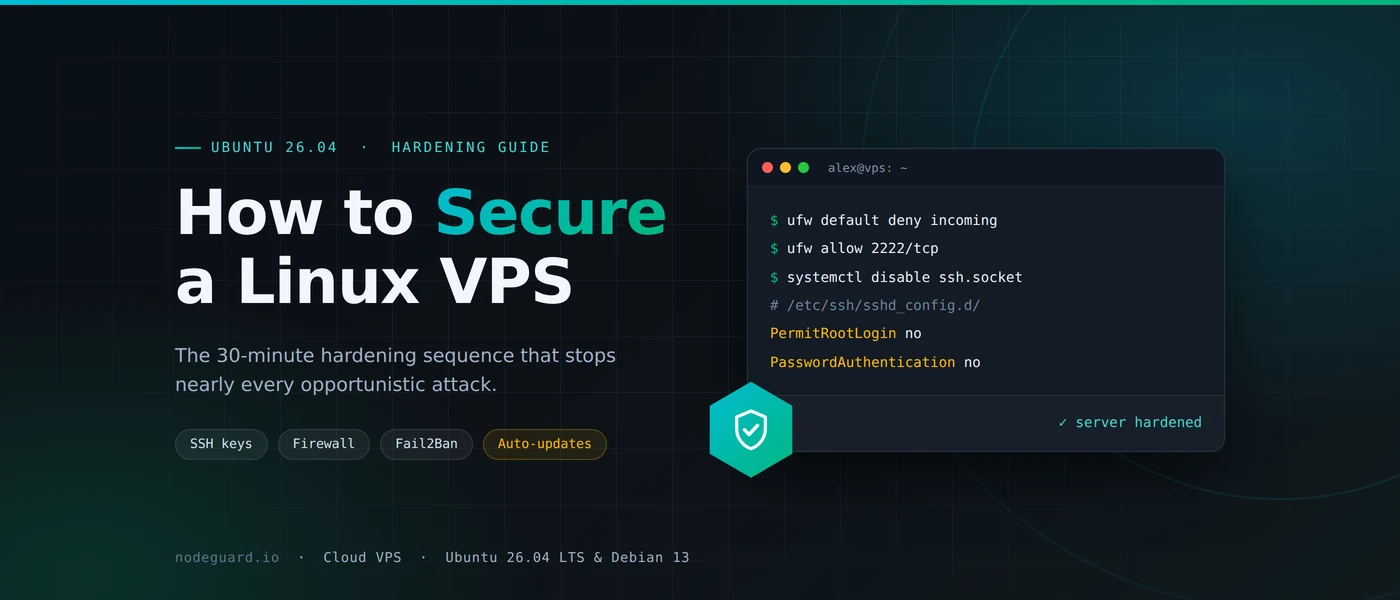
Do SSH keys replace a firewall and Fail2Ban? No. They stop credential guessing, but they do not reduce log noise or protect other services. Keep UFW or firewalld restrictive and leave Fail2Ban running.
Is RSA actually insecure now? No — RSA at 4096 bits remains sound. Ed25519 is simply smaller, faster, and less prone to implementation mistakes, which is why it is the default recommendation.
How do I set up SSH keys on Ubuntu for a user I did not create? Identically. Log in as that user, or append to their authorized_keys as root, then chown the file back to them. That ownership step is easy to forget and will break the login every time.
Wrapping up
The full sequence to set up SSH keys on Ubuntu is short: generate an Ed25519 pair locally, protect it with a passphrase, install the public half with ssh-copy-id, confirm the login works from a second terminal, then disable passwords and verify the refusal. Ten minutes once, and your server stops being a target worth grinding at.
On Debian the steps are identical. On AlmaLinux, Rocky Linux and Fedora, remember sshd instead of ssh and run restorecon -R ~/.ssh if a key that should work does not.
Do it on the first boot of every new machine, before the box is reachable with a password at all. Every NodeGuard Cloud VPS lets you attach SSH keys at deployment, so the server comes up key-only from its very first second.