You just deployed a fresh server, and now you are staring at an IP address and a password. What next? Learning how to connect to a Linux VPS using SSH is the first real skill every server owner needs, and the good news is that it takes about five minutes once you know the steps. SSH is the door into your server. Everything else, from installing a web server to deploying an app, starts after you walk through it.
This guide walks you through the whole process. You will gather your login details, connect from Windows, macOS or Linux, verify the server’s fingerprint, switch to safer SSH key authentication, save a shortcut so you never type the IP again, and lock the door behind you. Whether this is your first Cloud VPS or your tenth, the steps below work on any Linux distribution, including Ubuntu, Debian, AlmaLinux and Rocky Linux.
What Is SSH and Why Do You Use It to Access a VPS?
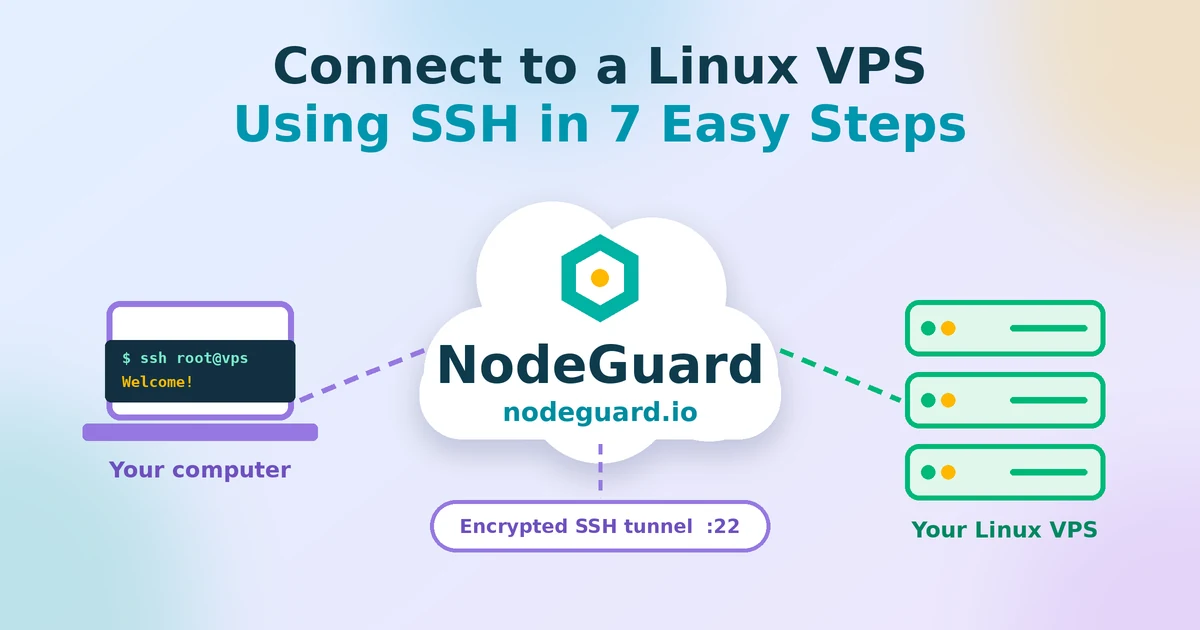
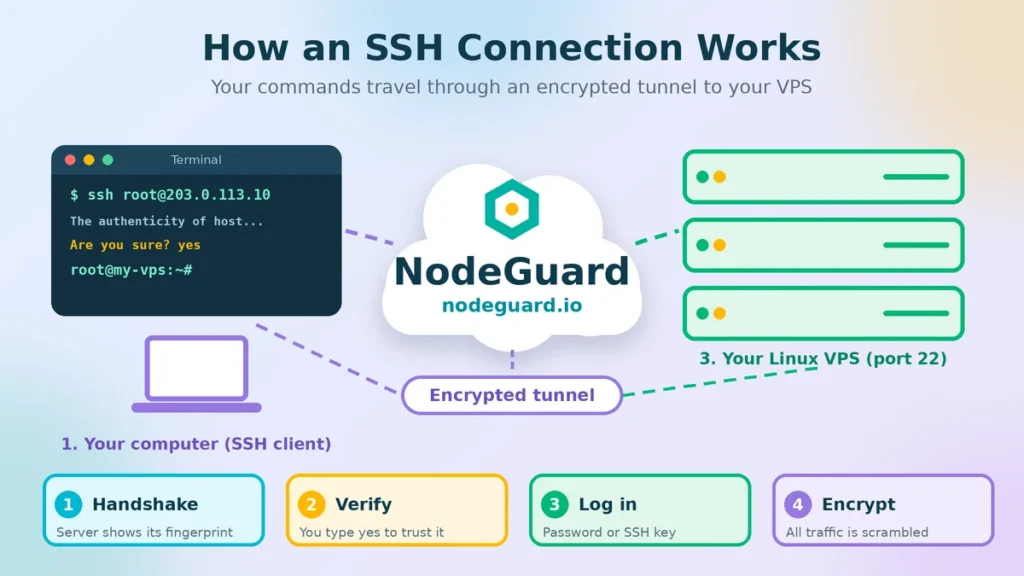
SSH stands for Secure Shell. It is a network protocol that lets you open a command-line session on a remote computer over an encrypted connection. When you SSH into a VPS, every keystroke you type and every line of output the server prints travels through an encrypted tunnel. Anyone watching the network in between sees only scrambled data.
Before SSH became standard, administrators used tools like Telnet, which sent passwords in plain text. That was fine on a trusted office network and a disaster on the open internet. SSH replaced it, and today it is the default way to manage almost every Linux server on the planet.
There are three good reasons to use it:
- Security. The connection is encrypted, and the server proves its identity to you with a cryptographic fingerprint.
- Control. A VPS usually has no screen or desktop. SSH gives you a full command line with root or sudo power, so you can install software, edit files and restart services.
- Automation. Deployment tools, backup scripts and Git all use SSH under the hood. Learn it once and you can use it everywhere.
If you are still deciding which type of hosting fits your project, our guide on VPS vs shared hosting explains why SSH access is one of the biggest advantages of a VPS in the first place.
What You Need Before You Start
Gather these four things first and the rest is smooth:
- Your VPS IP address. This is the public IPv4 address of your server, for example
203.0.113.10. The IP is normally shown in your hosting client area or in the welcome email sent after you order. - A username. On most new VPS plans this is
root. Some Ubuntu images use a regular user such asubuntuwith sudo rights instead. - A password or an SSH key. New servers typically start with a password you receive by email or set in the control panel. Later in this guide you will replace it with a key.
- An SSH client. The good news is that you probably already have one. macOS, Linux and modern Windows all ship with OpenSSH built in.
You also need the port number. SSH listens on port 22 by default, and unless your provider told you otherwise, that is the one to use.
How to Connect to a Linux VPS Using SSH in 7 Steps
Here is the full roadmap before we dive in:
- Gather your VPS login details
- Open an SSH client on your computer
- Run the SSH command and verify the fingerprint
- Generate an SSH key pair
- Copy your public key to the VPS
- Save a shortcut in your SSH config file
- Lock down SSH after you connect
Step 1: Gather Your VPS Login Details
Open your hosting dashboard and find the server’s details page. Write down the IP address, the username and the initial password. If you cannot find them, check the welcome email, because most providers send the credentials there.
A quick tip: copy the password straight from the email or dashboard instead of typing it. Passwords generated by hosting panels are long and random, and a single mistyped character is the number one cause of the dreaded “Permission denied” message on a first login.
If your provider gives you a web-based console, keep that tab open as well. It works like a screen and keyboard plugged directly into the server, which makes it a handy safety net if you ever lock yourself out over SSH.
Step 2: Open an SSH Client on Your Computer
The SSH client is the program on your own computer that makes the connection. Which one you open depends on your operating system.
On macOS or Linux, open the Terminal app. On macOS, press Command + Space, type “Terminal” and hit Enter. On most Linux desktops, press Ctrl + Alt + T. The ssh command is already installed.
On Windows 10 and 11, open PowerShell or Windows Terminal from the Start menu. Modern Windows includes the OpenSSH client, and you can confirm it by typing:
ssh -V
If you see a version number, you are ready. If Windows says the command is not found, open Settings, go to Apps, then Optional Features, and add “OpenSSH Client”. Microsoft documents this process in its OpenSSH installation guide.
Prefer a graphical tool? PuTTY is a long-standing free SSH client for Windows. You type the IP address into the “Host Name” box, keep the port at 22, make sure “SSH” is selected, and click Open. It works well, but the built-in PowerShell route is simpler, and everything in the rest of this guide uses the standard ssh command.
Step 3: Run the SSH Command and Verify the Fingerprint
Now for the main event. In your terminal, type the command below, replacing the username and IP address with your own:
ssh root@203.0.113.10
The pattern is always ssh username@server-address. If your VPS uses a different port, add -p followed by the number:
ssh -p 2222 root@203.0.113.10
The first time you connect to a server, your computer has never seen it before, so SSH asks you to confirm its identity. You will see a message similar to this:
The authenticity of host '203.0.113.10 (203.0.113.10)' can't be established.
ED25519 key fingerprint is SHA256:abcd1234exampleFingerprintxyz.
Are you sure you want to continue connecting (yes/no/[fingerprint])?
This is not a scary error. It is a security feature. The fingerprint is a short code that uniquely identifies your server. If you want to be extra careful, compare it with the fingerprint shown in your hosting panel or console. When it matches, type yes and press Enter. SSH then saves the fingerprint in a file called known_hosts, and future connections check against it automatically.
Next, enter your password. Do not worry if nothing appears on screen while you type. Linux hides password characters completely, with no dots or stars, and that is normal. Press Enter, and if the password is right, you will land at a prompt like this:
root@my-vps:~#
Congratulations, you are inside your server. Try a harmless command to look around:
uname -a
It prints the kernel and system information of your VPS. If you just provisioned an Ubuntu machine and want to know what to do next, our guide on how to set up an Ubuntu VPS covers the first ten things worth doing.
Step 4: Generate an SSH Key Pair
Passwords work, but they are the weakest link. Bots scan the internet around the clock, trying common passwords against every SSH port they can find. SSH key authentication solves that problem, and it is also more convenient because you stop typing passwords altogether.
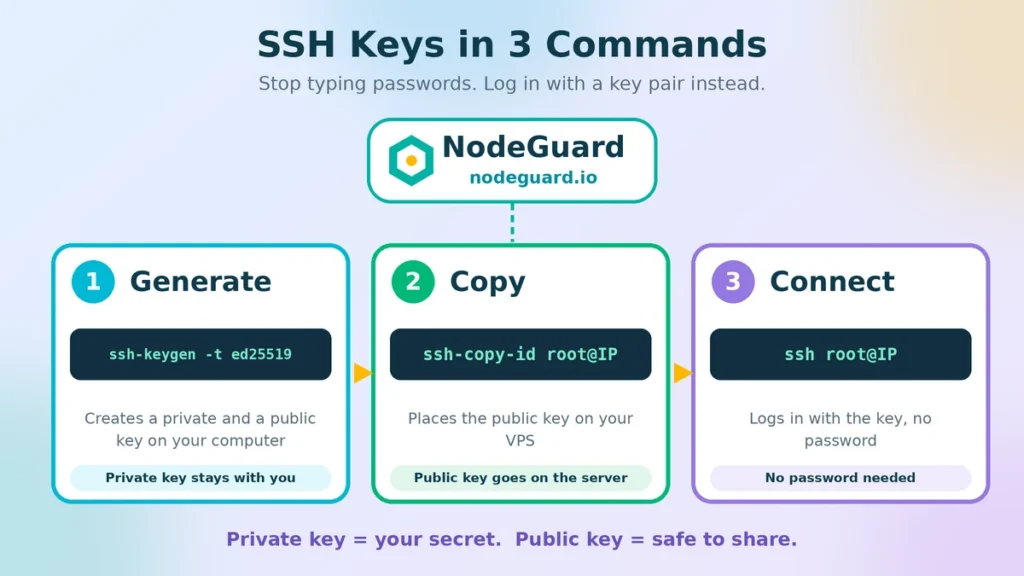
An SSH key is a pair of files:
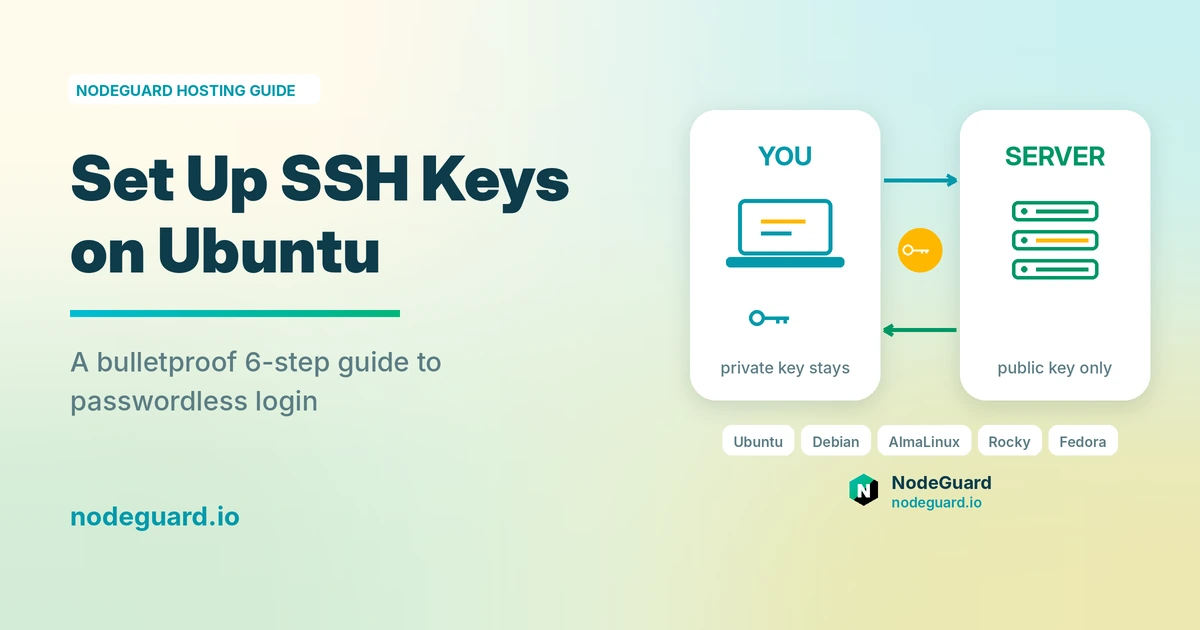
- A private key that stays on your computer and must never be shared.
- A public key that you place on the server. It is safe to share because it can only verify, never unlock.
When you connect, the server challenges your computer to prove it holds the matching private key. The private key never crosses the network.
Generate a pair on your own computer, not on the server. Use the modern Ed25519 algorithm:
ssh-keygen -t ed25519 -C "your-email@example.com"
Press Enter to accept the default file location. When asked for a passphrase, choose one. A passphrase encrypts the private key on disk, so even if someone steals your laptop or copies the file, they cannot use it. The command creates two files in your .ssh folder: id_ed25519 (private) and id_ed25519.pub (public).
Step 5: Copy Your Public Key to the VPS
Now place the public key on your server. On macOS and Linux, the easiest tool is ssh-copy-id:
ssh-copy-id root@203.0.113.10
It asks for your password one last time, then appends your public key to the file ~/.ssh/authorized_keys on the server. That file is the list of keys allowed to log in as that user.
On Windows PowerShell, ssh-copy-id is not always available, so use this one-liner instead:
type $env:USERPROFILE\.ssh\id_ed25519.pub | ssh root@203.0.113.10 "mkdir -p ~/.ssh && cat >> ~/.ssh/authorized_keys"
Now test it by logging out with exit and connecting again:
ssh root@203.0.113.10
This time you should be asked for your key passphrase, if you set one, instead of the server password. If it works, SSH key authentication is active. Do not close your working session yet, though, because there is one more important job to do before you call the setup complete.
Step 6: Save a Shortcut in Your SSH Config File
Typing a username, an IP address and maybe a port number every time gets old fast. The SSH config file lets you give each server a short nickname.
Open or create the file ~/.ssh/config on your computer and add an entry like this:
Host myvps
    HostName 203.0.113.10
    User root
    Port 22
    IdentityFile ~/.ssh/id_ed25519
Save the file. From now on, connecting is as simple as:
ssh myvps
The same shortcut works for scp and rsync, so copying files becomes easier too. If you manage several servers, add one block per server. A clear naming scheme such as web1, db1 and staging keeps things tidy as your infrastructure grows.
A few extra options are worth knowing. ServerAliveInterval 60 sends a small signal every minute so idle connections do not drop. ForwardAgent lets you hop from one server to another with your local key, though you should only enable it for servers you trust.
Step 7: Lock Down SSH After You Connect
Once key login works, you can close the weakest doors. Everything in this step happens on the server, inside your SSH session. First, create a regular user with sudo rights instead of living as root:
adduser deploy
usermod -aG sudo deploy
On AlmaLinux, Rocky Linux and other Red Hat family systems, the group is called wheel instead of sudo. Copy your key to the new user as well, using ssh-copy-id deploy@203.0.113.10 from your computer, and confirm you can log in as that user.
Then open the SSH server configuration:
sudo nano /etc/ssh/sshd_config
Find or add these lines:
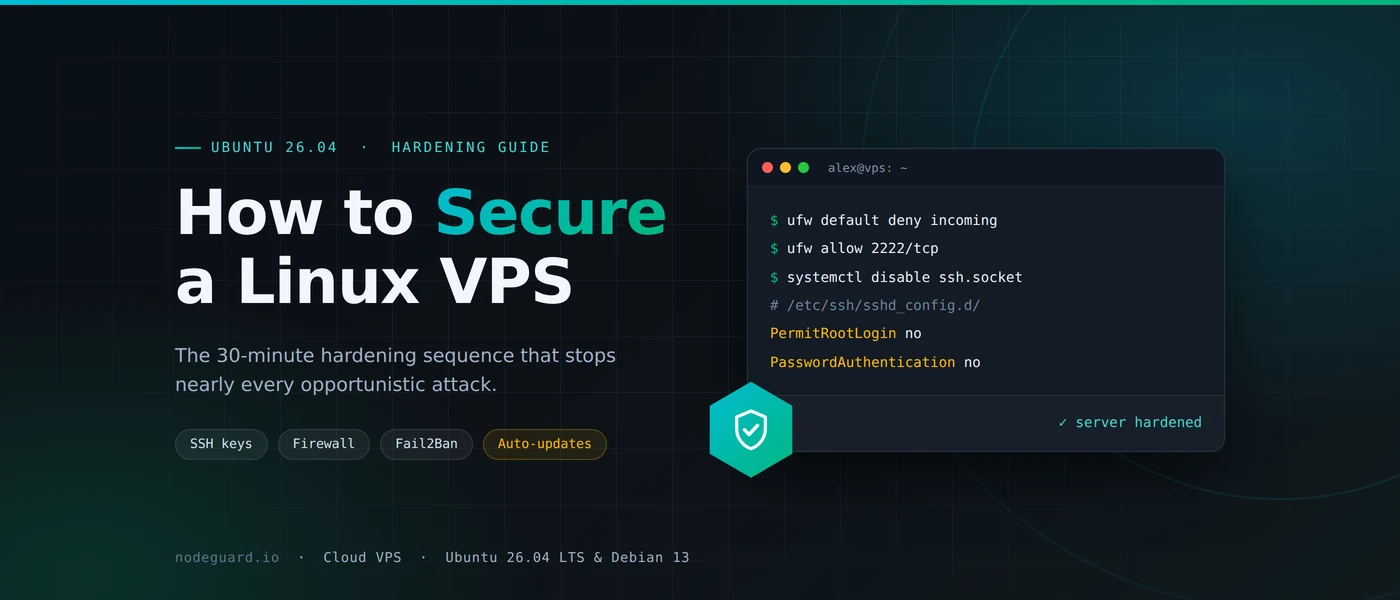
PermitRootLogin no
PasswordAuthentication no
PubkeyAuthentication yes
Save the file and restart the SSH service:
sudo systemctl restart ssh
On some distributions the service is named sshd instead of ssh. Important: before you close your current session, open a second terminal window and confirm you can still log in with your key. If you made a mistake, your first session is your lifeline to fix it.
Two optional upgrades help even more. Installing Fail2Ban bans IP addresses that fail too many logins, and a firewall such as UFW restricts which ports are reachable at all. If you change the SSH port, remember to allow the new port in the firewall before you restart SSH, or you will lock yourself out. For deeper reading on server-side options, the Ubuntu OpenSSH server documentation is an excellent reference.
Common SSH Errors and How to Fix Them
Even experienced admins hit these. Here is what each message really means.
“Connection refused”
The server is reachable, but nothing is listening on that port. The SSH service may be stopped, you may be using the wrong port, or a firewall is rejecting you. Use your provider’s web console to log in and run sudo systemctl status ssh to check the service.
“Connection timed out”
Your packets never reached the server, or no reply came back. Double-check the IP address, make sure the VPS is powered on, and confirm that a firewall, either on the server or at your provider, is not dropping port 22. A corporate or public Wi-Fi network that blocks outgoing SSH can cause this too, so try a different network.
“Permission denied (publickey)”
The server only accepts keys, and yours was not offered or not recognized. Check that you are using the right username, that your public key is in ~/.ssh/authorized_keys, and that permissions are correct. The .ssh folder should be 700 and the authorized_keys file should be 600. Running ssh -v root@203.0.113.10 prints detailed debug output that shows exactly which keys were tried.
“Permission denied, please try again”
This usually means a wrong password or a wrong username. Remember that root login may be disabled on your server, so try your regular sudo user instead.
“WARNING: REMOTE HOST IDENTIFICATION HAS CHANGED”
SSH is warning you that the fingerprint of the server no longer matches the saved one. This is expected if you reinstalled the operating system on the VPS, because a new install creates new host keys. If you did not reinstall anything, stop and investigate before proceeding. When you are sure the change is legitimate, remove the old entry with:
ssh-keygen -R 203.0.113.10
Habits That Make SSH Safer and More Pleasant
Once you can connect to your VPS reliably, a few habits will save you trouble later.
Use a passphrase on every private key. It costs you a few seconds per login, or nothing at all if you use ssh-agent to remember it for the session.
Keep a separate key per device. If a laptop is lost, you remove just that one line from authorized_keys and everything else keeps working.
Run long jobs inside tmux or screen. If your Wi-Fi drops while a software update is running, a plain SSH session can die and take the job with it. Tools like tmux keep the process alive on the server so you can reconnect and pick up where you left off.
Keep your software updated. Run sudo apt update && sudo apt upgrade on Debian and Ubuntu, or sudo dnf upgrade on AlmaLinux and Rocky Linux, regularly. SSH is only as safe as the server it runs on.
Back up your private key. Losing it means you will need your provider’s console to regain access. Store an encrypted copy somewhere safe, but never in a public folder or a shared drive.
Know your options before choosing a server. If you are weighing a VPS against other setups, our comparison of VPS vs dedicated server shows how SSH and root access differ between them.
Frequently Asked Questions
What port does SSH use?
SSH uses TCP port 22 by default. Some admins move it to a different port to cut down on automated scans, but that is a minor tweak and not a replacement for key authentication. If you change it, always use -p or the Port option in your config file.
Can I SSH into a VPS from Windows?
Yes. Windows 10 and 11 include an OpenSSH client, so you can run ssh user@ip from PowerShell. You can also use PuTTY or the terminal that comes with tools such as VS Code. All of these let you connect to a Linux VPS using SSH with the same credentials.
Is it safe to log in as root over SSH?
It is common on new servers, but it is better practice to create a regular user with sudo rights and disable direct root login. Attackers always try the username root first, so removing it eliminates a large share of automated attacks.
What if I lose my SSH private key?
You cannot recover it, but you are not locked out forever. Log in through your hosting provider’s web console or rescue mode, add a new public key to authorized_keys, and carry on. This is exactly why keeping the web console in mind from the start is useful.
What is the difference between SSH and SFTP?
SSH gives you a remote command line. SFTP is a file transfer protocol that runs over the same SSH connection, so the same login and keys work for both. Any SFTP client, such as FileZilla, can use your SSH key to upload and download files.
How to Connect to a Linux VPS Using SSH: Final Thoughts
You now know how to connect to a Linux VPS using SSH from start to finish. You gathered your details, opened a client on Windows, macOS or Linux, accepted the host fingerprint, created an Ed25519 key pair, copied the public key to the server, saved a shortcut in your config file, and locked down password and root logins. That is the same routine professional sysadmins follow on every new server.
The habit that matters most is the one in Step 7: never close your working session until you have tested a second login. Do that, and SSH becomes one of the most reliable tools you own.
Ready to put it into practice? Spin up a server on a NodeGuard Cloud VPS and run through these seven steps yourself. If you ever get stuck, the NodeGuard team at nodeguard.io is happy to help. For the official reference on every option mentioned here, the OpenSSH project site is the place to look.