Put an Ubuntu server on the public internet and the first failed login attempts usually arrive within minutes. Automated bots sweep whole IP ranges, guess passwords for root and common usernames, and hammer SSH around the clock. Most of them never get in, but they never stop trying either, and every attempt eats CPU time, fills your logs and keeps rattling a door you would rather keep quiet.
This guide shows you how to install and configure Fail2Ban on Ubuntu so those attackers are banned automatically after a few failed attempts. You will set up Fail2Ban on Ubuntu 24.04 LTS or 26.04 LTS, protect SSH with a properly tuned Fail2Ban jail, add optional jails for Nginx, Apache and repeat offenders, link everything to UFW, and learn the handful of commands you need to check, ban and unban IP addresses. Each step explains why a setting exists, not just what to type, so you can adapt it to your own server with confidence.
What you will have at the end of this guide:
Fail2Ban installed, enabled and starting automatically on boot
An SSH jail that bans attackers after three failed logins
Longer bans for repeat offenders, with your own IP safely whitelisted
A tested setup you can verify and manage from the command line
Fail2Ban is a free, open-source intrusion prevention tool written in Python. It watches your log files or the systemd journal for patterns that signal abuse, such as repeated failed SSH passwords, and then tells your firewall to block the offending IP address for a set period of time.
It works in three layers that are worth understanding before you touch any Fail2Ban configuration:
Filters are regular expressions that recognise a bad event in a log line, such as “Failed password for root from 203.0.113.7”.
Actions define what happens when an IP crosses the line, typically adding a firewall rule through nftables, iptables or UFW.
Jails tie the two together. A Fail2Ban jail says which filter to watch, which log or journal to read, how many failures are allowed in what time window, and which action to apply.
The logic is simple. If one IP address triggers the filter maxretry times within findtime, it is banned for bantime. When the ban expires, the firewall rule is removed and the address gets a clean slate, unless it starts misbehaving again. The Wikipedia overview of Fail2ban covers the project’s history if you are curious where it came from.
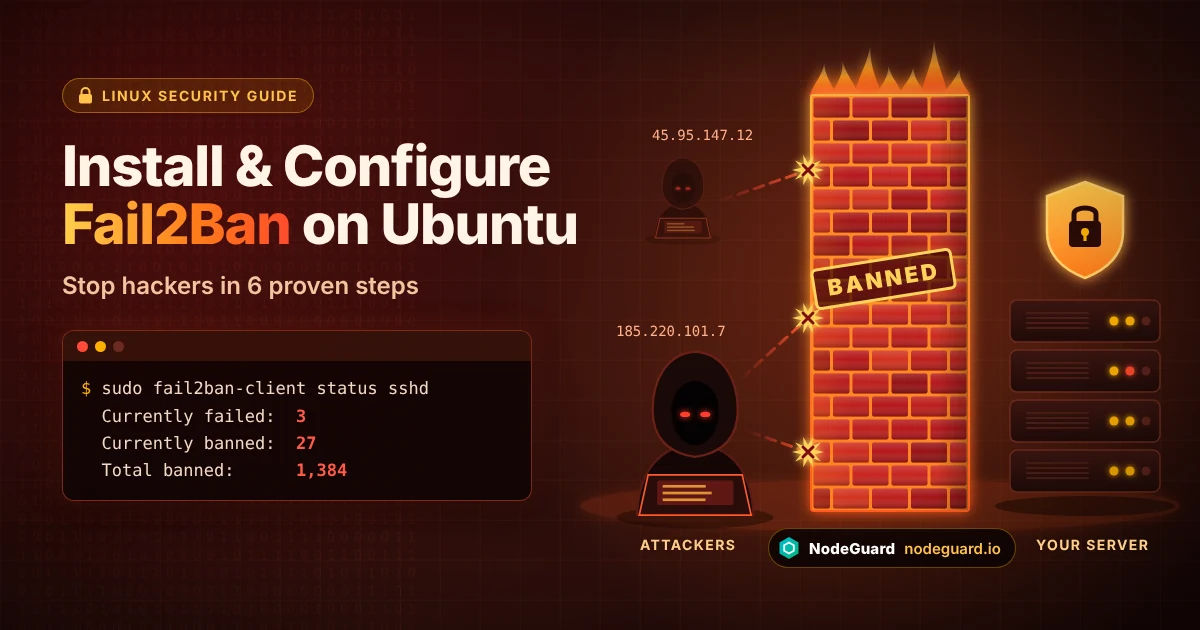
Fail2Ban reads your logs, counts failures per IP, and bans repeat attackers at the firewall.
One important point: Fail2Ban does not replace a firewall or good authentication. It is a reactive layer that sits on top of them, cutting off noisy attackers before they can grind through thousands of guesses.
Why Brute Force Attacks Make Fail2Ban Essential
OWASP describes brute force attacks as systematically trying many passwords or keys until one of them works. On a public server, these attempts are not personal; they are industrial. Botnets cycle through leaked password lists and default credentials against every reachable SSH port, web login form and mail service they can find.
Brute force attacks cause real damage even when they fail:
Resource drain. Thousands of SSH handshakes per hour cost CPU and memory, which matters on a small VPS.
Log noise. Real problems get buried under pages of failed logins, which slows down any incident response.
Eventual success. One weak password on one forgotten account is all an attacker needs. Banning after a few failures turns a million guesses into three.
Credential stuffing on apps. WordPress, phpMyAdmin and control panel logins get exactly the same treatment as SSH.
If you have already disabled password logins and switched to SSH keys, the chance of a successful SSH guess is close to zero. Fail2Ban is still worth running, because it stops the resource drain, cleans up your logs and protects every other service that still accepts passwords. Running Fail2Ban on Ubuntu is one of the cheapest security wins available to any server owner.
Prerequisites Before You Start
You need:
An Ubuntu server running 24.04 LTS or 26.04 LTS (22.04 also works with the same commands). A fresh NodeGuard Cloud VPS is a good starting point.
A user with sudo privileges. If you are still logging in as root, follow our guide on how to set up an Ubuntu VPS first.
Your own public IP address, so you can whitelist it. Run curl -4 ifconfig.me on your local machine to find it.
Access to your provider’s web or VNC console, as a backup in case you ever lock yourself out.
How Fail2Ban Configuration Files Are Organized
The single biggest mistake beginners make is editing the wrong file. Every Fail2Ban configuration file lives under /etc/fail2ban/, and the package ships several files that can be replaced during upgrades:
File or folder
Purpose
Should you edit it?
fail2ban.conf
Daemon settings: log level, log target, database
Rarely
jail.conf
Default values and every bundled jail, mostly disabled
Never
jail.d/defaults-debian.conf
Ubuntu’s own defaults, which enable the SSH jail
No
jail.local
Your personal overrides
Yes
filter.d/
Regex filters for each supported service
Only to add custom filters
action.d/
Firewall and notification actions
Rarely
Fail2Ban reads these files in a fixed order: jail.conf, then anything in jail.d/*.conf, then jail.local, and finally jail.d/*.local. Later files override earlier ones, so a value in jail.local beats the same value in jail.conf. Keeping all of your changes in jail.local means an apt upgrade can never wipe out your Fail2Ban configuration, and you always know exactly where to look when something behaves unexpectedly.
How to Install and Configure Fail2Ban on Ubuntu: Step by Step
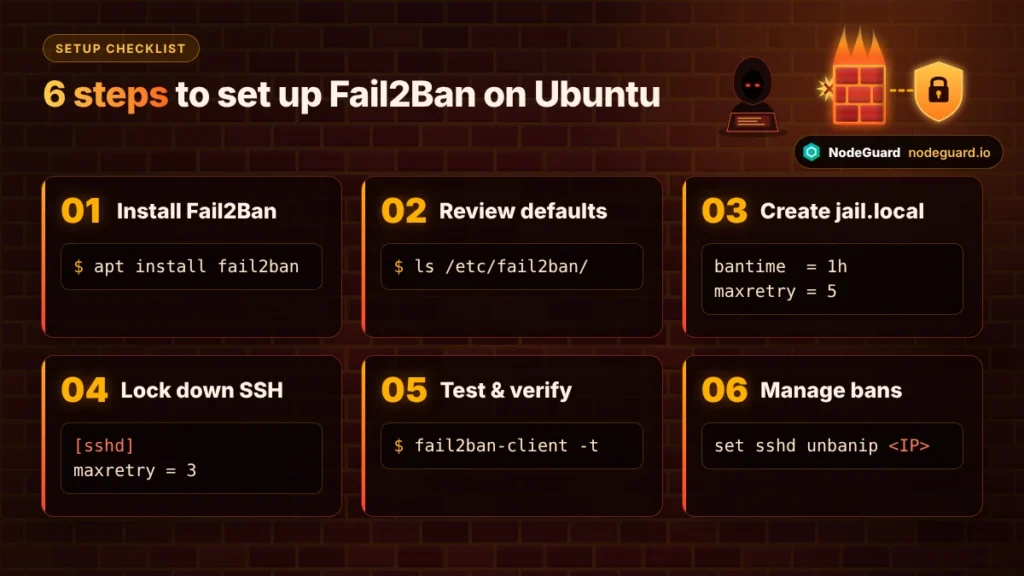
With the theory covered, here is the full process. The six steps take about 15 minutes, and each one builds on the last.
The six steps in this guide, from install to day-to-day ban management.
Step 1: Update Your Server and Install Fail2Ban on Ubuntu
Fail2Ban is in Ubuntu’s official repositories, so there is nothing to download from third-party sites. You can confirm the version available for your release on Ubuntu Packages. Refresh your package lists first, then install:
You should see active (running) in green. Press q to leave the status screen. Ubuntu already enables a basic SSH jail through defaults-debian.conf, so your server is partly protected from this moment, but those defaults are generic. The next steps tune them properly.
Step 2: Back Up and Review the Default Fail2Ban Configuration
Before changing anything, take a quick look at what ships with the package and keep a copy of the original for reference:
sudo cp /etc/fail2ban/jail.conf /root/jail.conf.original
sudo cat /etc/fail2ban/jail.d/defaults-debian.conf
ls /etc/fail2ban/filter.d/
The filter.d listing shows every service Fail2Ban understands out of the box: sshd, nginx-http-auth, apache-auth, postfix, dovecot, recidive and dozens more. You do not need to copy jail.conf to jail.local. Older tutorials recommend that, but it duplicates hundreds of lines and makes upgrades messy. A short jail.local that contains only your changes is cleaner and much easier to audit later.
Step 3: Create jail.local and Set Global Defaults
Open a new, empty file:
sudo nano /etc/fail2ban/jail.local
Paste in the following [DEFAULT] section, replacing 203.0.113.10 with your own public IP address:
[DEFAULT]
# Never ban localhost or your own IP (space-separated, CIDR allowed)
ignoreip = 127.0.0.1/8 ::1 203.0.113.10

# Ban for 1 hour after 5 failures within 10 minutes
bantime  = 1h
findtime = 10m
maxretry = 5

# Repeat offenders get longer bans each time, capped at one week
bantime.increment = true
bantime.maxtime   = 1w
Here is what each setting does:
ignoreip is your safety net. Whitelisted addresses can never be banned, no matter how often you mistype a password. If your home IP changes often, add your office IP or VPN exit address as well.
bantime, findtime and maxretry form the core rule: five failures inside ten minutes earns a one-hour ban.
bantime.increment doubles the ban each time the same IP returns, so a persistent bot goes from one hour to two, four, eight and so on, up to the bantime.maxtime ceiling.
Values in [DEFAULT] apply to every Fail2Ban jail unless a jail overrides them, which is exactly what you will do for SSH next.
Step 4: Configure the SSH Fail2Ban Jail
SSH is the most attacked service on any Linux server, so it deserves stricter rules than the defaults. Add this block to the bottom of the same jail.local file:
backend = systemd tells Fail2Ban to read SSH events from the systemd journal instead of /var/log/auth.log. It works whether or not rsyslog is installed, which avoids the classic “jail starts but never bans” problem on minimal images.
maxretry = 3 is safe for key-based logins, because legitimate users with keys almost never fail three times in a row.
port = ssh means port 22. If you moved SSH to a custom port, put the number here instead, for example port = 2222, otherwise the bans will block the wrong port.
If you want the filter to catch more probing behaviour, such as connections that disconnect before authenticating, add mode = aggressive to the block. Save the file with Ctrl+O, press Enter, then exit with Ctrl+X.
Step 5: Test, Restart and Verify Fail2Ban on Ubuntu
Always test before you restart. A single typo in jail.local can stop the service from starting, which leaves you completely unprotected:
sudo fail2ban-client -t
If it reports that the configuration test is successful, restart the service and confirm the jail is active:
sudo systemctl restart fail2ban
sudo fail2ban-client status
sudo fail2ban-client status sshd
The second command lists every running Fail2Ban jail. The third shows live statistics for SSH: currently failed, total failed, currently banned, and the list of banned IP addresses. On a public server, do not be surprised to see banned addresses within the first hour.
To prove the filter really matches your SSH log lines, run the built-in regex tester against the journal:
Look for a non-zero number on the matched line of the results. For a live test, try logging in with a wrong password three times from a device that is not on your whitelist, such as a phone on mobile data. The fourth attempt should hang or be refused.
Step 6: Manage Bans With fail2ban-client
fail2ban-client is your control panel for day-to-day management. These are the commands you will actually use:
# Show all currently banned IPs across every jail
sudo fail2ban-client banned

# Unban a specific IP from the SSH jail
sudo fail2ban-client set sshd unbanip 198.51.100.23

# Manually ban an IP you have spotted in your logs
sudo fail2ban-client set sshd banip 198.51.100.23

# Reload after editing jail.local (no full restart needed)
sudo fail2ban-client reload

# Watch bans and unbans happen in real time
sudo tail -f /var/log/fail2ban.log
The log file is worth checking every so often. Lines marked Ban and Unban show exactly what Fail2Ban is doing, and a sudden spike in bans is often the first sign that a new botnet has discovered your server.
More Fail2Ban Jail Examples for Web Servers and Repeat Offenders
SSH is only one door. If your server runs a website, a few extra jails close the others. Add any of these to jail.local, then test and reload.
Nginx (password-protected areas and vulnerability scanners):
The backend = auto line matters here. Web servers write to log files rather than the journal, so these jails need to read files, and Ubuntu’s bundled paths already point at /var/log/nginx/ and /var/log/apache2/. The recidive jail is especially powerful: it watches Fail2Ban’s own log, and any IP banned three times in one day by any Fail2Ban jail is blocked from every port for a full week.
For WordPress sites, note that Fail2Ban does not ship a WordPress filter. A plugin such as WP fail2ban writes failed logins to the system log so a jail can pick them up, which is far more effective against brute force attacks than limiting logins inside PHP alone.
Using Fail2Ban With UFW on Ubuntu
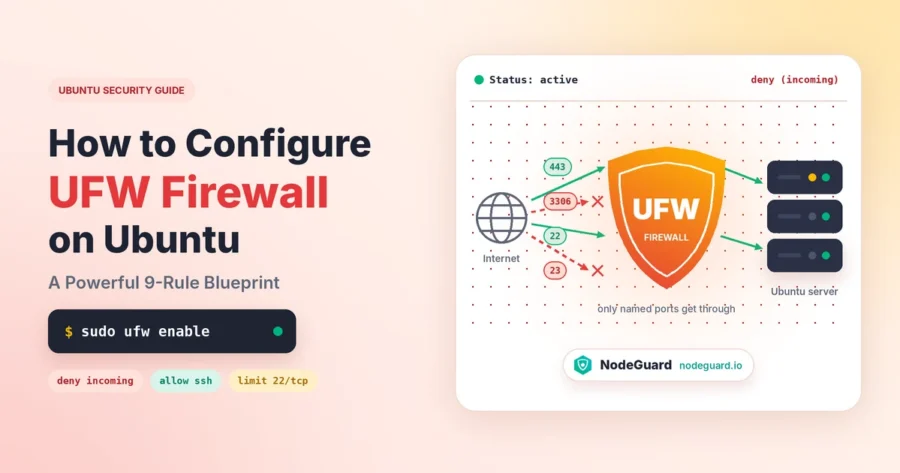
By default, Fail2Ban adds its own firewall rules directly. That works fine, but if you already configure UFW firewall on Ubuntu, you may prefer to see bans inside UFW instead. Fail2Ban ships a UFW action, so switching takes two lines in the [DEFAULT] section of jail.local:
banaction = ufw
banaction_allports = ufw
Reload Fail2Ban, and banned IPs will appear as DENY rules at the top of sudo ufw status numbered. The two tools complement each other perfectly: UFW decides which ports are open at all, and Fail2Ban dynamically blocks whoever abuses the ports you leave open. Make sure UFW is enabled before switching, otherwise the bans have nowhere to go.
Troubleshooting Fail2Ban on Ubuntu
Most problems with Fail2Ban on Ubuntu fall into a few familiar patterns.
You banned yourself. Log in through your provider’s web or VNC console, then run sudo fail2ban-client set sshd unbanip YOUR_IP and add that address to ignoreip so it cannot happen again.
The service will not start. Run sudo fail2ban-client -t to find the exact line with the error, and check sudo journalctl -u fail2ban -n 50 for details. Misspelled option names and missing = signs are the usual culprits.
The jail runs but never bans anyone. This is almost always a backend mismatch. If the jail reads /var/log/auth.log but rsyslog is not installed, that file never updates. Set backend = systemd for SSH, or install rsyslog and use backend = auto with logpath = /var/log/auth.log. Confirm the fix with the fail2ban-regex test from Step 5.
Failed logins appear in the journal but are not matched. Newer OpenSSH releases, including the one in Ubuntu 26.04, log authentication failures from a process called sshd-session rather than sshd. Current Ubuntu packages of Fail2Ban account for this, but an older or manually installed build may not. Run sudo apt install --only-upgrade fail2ban and test again.
Your edits seem to be ignored. You probably changed jail.conf or forgot to reload. Move your settings into jail.local and run sudo fail2ban-client reload.
Docker ports are still exposed. Docker inserts its own firewall chains ahead of the normal input rules, so standard bans never reach published container ports. Add chain = DOCKER-USER to the jails that protect those services.
Fail2Ban Best Practices Checklist
Keep these habits and your setup will stay effective for years:
Use SSH keys and disable password logins. Fail2Ban limits guessing; keys make guessing pointless.
Always whitelist your own IP addresses in ignoreip before you tighten any rule.
Keep every change in jail.local, never in jail.conf, and run fail2ban-client -t before each reload.
Enable the recidive jail so persistent attackers earn week-long bans across every port.
Avoid permanent bans (bantime = -1) unless you have a process to review them. Attacker IPs get recycled, and today’s botnet node could be a legitimate visitor next month.
Combine Fail2Ban with a default-deny firewall so only the ports you actually need are reachable.
Review /var/log/fail2ban.log regularly and keep the package updated as part of your normal apt upgrade routine.
Frequently Asked Questions
Do I still need Fail2Ban if I use SSH keys?
Yes. Keys stop passwords from being guessed, but bots will still connect thousands of times a day. Fail2Ban cuts that noise, saves resources and protects the other services that still rely on passwords, such as web logins and mail.
Does Fail2Ban work on Ubuntu 24.04 and 26.04?
Yes. Both LTS releases include Fail2Ban in their official repositories, and every command in this guide works on both. Using backend = systemd for the SSH jail keeps it reliable on either version.
How do I unban an IP address in Fail2Ban?
Run sudo fail2ban-client set JAILNAME unbanip IP_ADDRESS, for example sudo fail2ban-client set sshd unbanip 198.51.100.23. To clear every ban at once, use sudo fail2ban-client unban --all.
Will Fail2Ban slow down my server?
No. Fail2Ban uses very little memory and CPU, and it usually makes a server faster under attack, because banned IPs are dropped at the firewall before they ever reach SSH or your web server. Blocking brute force attacks early is far cheaper than processing them.
Should I edit jail.conf or jail.local?
Always jail.local. Package updates can overwrite jail.conf, while jail.local belongs to you and is read after the defaults, so its values always win.
Final Thoughts
You now know how to install and configure Fail2Ban on Ubuntu from scratch. You installed the package, learned how the Fail2Ban configuration files fit together, created a clean jail.local, tuned an SSH Fail2Ban jail, verified that it matches real log lines, and picked up the commands to manage bans day to day. Add the web and recidive jails, link everything to UFW, and your server will shrug off brute force attacks while you focus on running your projects.
Security works best in layers, and it works even better on infrastructure you control. A NodeGuard Cloud VPS gives you a clean Ubuntu 24.04 or 26.04 server with full root access, ready for Fail2Ban, UFW and your applications to run side by side. Spin one up, follow this guide, and lock the door before the bots arrive.
The NodeGuard Editorial Team creates practical, informative, and easy-to-follow guides on VPS hosting, Linux, server administration, cybersecurity, web hosting, and cloud infrastructure. Our goal is to help developers, businesses, and technology enthusiasts make informed decisions, improve their technical knowledge, and manage their online infrastructure with confidence.
Through tutorials, explainers, and in-depth guides, we make complex technical topics accessible to everyone.