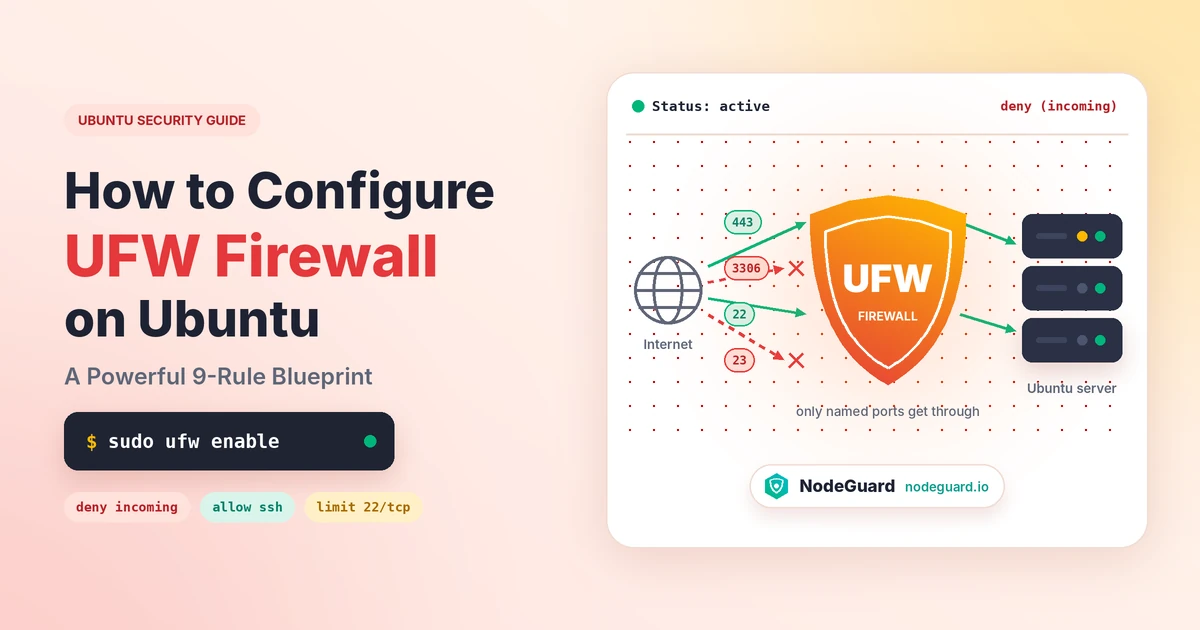
Learning how to configure UFW firewall on Ubuntu is the single highest-return hour you will ever spend on a new server. A fresh cloud instance is reachable from every IP address on the planet within seconds of booting, and automated scanners find it long before you finish your first coffee. The UFW firewall is the tool Ubuntu ships specifically to close that window — and it is genuinely uncomplicated once you understand the handful of rules that actually matter.
This guide walks through nine rules that take a bare Ubuntu server from wide open to properly locked down. Follow them in order and you will end up with a UFW firewall that denies everything by default, permits exactly the traffic your applications need, survives reboots, and — critically — never locks you out of your own machine.
What Is UFW and Why It Is the Default Ubuntu Firewall
UFW stands for Uncomplicated Firewall, and the name is an accurate description of its job. Every Linux firewall ultimately runs on Netfilter, the packet-filtering subsystem built into the kernel. Netfilter is powerful and completely unforgiving: writing raw rules by hand means memorising chains, tables, match extensions and jump targets, and a single typo can silently drop every packet on the box.
UFW is a front end that translates human-readable commands into those low-level rules for you. When you type sudo ufw allow 443/tcp, UFW writes the kernel entries, orders them correctly, applies them to both IPv4 and IPv6, and makes the change persistent across reboots. That is why Canonical made it the default Ubuntu firewall tool.
UFW is not a different firewall — it is the same kernel engine with a sane interface on top. UFW rules are real kernel rules: no proxy, no userspace daemon inspecting packets, and no measurable throughput penalty.
UFW, iptables and nftables: how they relate
Modern Ubuntu uses the nftables backend underneath the familiar iptables command, and UFW sits above that stack. In practice: don’t run UFW alongside another manager such as firewalld, because two tools fighting over one rule set produces results nobody can debug; and rules you add directly with iptables outside UFW are usually wiped the next time UFW reloads.
One caveat before we start: a UFW firewall is one layer, not a complete security posture. It controls which ports accept connections. It does not patch your software or stop an attack that arrives through a legitimately open port 443. Treat it as the floor you build on, not the ceiling.
Before You Configure the UFW Firewall: A 4-Point Pre-Flight Check
Every lockout story starts with someone skipping this section. Four minutes here saves a support ticket and a console session later.
1. Confirm how you connect. Know your SSH port before you touch anything. If you have moved SSH away from 22 — a sensible hardening step covered in our guide to set up an Ubuntu VPS — you must allow that custom port, not the default. Check with sudo ss -tlnp | grep sshd and write the number down.
2. Know your out-of-band access. Every decent provider offers a web or serial console that works independently of SSH. Find yours and verify you can log in. If a UFW firewall rule goes wrong, the console is how you fix it without a reinstall.
3. Inventory your listening services. Run sudo ss -tulnp. Anything bound to 0.0.0.0 or [::] is reachable from outside and needs an explicit allow rule or — better — rebinding to localhost. Services on 127.0.0.1 need no UFW rules at all.
4. Check for a competing firewall. Reused images sometimes ship firewalld or custom iptables scripts. Check with systemctl status firewalld and remove anything that conflicts before enabling the UFW firewall. A provider-level network firewall, on the other hand, complements the Ubuntu firewall rather than replacing it — run both.
How to Configure UFW Firewall on Ubuntu: The 9 Rules at a Glance
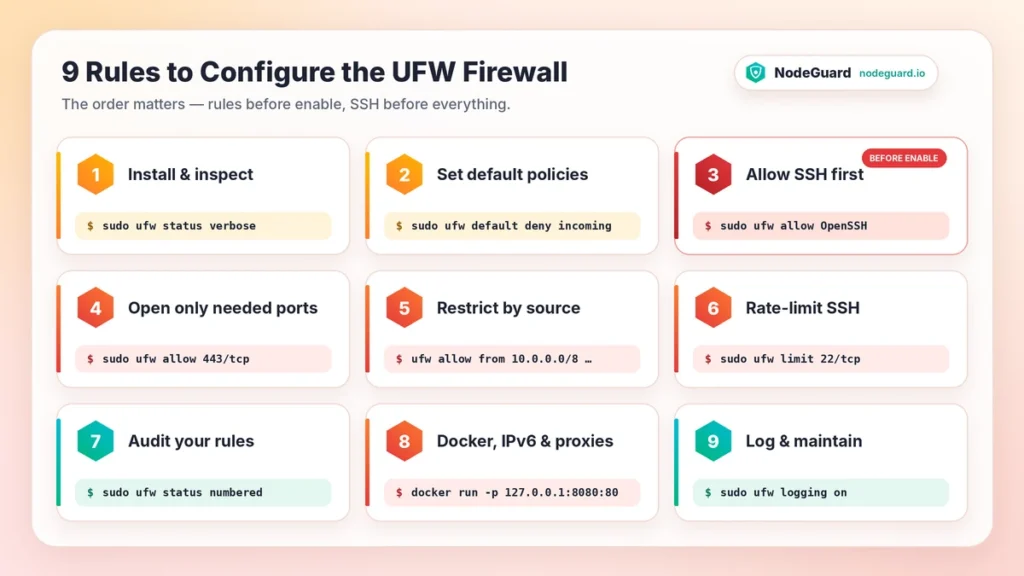
Here is the full sequence before we go deep on each one. If you already know UFW and just want the order of operations, this list is your guide.
- Install the UFW firewall and inspect its starting state
- Set default policies before enabling anything
- Allow SSH first, every single time
- Open only the ports your services actually need
- Write tighter UFW rules with sources, subnets and interfaces
- Rate-limit SSH and other brute-forced ports
- Read UFW status like an auditor
- Handle Docker, IPv6 and Cloudflare before they bite
- Log, monitor and mantain the Ubuntu firewall
Rule 1 — Install and Inspect the UFW Firewall
UFW ships with Ubuntu Server and Ubuntu Desktop, so installation is usually a formality. Confirm it anyway, because minimal and container-derived images sometimes strip it out.
sudo apt update
sudo apt install ufw -y
Now look at what you are starting from:
sudo ufw status verbose
On a fresh system the UFW status reads Status: inactive. Inactive does not mean “safe with no rules” — it means the UFW firewall is not filtering anything, and every listening service is exposed to the internet.
Do not enable it yet. Enabling with no rules is exactly how people lock themselves out, because the default incoming policy is deny and SSH is not yet permitted. Rules first, enable last — that ordering is the backbone of this blueprint.
While you are here, list the application profiles UFW knows about with sudo ufw app list. Packages like OpenSSH and Nginx register named profiles, and sudo ufw app info "Nginx Full" shows exactly which ports a profile opens. Check before you trust one.
Rule 2 — Set Default Policies Before You Enable Anything
Default policies are the rules that apply when no specific rule matches. They are the foundation of the whole UFW firewall, and there is one correct starting configuration for a server:
sudo ufw default deny incoming
sudo ufw default allow outgoing
Deny incoming means nothing reaches your server unless you explicitly permit it. This default-deny posture is the only sane choice for an internet-facing machine; the alternative — allow everything, then block known-bad things — requires predicting every threat in advance.
Allow outgoing means your server can still run apt updates, DNS lookups and API calls. Locking down outbound traffic is a legitimate advanced technique, but it breaks things constantly and belongs in a hardened environment with a documented dependency list.
A third policy, sudo ufw default deny routed, blocks traffic forwarded between interfaces. On a normal web server nothing should be routed, so it’s a free improvement — VPN gateways and Docker hosts are the exception (see Rule 8).
Setting default policies does not activate the UFW firewall; it only records what happens once it is active, so you can set them safely before enabling.
Rule 3 — Allow SSH First, Every Single Time
This is the rule that saves your weekend. Before you enable the firewall, allow the port you are currently connected on.
If SSH runs on the default port:
sudo ufw allow OpenSSH
Or, equivalently and more explicitly:
sudo ufw allow 22/tcp
If you moved SSH to a custom port, allow that instead and give it a label so future-you understands the rule:
sudo ufw allow 2222/tcp comment 'SSH custom port'
Comments matter: six months from now, 2222/tcp ALLOW IN Anywhere # SSH custom port tells you everything, while uncommented UFW rules never get cleaned up.
Now — and only now — switch the UFW firewall on:
sudo ufw enable
UFW warns that this may disrupt existing SSH connections. Because you allowed SSH first, it will not. Then open a second terminal and start a new SSH session. Your existing session survives through connection tracking even if the rules are wrong, so it proves nothing. Only a brand-new connection is a real test. If it fails, your first session is still open: run sudo ufw disable, fix the rule, try again.
Once SSH works, harden it with key-based authentication — our guide on how to set up SSH keys on Ubuntu pairs naturally with this, because a UFW firewall that permits port 22 is only as strong as what listens on it.
Rule 4 — Open Only the Ports Your Services Actually Need
With SSH secured, open what your workload genuinely requires — and nothing else. Every open port is a surface an attacker can probe.
A standard web server needs HTTP and HTTPS:
sudo ufw allow 80/tcp comment 'HTTP'
sudo ufw allow 443/tcp comment 'HTTPS'
Port 80 is still worth opening even on an HTTPS-only site, because Let’s Encrypt HTTP-01 validation uses it and most sites redirect 80 to 443 anyway.
Other common patterns:
sudo ufw allow 25/tcp comment 'SMTP'
sudo ufw allow 587/tcp comment 'Submission'
sudo ufw allow 993/tcp comment 'IMAPS'
sudo ufw allow 53 comment 'DNS'
sudo ufw allow 51820/udp comment 'WireGuard VPN'
sudo ufw allow 53 without a protocol opens both TCP and UDP, which DNS needs. For almost everything else, name the protocol. Port ranges use a colon and require one: sudo ufw allow 60000:60010/udp.
Ports that should almost never face the world: 3306 (MySQL), 5432 (PostgreSQL), 6379 (Redis), 27017 (MongoDB) and 9200 (Elasticsearch). If the database lives on the same server as the app, bind it to 127.0.0.1 and it needs no UFW rules at all. If it lives elsewhere, Rule 5 shows how to open it to one host only. Exposed databases remain one of the most common causes of real-world data loss.
Rule 5 — Write Tighter UFW Rules with Sources, Subnets and Interfaces
Basic allow rules open a port to everyone. The real power of UFW rules is restricting who can reach them, using the from and to syntax.
Allow a single trusted IP address to reach your database:
sudo ufw allow from 203.0.113.45 to any port 5432 proto tcp comment 'App server to Postgres'
Allow an entire private subnet — typical for a provider’s internal network:
sudo ufw allow from 10.0.0.0/8 to any port 3306 proto tcp comment 'Private network to MySQL'
Restrict SSH to your office or home IP, which eliminates essentially all brute-force noise:
sudo ufw allow from 198.51.100.22 to any port 22 proto tcp comment 'Office SSH'
Be careful with that last one on a dynamic home IP — if your address changes, you are off to the provider console. Keep a jump-host rule as backup, or rely on rate limiting (Rule 6) instead.
You can also scope UFW rules to one network interface, useful on servers with public and private NICs:
sudo ufw allow in on ens4 to any port 6379 proto tcp comment 'Redis on private NIC only'
deny silently drops traffic and gives a scanner nothing. reject sends an explicit refusal, which is friendlier on internal networks:
sudo ufw deny from 192.0.2.0/24 comment 'Abusive range'
sudo ufw reject from 10.0.5.0/24 to any port 8080 comment 'Deprecated internal client'
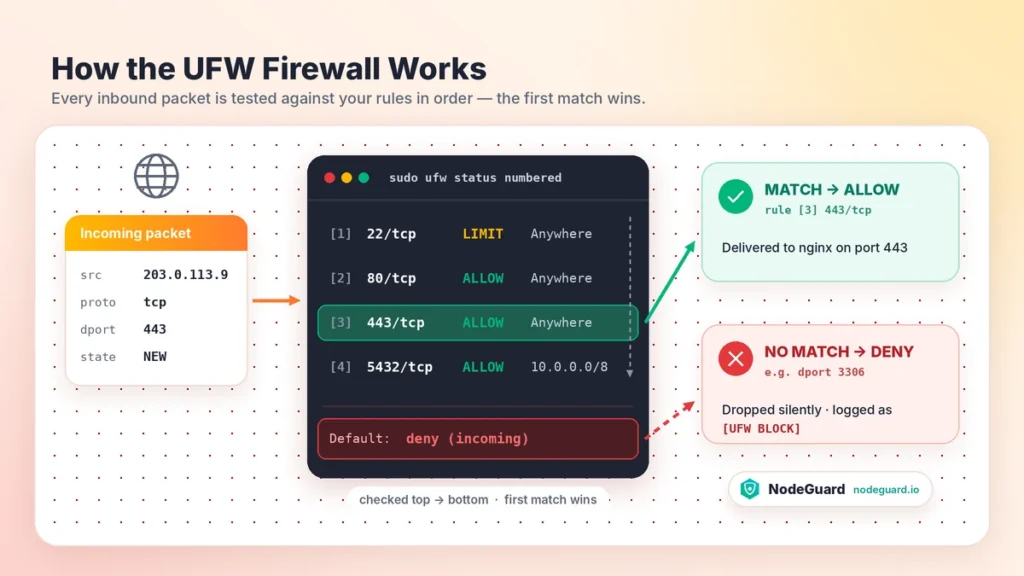
Order matters: UFW rules are evaluated top to bottom and the first match wins, so a broad allow above a narrow deny makes the deny pointless. Insert by position to fix that:
sudo ufw insert 1 deny from 192.0.2.66 comment 'Blocked scanner'
Rule 6 — Rate-Limit SSH and Other Brute-Forced Ports
UFW has a built-in brute-force defence that almost nobody uses, and it is one line:
sudo ufw limit 22/tcp comment 'SSH rate limited'
The limit verb denies a source IP that has attempted six or more connections to that port within thirty seconds. Legitimate users never trip it. Automated password-guessing bots trip it constantly, and once tripped they are dropped rather than being allowed to keep trying.
If you already created a plain allow rule for SSH, replace it rather than stacking a second rule on top:
sudo ufw delete allow 22/tcp
sudo ufw limit 22/tcp comment 'SSH rate limited'
Rate limiting works on any TCP port, so it is equally useful in front of an admin panel. It is not a substitute for Fail2Ban, which bans on failed-login patterns from application logs — run both. One caveat: limits track source IPs, so many users behind one office NAT can collectively trip them. Allow that range explicitly above the limit rule.
Rule 7 — Read UFW Status Like an Auditor
Checking UFW status is not a one-time formality. It is how you verify the UFW firewall does what you think it does.
sudo ufw status verbose
sudo ufw status numbered
The verbose UFW status shows active state, logging level, default policies and every rule. Read the policy line first — deny (incoming), allow (outgoing), deny (routed) is the target — then ask whether you can still justify each rule. The numbered UFW status is what you use for editing and for auditing a server you inherited. Rules with Anywhere as the source are open to the whole internet: fine for 80 and 443, suspicious for anything else. A (v6) twin of every rule is normal — that is the IPv6 copy.
Finally, verify from the outside. An Ubuntu firewall that looks correct locally but behaves differently from the internet is one you don’t understand. From another machine:
nmap -Pn -p 22,80,443,3306 your-server-ip
Opened ports should report open; everything else filtered — exactly what a default-deny UFW firewall should produce. If a port you never opened reports open, something is bypassing your UFW rules, which brings us to Rule 8.
Rule 8 — Handle Docker, IPv6 and Cloudflare Before They Bite
Three situations routinely break an otherwise correct UFW firewall. Knowing about them in advance is far cheaper than discovering them in production.
Docker bypasses your UFW rules
This surprises almost everyone. When you publish a container port with -p 8080:80, Docker writes its own kernel rules that are evaluated before UFW’s. Your default-deny policy is never consulted, and the container is exposed even though the UFW status shows no rule permitting it.
The clean fix is to bind published ports to localhost and put a reverse proxy in front:
docker run -p 127.0.0.1:8080:80 my-image
In a Compose file, the same thing looks like this:
ports:
  - "127.0.0.1:8080:80"
The container is now reachable only from the host, and the UFW firewall is back in control of what the outside world can touch.
IPv6 is on by default and often forgotten
UFW manages IPv6 automatically when IPV6=yes is set in /etc/default/ufw, which is the default — confirm with grep IPV6 /etc/default/ufw. The failure mode to avoid is disabling IPv6 in UFW while it stays enabled on the network interface: a server filtered on IPv4 and wide open on IPv6.
Cloudflare and other proxies change what you are filtering
Behind Cloudflare, all legitimate web traffic arrives from the proxy’s ranges, so you can allow 80 and 443 only from those ranges and stop attackers hitting your origin directly. Automate the range updates, and remember that blocking a proxied visitor in the Ubuntu firewall blocks the proxy, not them — those bans belong at the edge.
Managing UFW Rules After the Firewall Is Live
Services change and stale UFW rules quietly accumulate. Delete by number — the safest method, because you see what you are removing:
sudo ufw status numbered
sudo ufw delete 4
Deleting renumbers everything below, so re-check the numbered UFW status between deletions. You can also delete by matching the rule, as in sudo ufw delete allow 8080/tcp. There is no in-place edit: delete and re-add. Rules persist across disable/enable and reboots, sudo ufw reload applies edits to config files, and sudo ufw reset wipes everything — never run it over SSH without console access ready.
Back up before significant changes:
sudo tar -czf ~/ufw-backup-$(date +%F).tar.gz /etc/ufw /etc/default/ufw
Better still, keep your UFW rules in a provisioning script. A UFW firewall you can rebuild from version control is one you can reason about.
Rule 9 — Log, Monitor and Maintain the Ubuntu Firewall
A UFW firewall nobody watches tells you nothing when something goes wrong. Enable logging:
sudo ufw logging on
The default low level records blocked packets and suits most servers. medium helps while debugging. high and full will fill a small disk fast — short diagnostic windows only.
Entries land in the system log:
sudo grep UFW /var/log/syslog | tail -50
sudo journalctl -k | grep -i ufw | tail -50
A [UFW BLOCK] entry means the Ubuntu firewall dropped a packet. A steady stream against random ports is normal background scanning — proof the configuration works. Worry about sudden spikes from one source, or blocks against a port your own app needs, which usually means missing UFW rules rather than an attack.
Maintenance is the part everyone skips. Quarterly, review the numbered UFW status and delete anything you cannot justify in one sentence. Firewalls decay through accumulation, not attack: a twenty-rule UFW firewall you understand beats a sixty-rule one you inherited.
The UFW firewall only protects the host it runs on; patching, SSH keys and unprivileged service users matter just as much. If you are starting fresh, NodeGuard’s Cloud VPS plans ship Ubuntu images with UFW ready to configure from first boot.
5 Mistakes That Will Lock You Out of Your Server
- Enabling before allowing SSH — the connection drops the moment the UFW firewall activates.
- Trusting your open session as proof — only a freshly opened SSH session tests the rules.
- Allowing 22 after moving SSH to 2222 — confirm the real port with
ss -tlnpfirst. - Restricting SSH to a dynamic IP — without a backup path, an ISP change locks you out.
- Assuming Docker respects your UFW rules — published container ports bypass them entirely.
UFW Firewall Command Cheat Sheet
| Task | Command |
|---|---|
| Check state and rules | sudo ufw status verbose |
| Numbered rules for editing | sudo ufw status numbered |
| Default deny inbound | sudo ufw default deny incoming |
| Default allow outbound | sudo ufw default allow outgoing |
| Allow SSH by profile | sudo ufw allow OpenSSH |
| Allow a TCP port | sudo ufw allow 443/tcp |
| Allow a port range | sudo ufw allow 60000:60010/udp |
| Allow from one IP | sudo ufw allow from 203.0.113.45 to any port 5432 proto tcp |
| Allow from a subnet | sudo ufw allow from 10.0.0.0/8 to any port 3306 proto tcp |
| Allow on one interface | sudo ufw allow in on ens4 to any port 6379 proto tcp |
| Rate-limit a port | sudo ufw limit 22/tcp |
| Silently drop a source | sudo ufw deny from 192.0.2.0/24 |
| Insert at a position | sudo ufw insert 1 deny from 192.0.2.66 |
| Delete by number | sudo ufw delete 4 |
| List app profiles | sudo ufw app list |
| Enable / disable | sudo ufw enable / sudo ufw disable |
| Reload after file edits | sudo ufw reload |
| Wipe everything | sudo ufw reset |
| Turn on logging | sudo ufw logging on |
Frequently Asked Questions About the UFW Firewall
Is UFW enabled by default on Ubuntu?
No. UFW is installed but starts inactive, so nothing is filtered until you run sudo ufw enable. A UFW status of Status: inactive on a new server is the normal starting point.
Do UFW rules survive a reboot?
Yes. UFW rules are stored in /etc/ufw/ and reapplied at boot once the UFW firewall is enabled. No startup script needed.
Should I use UFW or iptables directly?
Use UFW unless you have a specific reason not to. Both write kernel rules through the same subsystem, so performance is identical; the difference is readability and error rate. The Ubuntu firewall front end wins for everything except complex routing or programmatically generated rule sets.
Does the UFW firewall slow down my server?
Not measurably. A few dozen UFW rules add overhead too small to detect. Only high or full logging causes noticeable disk I/O.
Why does ufw status show every rule twice?
Those are the IPv4 and IPv6 copies. Entries marked (v6) are expected, not duplication to clean up.
I locked myself out. What now?
Log in through your provider’s web or serial console, run sudo ufw disable, correct the rule and re-enable. That is why verifying console access is part of the pre-flight check.
Does UFW protect against DDoS attacks?
Only marginally. A volumetric attack saturates your link before packets reach the Ubuntu firewall, so that protection has to happen upstream at your provider or CDN.
Final Thoughts
Knowing how to configure UFW firewall on Ubuntu comes down to a short, repeatable discipline: deny by default, allow SSH before you enable, open only what you can justify, restrict by source, rate-limit what gets attacked, and review your UFW rules often enough to remember why they exist.
The whole setup takes about ten minutes. Do it on your next server before you install anything else, verify it from the outside with a port scan, and schedule a quarterly audit. A UFW firewall you review regularly is worth more than a perfect one you configure once and forget.
Further reading: the official Ubuntu Server firewall documentation, the ufw man page, the Ubuntu community UFW guide, Docker’s notes on packet filtering and firewalls, and the CIS Benchmarks for Ubuntu Linux for a formal hardening baseline.