A fresh server feels great for about five minutes. Then you realise it is already on the public internet, and automated bots are knocking on port 22 before you have finished your coffee. That is why knowing how to set up an Ubuntu VPS properly matters more than whichever app you plan to install first. The steps below take roughly 30 to 45 minutes, work on any recent Ubuntu LTS release (including 24.04 and 26.04), and leave you with a server that is patched, locked down and ready for real workloads.
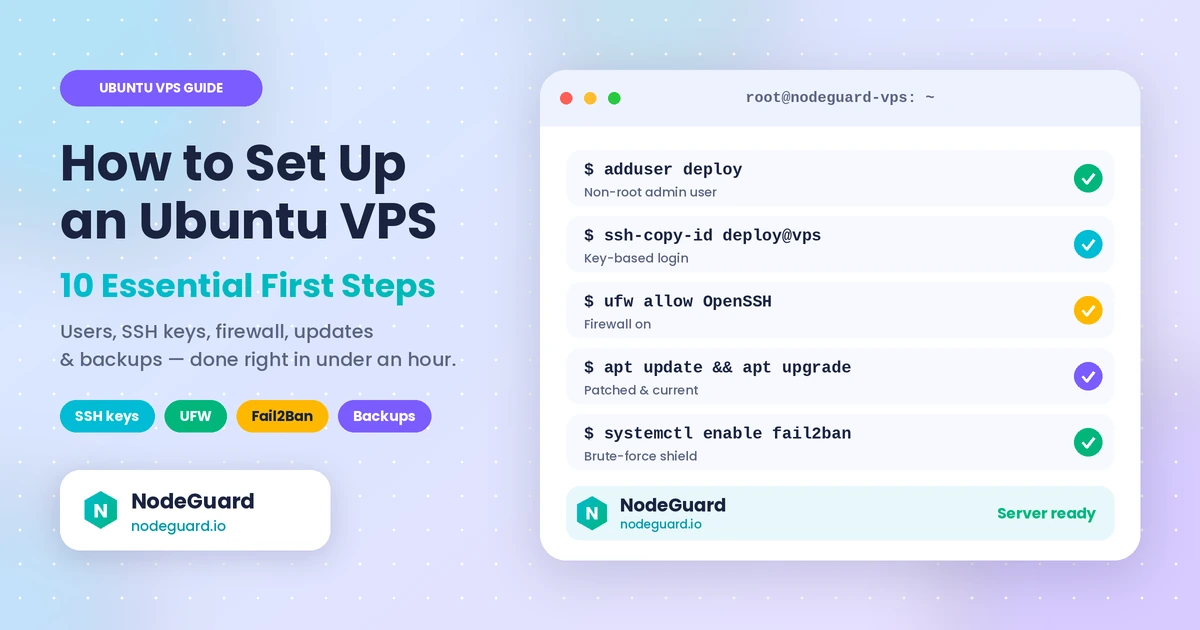
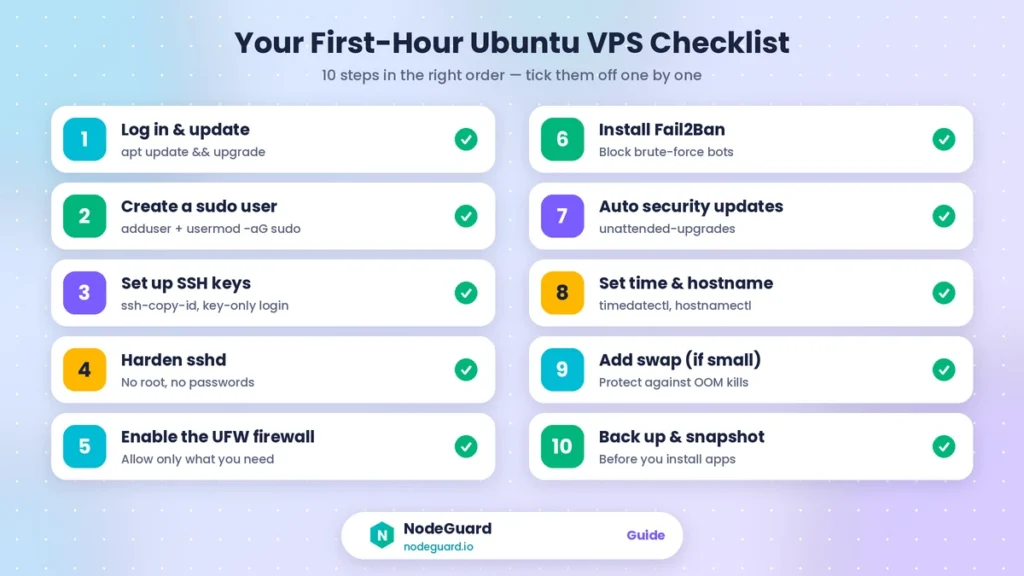
If you want a clear answer to how to set up an Ubuntu VPS without missing anything, here are the ten things to do first, in the order that keeps you safest: update the system, create a non-root user, switch to SSH keys, harden SSH, turn on a firewall, block brute-force attempts, automate security patches, fix time and hostname, add swap, and take a backup. Copy the commands, but read the reasons too. Understanding why each step exists is what makes a secure Ubuntu server far easier to maintain six months from now.
How to Set Up an Ubuntu VPS: What You Need First
You need four things: a VPS running an Ubuntu LTS release, the server’s IP address, the initial login details from your provider, and an SSH client (the built-in terminal on Linux and macOS, or Windows Terminal and PowerShell on Windows). Keep a second terminal window handy as well. You will use it as a safety net in step 4.
If you have not chosen a server yet, NodeGuard’s Cloud VPS plans let you pick Ubuntu 24.04 or 26.04 when you deploy. And if you are still unsure whether a VPS is the right type of hosting for your project, our guide to VPS vs shared hosting explains the trade-offs in plain language.
One convention used throughout: replace YOUR_SERVER_IP with your server’s address and deploy with the username you prefer.
1. Log In and Update the System
The first stage of how to set up an Ubuntu VPS is simply getting in. Connect to the server as root using the credentials your provider gave you:
ssh root@YOUR_SERVER_IP
Before anything else, bring every package up to date. The image your VPS was built from may be weeks or months old, which means it can already be missing security fixes.
apt update && apt upgrade -y
When the upgrade finishes, check whether the system is asking for a restart:
[ -f /var/run/reboot-required ] && echo "Reboot needed"
If it says a reboot is needed (usually after a kernel update), run reboot, wait a minute, and log back in. Doing this now is far less painful than doing it later with a live website on the machine.
2. Create a Non-Root Sudo User
The next part of how to set up an Ubuntu VPS safely is to stop using root. Working as root all day is risky. One mistyped command, such as a stray rm -rf in the wrong directory, has no safety net. A normal user with sudo rights gives you the same power but forces a deliberate step before anything destructive happens, and it leaves an audit trail in the logs.
adduser deploy
usermod -aG sudo deploy
Pick a strong password when prompted, even though you will soon disable password logins entirely. That password is still what sudo asks for. Open your second terminal window and confirm the new account works:
ssh deploy@YOUR_SERVER_IP
sudo whoami
If the second command prints root, the account is set up correctly.
3. Set Up SSH Key Authentication
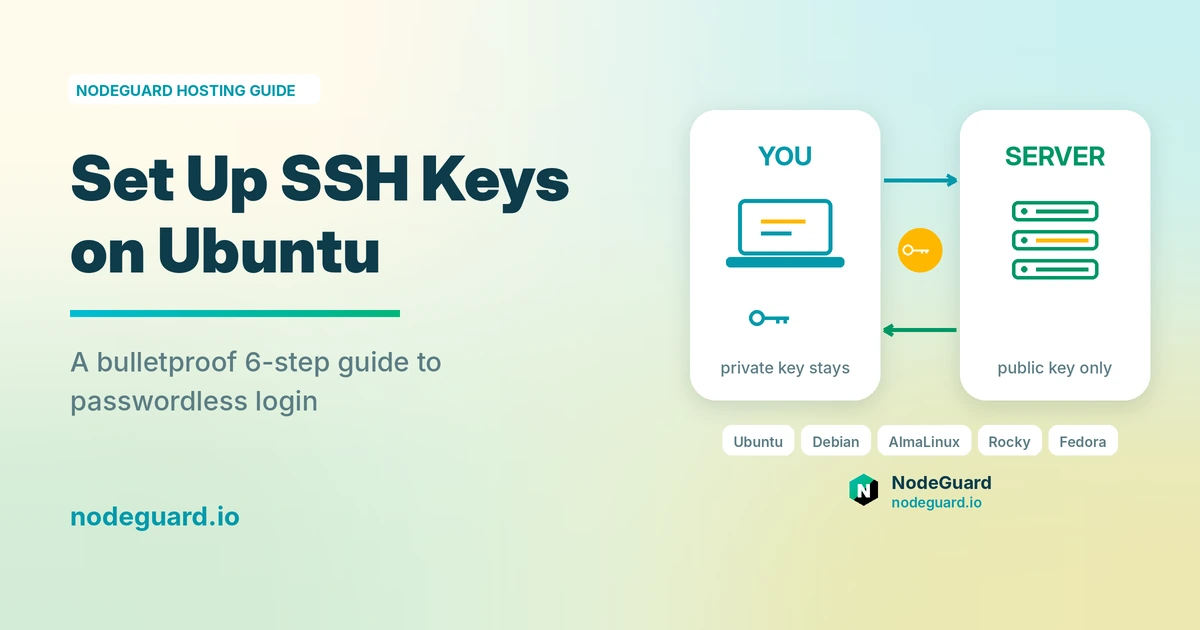
Passwords can be guessed, reused or leaked. An SSH key pair cannot be guessed in any practical sense: it consists of a private key that stays on your computer and a public key that lives on the server. On your local machine (not the server), generate a modern Ed25519 key:
ssh-keygen -t ed25519 -C "you@yourlaptop"
Give the key a passphrase. If someone ever steals your laptop, the passphrase is the last line of defence for the private key. Then copy the public key to your new user:
ssh-copy-id deploy@YOUR_SERVER_IP
Now log in again with ssh deploy@YOUR_SERVER_IP. You should be let in using the key (you may be asked for the key passphrase, not the account password). Do not move on until this works, because the next step depends on it.
4. Harden SSH: Disable Root and Password Login
If you only remember one thing about how to set up an Ubuntu VPS, make it this: it is the single most valuable change in any Ubuntu server initial setup. Once only keys are accepted, the endless password-guessing attempts you will see in your logs become harmless noise.
Create a small drop-in file rather than editing the main config. The 00- prefix matters: OpenSSH uses the first value it reads for each setting, and some provider images ship a file that re-enables password login.
sudo nano /etc/ssh/sshd_config.d/00-hardening.conf
Add these lines:
PermitRootLogin no
PasswordAuthentication no
KbdInteractiveAuthentication no
PubkeyAuthentication yes
MaxAuthTries 3
Think of this as the harden SSH Ubuntu step: five lines that remove most of the risk.
Always validate the syntax before applying it:
sudo sshd -t
sudo systemctl reload ssh
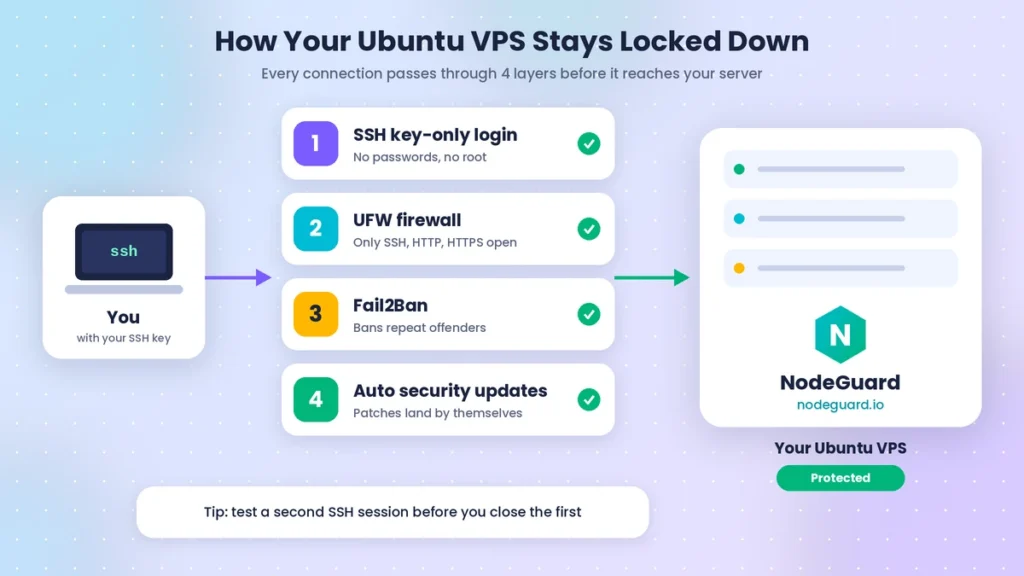
Now the safety net. Do not close your current session. Open a brand-new terminal and try ssh deploy@YOUR_SERVER_IP. If it works, you are done. If it fails, your existing session is still open and you can fix the file. This one habit prevents most self-inflicted lockouts. For every available option, the OpenSSH manual is the authoritative reference.
Some guides also suggest changing the SSH port. It reduces log noise slightly but is not real security, so we leave it out of the ten.
5. Enable the UFW Firewall
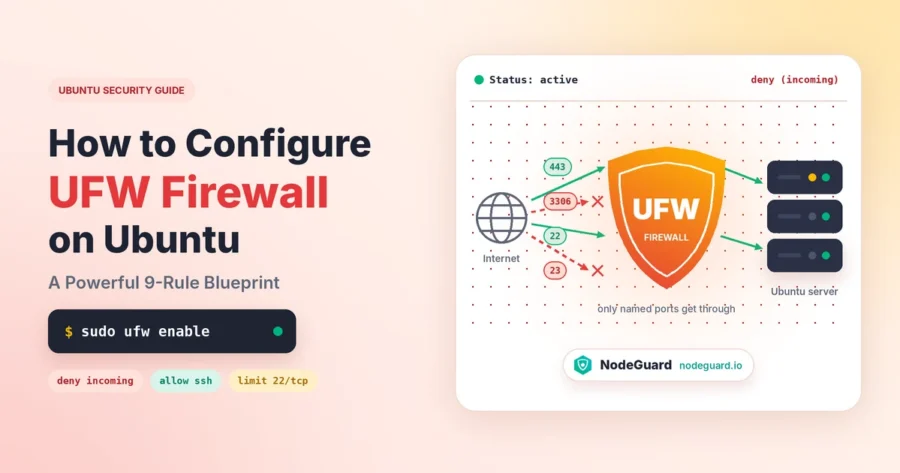
No guide on how to set up an Ubuntu VPS is complete without a firewall. A firewall closes every door you are not deliberately using. Ubuntu ships with UFW (Uncomplicated Firewall), which is a friendly front end for the kernel’s packet filtering. A correctly configured UFW firewall Ubuntu setup takes under two minutes. The golden rule for a UFW firewall on Ubuntu is to allow SSH before you enable it:
sudo ufw default deny incoming
sudo ufw default allow outgoing
sudo ufw allow OpenSSH
sudo ufw allow 80/tcp
sudo ufw allow 443/tcp
sudo ufw enable
sudo ufw status verbose
Ports 80 and 443 are for web traffic, so skip them if this server will not host a website. Whenever you install a new service later, open only the port it needs. If you want more detail on rule syntax, the Ubuntu UFW documentation is a good companion.
One caveat worth remembering: containers published through Docker can bypass UFW rules, so if you add Docker later, check your exposed ports with sudo ss -tulpn rather than assuming the firewall has you covered. Combined with SSH keys, this is what makes a secure Ubuntu server hard to break into.
6. Install and Configure Fail2Ban
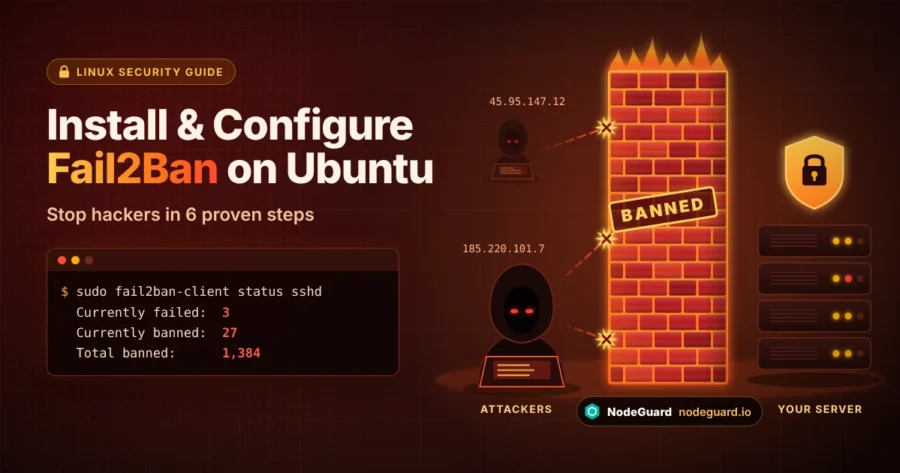
Even with keys only, bots will keep hammering your SSH port, wasting resources and filling your logs. Fail2Ban watches log files and temporarily bans IP addresses that fail too many times. It is a lightweight and effective layer for any VPS security checklist, yet many tutorials on how to set up an Ubuntu VPS skip it.
sudo apt install fail2ban -y
sudo nano /etc/fail2ban/jail.local
Add a basic configuration:
[DEFAULT]
bantime  = 1h
findtime = 10m
maxretry = 5
[sshd]
enabled = trueThen enable and start it:
sudo systemctl enable --now fail2ban
sudo fail2ban-client status sshd
The status command shows how many addresses are currently banned. Do not be surprised if the number is already above zero within the first day. The project’s Fail2Ban documentation explains how to add jails for other services such as web servers.
7. Turn On Automatic Security Updates
Staying patched is a core part of how to set up an Ubuntu VPS that stays secure. Most real-world server compromises exploit vulnerabilities that already have a fix available. The fix just was not installed. Ubuntu’s unattended-upgrades package applies security patches automatically so you are not relying on your memory.
sudo apt install unattended-upgrades -y
sudo dpkg-reconfigure -plow unattended-upgrades
Choose “Yes” when asked. By default it installs only security updates, which is the safe choice for production. It does not upgrade major versions or surprise you with big changes. You can review what it has done at any time in /var/log/unattended-upgrades/. Keep in mind that some updates, mainly kernel ones, need a reboot to take effect, so plan a short maintenance window every few weeks.
8. Set the Timezone, Time Sync and Hostname
This step looks cosmetic, but accurate time is essential. Log timestamps, TLS certificates, cron jobs and security tools all depend on the clock being right. Start by checking the current state:
timedatectl
Look for “System clock synchronized: yes”. Ubuntu normally handles synchronisation out of the box, so you only need to set the timezone. Many administrators choose UTC for servers, because it avoids confusion with daylight-saving changes:
sudo timedatectl set-timezone UTC
Then give the server a meaningful hostname. A name like web-01 or app-prod tells you at a glance which machine you are logged into, which matters a lot once you manage more than one:
sudo hostnamectl set-hostname web-01
9. Add Swap Space (If Your VPS Is Small)
Small servers can run out of memory during an update, a build or a traffic spike, and when that happens the kernel’s out-of-memory killer starts terminating processes, often your database. A modest swap file is cheap insurance. First check whether swap already exists:
swapon --show
free -h
If it is empty and your VPS has 2 GB of RAM or less, create a swap file:
sudo fallocate -l 2G /swapfile
sudo chmod 600 /swapfile
sudo mkswap /swapfile
sudo swapon /swapfile
echo '/swapfile none swap sw 0 0' | sudo tee -a /etc/fstab
To make the server prefer RAM and only touch swap when needed, lower the swappiness value:
echo 'vm.swappiness=10' | sudo tee /etc/sysctl.d/99-swappiness.conf
sudo sysctl --system
Swap is a safety valve, not a substitute for memory. If you rely on it constantly, the real fix is a bigger plan. If you reach that point, our comparison of VPS vs cloud hosting can help you decide how to scale.
10. Back Up and Snapshot Before You Install Anything
You now have a clean, hardened baseline. That makes this the perfect moment to capture it. If a later experiment goes wrong, you can roll back to this exact state in minutes instead of rebuilding from scratch.
Use two kinds of protection, because they solve different problems:
- Snapshots capture the whole server at a point in time. They are ideal before risky changes such as major upgrades. Take one right now and label it something like
baseline-hardened. - File-level backups copy the data that actually matters (databases, uploads, configuration) to a separate location. A snapshot stored next to the server it protects is not enough if the account or platform has a problem.
Follow the 3-2-1 rule where you can: three copies of your data, on two different types of storage, with one copy off-site. And remember that a backup you have never restored is only a hope. Test a restore at least once. Also check what backup schedule comes with your plan, so you know exactly what is covered and what you need to handle yourself. Make this a fixed part of every routine you follow for how to set up an Ubuntu VPS, not an afterthought.
What to Do After the First Ten
Now that you know how to set up an Ubuntu VPS safely, you can finally install what the server is for: a web server such as Nginx, a database, a runtime like Node.js or Python, or a control panel. A few habits will keep the setup healthy over time:
- Check
sudo fail2ban-client status sshdandsudo ufw statusoccasionally. - Reboot after kernel updates during a quiet window.
- Add monitoring so you hear about disk, memory and CPU problems before your visitors do.
- Document what you changed. Even three lines in a text file will save you hours later.
If you are still deciding whether a VPS or a bare-metal machine suits your workload, our guide to VPS vs dedicated server walks through the decision step by step.
Common Mistakes to Avoid
Most problems when people learn how to set up an Ubuntu VPS come from a handful of avoidable errors:
- Enabling UFW before allowing SSH. This locks you out instantly. Always run
sudo ufw allow OpenSSHfirst. - Disabling password login before testing the key. Confirm a key-based login works in a second window first.
- Closing your only SSH session after changing sshd settings. Keep it open until a fresh login succeeds.
- Skipping backups “for now”. The day you need one is never planned.
- Running everything as root. It is faster in the short term and far more dangerous in the long term.
Frequently Asked Questions
How long does it take to set up an Ubuntu VPS?
Following this guide on how to set up an Ubuntu VPS takes about 30 to 45 minutes the first time, and closer to 15 once you are familiar with them. Most of that time is spent testing logins and reading output, which is exactly where care pays off.
Which Ubuntu version should I choose for a new VPS?
Choose a Long Term Support (LTS) release, such as 24.04 or 26.04. LTS versions receive security updates for years, which is what you want for production. The commands in this guide are the same on both.
Is it safe to leave the root account enabled on a VPS?
It is better to disable direct root login over SSH, as shown in step 4. Root remains available through sudo for your admin user, but attackers lose the one username they are guaranteed to try first.
Do I really need both UFW and Fail2Ban?
Yes, because they do different jobs. UFW decides which ports can be reached at all, while Fail2Ban reacts to bad behaviour on the ports you leave open. Together with key-only SSH, they form a layered defence, so one failure does not expose the whole server.
Can I run these steps on any Ubuntu VPS provider?
Yes. The method for how to set up an Ubuntu VPS in this guide uses standard Ubuntu tools, so it works on any provider’s Ubuntu image, whether you are on a small starter plan or a larger machine.
Final Thoughts on How to Set Up an Ubuntu VPS
Learning how to set up an Ubuntu VPS is mostly about doing a few unglamorous things in the right order: update, create a sudo user, use SSH keys, harden SSH, enable a firewall, add Fail2Ban, automate updates, fix time, add swap and take a backup. None of it is difficult, and all of it pays off the first time a bot swarm hits your server and finds nothing to grab.
Ready to practise how to set up an Ubuntu VPS? Deploy a server on NodeGuard’s Cloud VPS and follow this checklist while you build. Your future self will thank you.