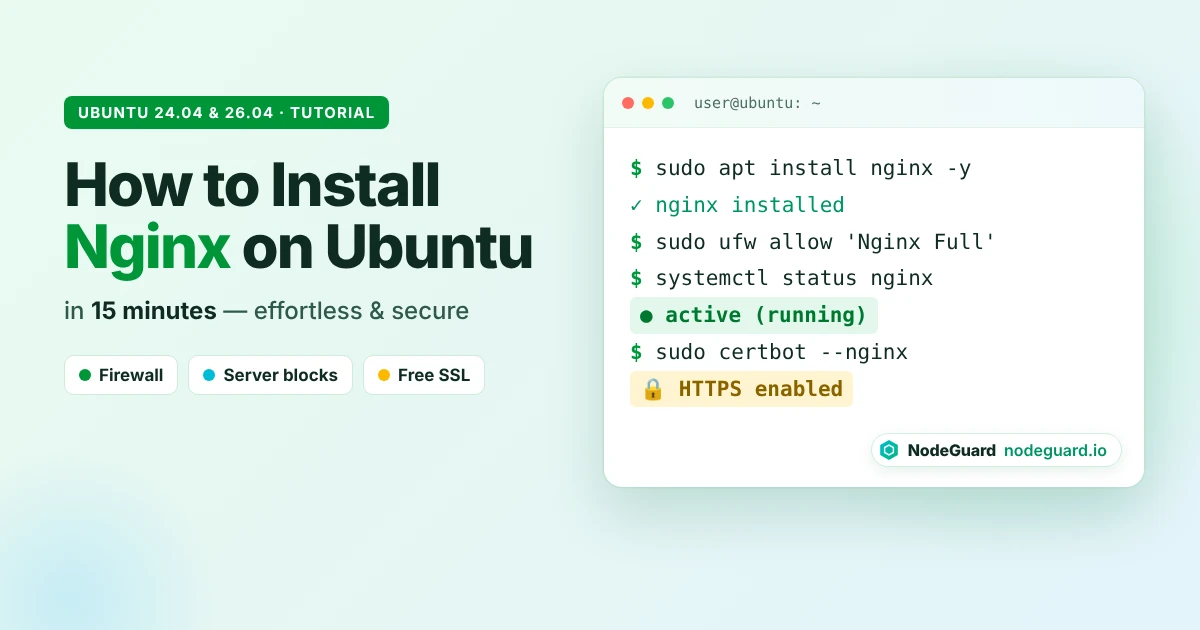
If you have a fresh Ubuntu server and want to put a website on it, learning how to install Nginx on Ubuntu is the first real job on your list. Nginx (pronounced “engine-x”) is fast, light on memory and trusted by many of the busiest sites on the internet. The good news is that the whole setup takes about 15 minutes, even if you have never touched a web server before.
In this guide you will install Nginx on Ubuntu, open the right firewall ports, confirm the service is running, learn where every Nginx configuration file lives, create Nginx server blocks for your own domain, and finish with a free SSL certificate. Every step works on Ubuntu 24.04 LTS and Ubuntu 26.04 LTS, and the same commands apply to Ubuntu 22.04.
By the end you will have a working Nginx web server that is ready for a static site, a WordPress blog or an app running behind a reverse proxy.
Before we start typing commands, it helps to know why so many developers pick the Nginx web server over the alternatives.
It handles traffic efficiently. Nginx uses an event-driven design. Instead of starting a new process for every visitor, a small number of worker processes handle thousands of connections at once. On a small VPS with 1 or 2 GB of RAM, that difference is easy to feel.
It does more than serve pages. The same Nginx web server can act as a reverse proxy for Node.js, Python or PHP apps, a load balancer that spreads traffic across several backends, and an SSL terminator that handles HTTPS for everything behind it.
The configuration is readable. An Nginx configuration file is plain text built from short, nested blocks. Once you understand one server block, you understand them all.
It is free and open source. The open source version has no licence costs and is in Ubuntu’s official package repositories, so installing and updating it is a one-line job.
Apache is still a fine choice, especially if you depend on .htaccess files. But for most new projects on a VPS, Nginx on Ubuntu is the faster and leaner starting point.
What You Need Before You Start
To follow this guide on how to install Nginx on Ubuntu, you only need a few things:
An Ubuntu server. Ubuntu 24.04 or 26.04 LTS is ideal. A small Cloud VPS with 1 vCPU and 1 GB of RAM is more than enough to learn on.
A non-root user with sudo rights. If your server is brand new, follow our guide on how to set up an Ubuntu VPS first. It covers users, updates and basic security.
SSH access. You will run every command over SSH. If you are not sure how, see our guide on how to connect to a Linux VPS using SSH.
A domain name (for steps 6 to 8). Point an A record for example.com and www.example.com at your server’s public IP address. DNS changes can take a while, so do this first and let it settle while you work.
Throughout this guide, replace example.com with your own domain.
How to Install Nginx on Ubuntu: The 8-Step Overview
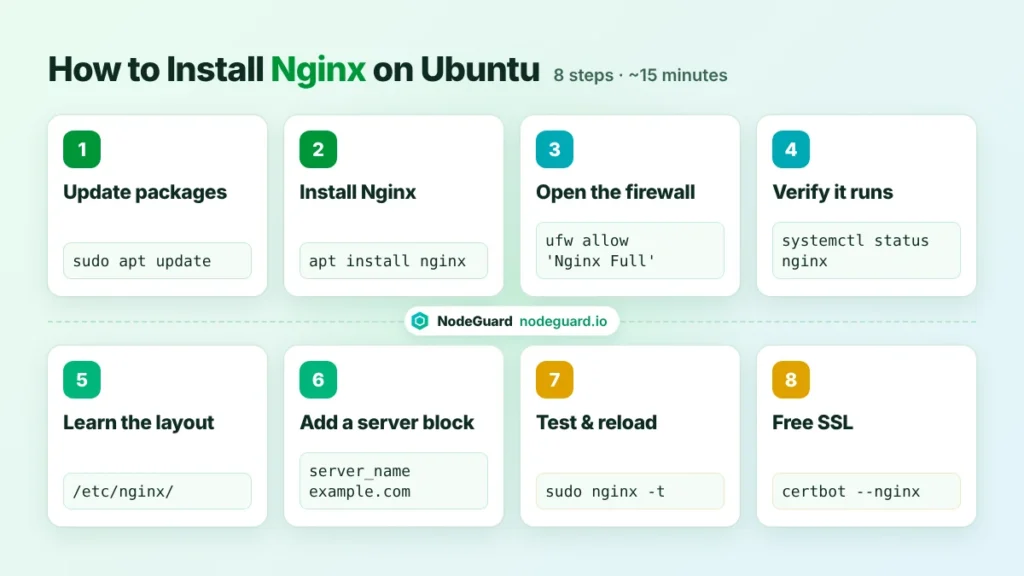
Here is the full roadmap. Steps 1 to 4 get Nginx installed and reachable. Steps 5 to 8 turn it into a proper host for your own website.
The 8 steps to install Nginx on Ubuntu and take your first site live.
Update your Ubuntu packages
Install Nginx on Ubuntu
Allow Nginx through the UFW firewall
Check that the Nginx web server is running
Understand the Nginx configuration files
Create Nginx server blocks for your domain
Test the configuration and reload
Secure your site with a free SSL certificate
Let’s go.
Step 1: Update Your Ubuntu Packages
Always refresh the package index before installing anything. This makes sure apt downloads the latest version available for your release, along with any security fixes.
sudo apt update
sudo apt upgrade -y
The first command downloads the current list of packages. The second installs any pending updates. If the upgrade includes a new kernel, reboot with sudo reboot and reconnect before moving on.
Step 2: Install Nginx on Ubuntu
Nginx is in Ubuntu’s default repositories, so one command is all it takes:
sudo apt install nginx -y
Apt installs the Nginx package, creates the www-data user it runs as, registers a systemd service, and starts it straight away. Check the installed version with:
nginx -v
You should see something like nginx version: nginx/1.x.x. The exact number depends on your Ubuntu release. Ubuntu keeps this version stable for the life of the release and backports security fixes into it, which is exactly what you want on a production server.
Optional: Install the Latest Nginx from the Official Repository
Ubuntu’s package is the safest choice for most people. If you need a newer feature, the Nginx team publishes its own repository. Add it like this:
Before you choose this route, check the official Nginx Linux packages page to confirm your Ubuntu release is supported. Two differences matter later in this guide. First, the official package keeps site files in /etc/nginx/conf.d/ instead of sites-available and sites-enabled. Second, it does not ship the UFW application profiles, so you open ports by number in the next step.
Step 3: Allow Nginx Through the UFW Firewall
If UFW is active on your server (and it should be), it will block web traffic until you allow it. Ubuntu’s Nginx package registers three firewall profiles. List them:
sudo ufw app list
You will see output like this:
Available applications:
  Nginx Full
  Nginx HTTP
  Nginx HTTPS
  OpenSSH
Nginx HTTP opens port 80 only.
Nginx HTTPS opens port 443 only.
Nginx Full opens both ports 80 and 443.
Because you will add SSL in step 8, allow the full profile now. Always make sure SSH stays open before you enable the firewall, or you will lock yourself out:
If you installed Nginx from the official repository, use sudo ufw allow 80,443/tcp instead of the profile name. For a deeper walkthrough of rules, ports and rate limiting, read our guide on how to configure the UFW firewall on Ubuntu.
Step 4: Check That the Nginx Web Server Is Running
Ubuntu starts Nginx automatically after installation. Confirm it with systemd:
systemctl status nginx
Look for Active: active (running) in green. Press q to exit the status view.
Next, test the server from the command line:
curl -I http://localhost
A healthy Nginx web server replies with HTTP/1.1 200 OK and a Server: nginx header. Finally, find your server’s public IP address and open it in a browser:
hostname -I
Visit http://YOUR_SERVER_IP and you should see the default “Welcome to nginx!” page. If you do, you have successfully installed Nginx on Ubuntu. If the page does not load, jump to the troubleshooting section further down.
Everyday Nginx Service Commands
You will use these commands all the time, so keep them handy:
sudo systemctl stop nginx      # stop the server
sudo systemctl start nginx     # start it again
sudo systemctl restart nginx   # full stop and start
sudo systemctl reload nginx    # apply config changes without dropping connections
sudo systemctl disable nginx   # do not start at boot
sudo systemctl enable nginx    # start at boot (the default)
Prefer reload over restart whenever you change a configuration file. A reload applies the new settings while existing visitors keep their connections.
Step 5: Understand the Nginx Configuration Files
Before you build your own site, take two minutes to learn how the Nginx configuration is organised on Ubuntu. Everything lives under /etc/nginx/:
Path
What it does
/etc/nginx/nginx.conf
The main configuration file. Global settings such as worker processes, logging and gzip.
/etc/nginx/sites-available/
One file per website. Files here are stored but not active.
/etc/nginx/sites-enabled/
Symbolic links to the sites you want live. Nginx only loads these.
/etc/nginx/conf.d/
Extra configuration snippets loaded automatically.
/etc/nginx/snippets/
Reusable blocks you can include in several sites, such as SSL settings.
/var/www/html/
The default web root that holds the welcome page.
/var/log/nginx/
access.log and error.log, your first stop when something breaks.
The key idea is the split between sites-available and sites-enabled. You write a site’s Nginx configuration in sites-available, then switch it on by creating a link in sites-enabled. Removing the link switches the site off without deleting your work. This keeps the Nginx configuration on Ubuntu tidy, even when you host a dozen domains on one server.
Nginx configuration uses directives (single settings ending in a semicolon) and blocks (groups of directives inside curly braces). The http block in nginx.conf contains server blocks, and each server block can contain location blocks. The full reference lives in the official Nginx documentation.
Step 6: Create Nginx Server Blocks for Your Domain
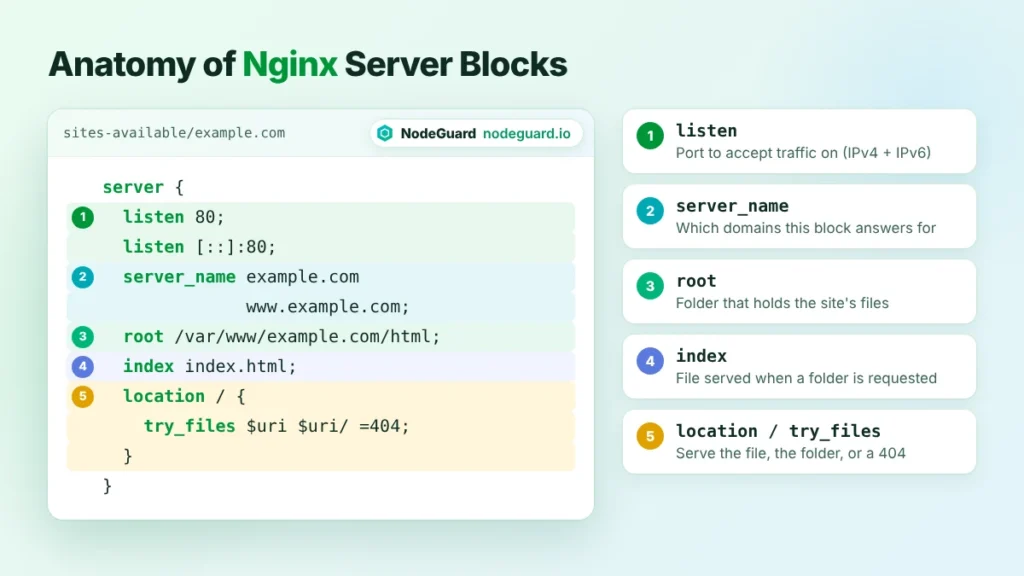
Nginx server blocks are the equivalent of Apache virtual hosts. Each block tells Nginx which domain it answers for and where that site’s files live. With Nginx server blocks, one server can host many websites side by side.
Every directive in a basic server block, and what it controls.
Create the Web Root
Make a folder for your site and give your user ownership so you can edit files without sudo:
If this server will only host your own sites, you can switch off the default welcome page. This only removes the link; the original file stays in sites-available:
sudo rm /etc/nginx/sites-enabled/default
To add a second website later, repeat this step with a new web root and a new file. That is the real power of Nginx server blocks: every site is isolated in its own file, with its own logs.
Step 7: Test Your Nginx Configuration and Reload
Never reload Nginx without testing first. A single missing semicolon can stop every site on the server from loading. Nginx includes a built-in syntax checker:
sudo nginx -t
A healthy result looks like this:
nginx: the configuration file /etc/nginx/nginx.conf syntax is ok
nginx: configuration file /etc/nginx/nginx.conf test is successful
If you see could not build server_names_hash, open /etc/nginx/nginx.conf, find the line # server_names_hash_bucket_size 64;, remove the #, save, and test again. This happens when you host long or many domain names.
Once the test passes, apply the change:
sudo systemctl reload nginx
Now visit http://example.com. You should see your Success! page instead of the default welcome screen. Make nginx -t followed by reload a habit after every change to your Nginx configuration. It takes two seconds and protects every site on the box.
Step 8: Secure Nginx on Ubuntu with a Free SSL Certificate
Modern browsers flag plain HTTP sites as “Not secure”, and search engines prefer HTTPS. Let’s Encrypt issues free, trusted certificates, and the Certbot tool installs them into Nginx for you.
Install Certbot and its Nginx plugin:
sudo apt install certbot python3-certbot-nginx -y
Request a certificate for both versions of your domain:
Certbot asks for an email address for renewal notices and for you to accept the terms. It then proves you control the domain, downloads the certificate and edits your server block to add the SSL settings. When it asks, choose to redirect all HTTP traffic to HTTPS.
Certificates last 90 days, but Certbot renews them automatically with a systemd timer. Confirm renewal works with a dry run:
sudo certbot renew --dry-run
Visit https://example.com and you should see the padlock in the address bar. Your Nginx on Ubuntu setup is now encrypted end to end. The EFF also maintains a snap-based installer; the Certbot instructions cover that route if you prefer it.
Quick Hardening and Performance Tweaks
Your site is live, but a few small changes make the Nginx web server safer and faster. Open the main file with sudo nano /etc/nginx/nginx.conf and look inside the http { } block.
Hide the version number. By default, Nginx shows its version in error pages and headers. Attackers use version numbers to look for known bugs. Find # server_tokens off;, remove the # and save.
Turn on compression for more file types. Ubuntu enables gzip on; already, but the list of file types is commented out. Uncomment the gzip_types line so CSS, JavaScript and JSON are compressed too. Smaller files mean faster pages.
Allow larger uploads if you need them. Nginx rejects request bodies over 1 MB by default, which breaks WordPress media uploads. Add client_max_body_size 64M; inside the http block or inside a single server block.
Let Nginx size itself. Check that worker_processes auto; is set. This starts one worker per CPU core, which is the right default for almost every server.
Test and reload after each change:
sudo nginx -t && sudo systemctl reload nginx
These tweaks take five minutes and are worth doing on every new server. If you plan to run PHP or WordPress next, you would add PHP-FPM and a location ~ \.php$ block to the same server block. That is a topic for its own guide.
Troubleshooting Common Nginx on Ubuntu Errors
Most problems with Nginx on Ubuntu come down to a handful of causes. Start with the logs. They almost always tell you exactly what went wrong:
“bind() to 0.0.0.0:80 failed (Address already in use)”. Another program, usually Apache, is already using port 80. Find it with sudo ss -tulpn | grep ':80'. If it is Apache and you do not need it, run sudo systemctl disable --now apache2 and start Nginx again.
The browser times out. The firewall is the usual cause. Run sudo ufw status and make sure Nginx Full (or ports 80 and 443) is allowed. Some hosting providers also run a network firewall in their control panel, so check that too.
You still see the “Welcome to nginx!” page. Your request is not matching your server block. Check that server_name is spelled correctly, that the link exists in sites-enabled, and that DNS for your domain points at this server. Run dig +short example.com to confirm.
403 Forbidden. Nginx can reach the folder but cannot read it, or there is no index.html. Check the file exists and that folders are readable with ls -la /var/www/example.com/html.
502 Bad Gateway. Nginx is working, but the app behind it (PHP-FPM, Node.js or similar) is down or listening on a different socket or port. Check that service, not Nginx.
Your changes do nothing. You probably edited the file but did not reload. Run sudo nginx -t and then sudo systemctl reload nginx.
Frequently Asked Questions
Is Nginx free to use?
Yes. The open source Nginx web server is free for personal and commercial use. A paid commercial edition adds extra monitoring and support features, but you do not need it to host websites.
Which is better on Ubuntu, Nginx or Apache?
Both are excellent. Nginx generally uses less memory and handles many simultaneous visitors more efficiently, which suits a VPS. Apache is easier if your software relies on .htaccess files. Many servers run Nginx in front as a reverse proxy and Apache or an app server behind it.
Where is the main Nginx configuration file on Ubuntu?
The main Nginx configuration file is /etc/nginx/nginx.conf. Individual websites live in /etc/nginx/sites-available/ and are switched on with links in /etc/nginx/sites-enabled/.
How many Nginx server blocks can one server host?
There is no fixed limit. One modest VPS can comfortably run dozens of Nginx server blocks for low-traffic sites. In practice, CPU, RAM and disk space set the limit, not Nginx.
Does this guide work on Ubuntu 24.04 and 26.04?
Yes. This guide on how to install Nginx on Ubuntu works the same on Ubuntu 22.04, 24.04 and 26.04 LTS. Only the Nginx version number in the package differs between releases.
How do I uninstall Nginx completely?
Run sudo apt purge nginx nginx-common -y followed by sudo apt autoremove -y. This removes the packages and their configuration files. Back up /etc/nginx/ and /var/www/ first if you want to keep your sites.
Final Thoughts: Your Nginx Web Server Is Live
You now know how to install Nginx on Ubuntu from start to finish. You updated the system, installed the package, opened the firewall, checked the service, learned the Nginx configuration layout, built your own Nginx server blocks, tested and reloaded safely, and added a free SSL certificate. That is a complete, production-ready foundation in about 15 minutes.
From here you can add PHP-FPM for WordPress, put a Node.js or Python app behind a reverse proxy, or host more domains with new server blocks. Each one builds on exactly what you did today.
Need a fast, reliable server to run it on? A NodeGuard Cloud VPS gives you full root access, NVMe storage and a clean Ubuntu install, so you can have Nginx on Ubuntu running in minutes.
The NodeGuard Editorial Team creates practical, informative, and easy-to-follow guides on VPS hosting, Linux, server administration, cybersecurity, web hosting, and cloud infrastructure. Our goal is to help developers, businesses, and technology enthusiasts make informed decisions, improve their technical knowledge, and manage their online infrastructure with confidence.
Through tutorials, explainers, and in-depth guides, we make complex technical topics accessible to everyone.