You open your WordPress site, and it crawls. The admin area lags, pages hang on a white screen, and your speed test score is stuck in the red. So you ask the obvious question: why is my WordPress site slow?
The honest answer is that it’s rarely one thing. A slow WordPress site is usually the result of several small problems stacking up: a crowded server, a few heavy plugins, oversized images, a database full of leftovers. The good news is that each of these leaves a fingerprint. Once you know how to read the symptoms, you can find the real cause in minutes instead of guessing what’s wrong with your WordPress site.
This guide is the diagnostic half of our speed series. Here we focus on finding what’s wrong. We’ll show you how to measure your WordPress site properly, how to tell a server problem from a browser problem, and then walk through the 11 most common causes, each with a quick way to confirm it and a practical fix. If you already know what’s wrong and just want the full optimization checklist, jump to our guide on how to speed up a WordPress website.
Why Is My WordPress Site Slow? Start With the Symptoms
Before you install another plugin or change hosts, take five minutes to measure. Fixing a slow WordPress site without data is like a mechanic replacing parts at random. You might get lucky, but you’ll probably waste time and money.
Start by noticing how your WordPress site is slow, because different symptoms point to different causes:
- Every page of your WordPress site is slow, even simple ones. The problem is almost always on the server: hosting, PHP, caching or the database.
- The homepage is fine, but some pages are slow. Look at what those pages have in common, such as a slider, a contact form, a product filter or a heavy page-builder layout.
- The front end is fast, but the admin area is slow. Suspect plugins doing background work, a bloated database, or the WordPress Heartbeat.
- The page appears quickly, but it’s jumpy and slow to respond. That’s a front-end problem: large images, render-blocking files and too much JavaScript.
- It’s fast for you, slow for visitors far away. Your server is too far from your audience, and you need a CDN.
Write down which of these fits. You’ll use it in a moment.
How to Measure Your WordPress Performance Properly
Good diagnosis of WordPress performance needs three numbers and one tool. The numbers tell you where the time goes. The tool tells you what is using it.
1. Run a speed test. Paste your WordPress site’s URL into Google PageSpeed Insights. Test both mobile and desktop, and test a normal inner page as well as the homepage. Note the Largest Contentful Paint (LCP), the main measure of how fast your main content appears, and look at the “Diagnostics” list for specific warnings.
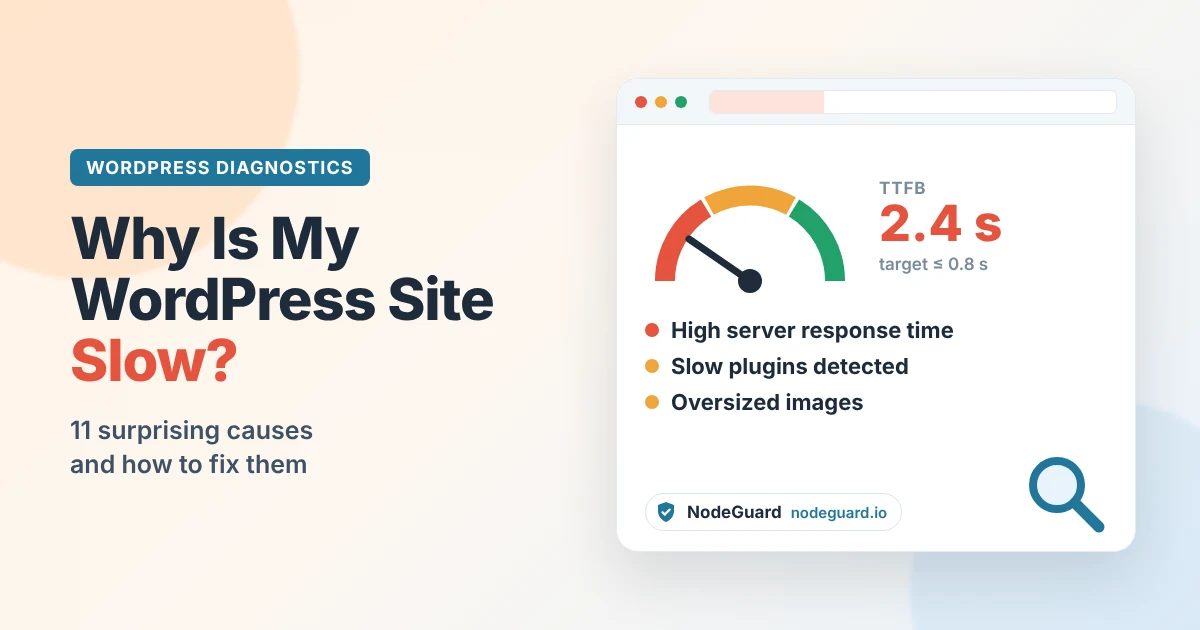
2. Check your TTFB. Time to First Byte is how long the browser waits before the server sends the first piece of the page. It’s the single clearest sign of a server-side problem. According to Google’s guidance on Time to First Byte, a good TTFB is 0.8 seconds or less, and anything above 1.8 seconds is poor. You can measure it from any terminal:
curl -o /dev/null -s -w "TTFB: %{time_starttransfer}s\nTotal: %{time_total}s\n" https://example.com/
Run it three or four times. The first request may be slower because the cache is cold, so look at the typical value, not the worst one.
3. Check total page weight and requests. Your browser’s DevTools (press F12, then open the Network tab and reload) shows how many files the page loads and how heavy it is. A typical well-built page is under 2 MB, and every extra megabyte adds to page load time on mobile. If yours is 6 MB with 150 requests, you’ve found a big part of the problem already.
4. Install Query Monitor. The free Query Monitor plugin adds a panel to your admin bar that shows how long the page took to build, how many database queries ran, which ones were slow, and which plugin or theme triggered them. It’s the fastest way to see what’s happening inside WordPress. Deactivate it when you’re done, since it adds its own overhead.
You can also open Tools → Site Health in your dashboard. WordPress flags common performance issues there, such as an outdated PHP version or a missing persistent object cache.
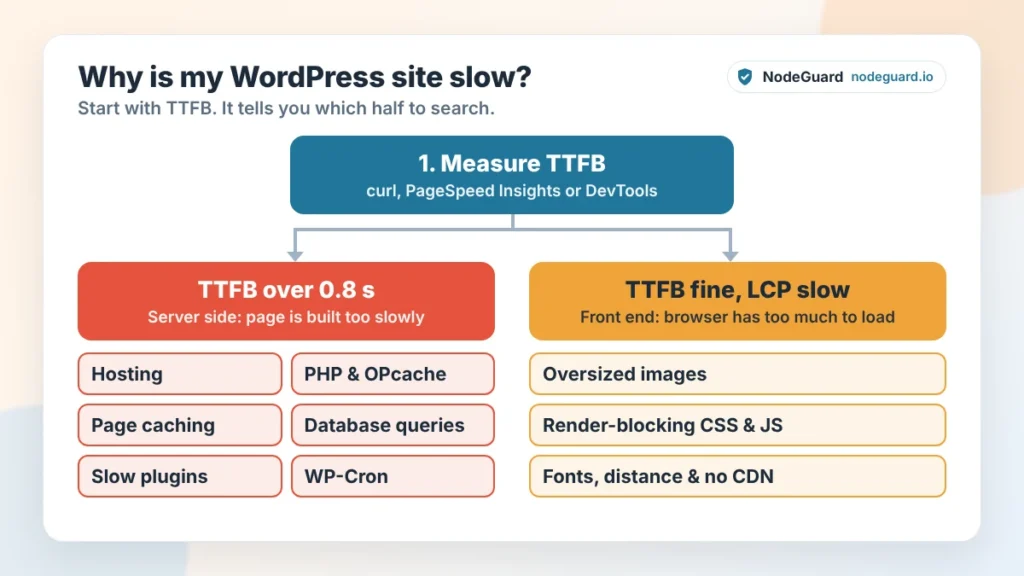
Is Your WordPress Site Slow on the Server or in the Browser?
This one question cuts your search in half. Every slow page load splits into two parts:
- Server time is everything before the first byte arrives: PHP running WordPress, database queries, plugins doing their work, and the network trip to your server. It shows up as a high TTFB.
- Browser time is everything after: downloading images, CSS, JavaScript and fonts, then building and painting the page. It shows up as a slow LCP with a normal TTFB.
So here’s the rule of thumb:
| What you see | Where to look |
|---|---|
| TTFB over 0.8 s on most pages | Server side: hosting, PHP, caching, database, slow plugins |
| TTFB fine, LCP over 2.5 s | Front end: images, render-blocking files, scripts, fonts |
| Both high | Fix the server first, because it delays everything else |
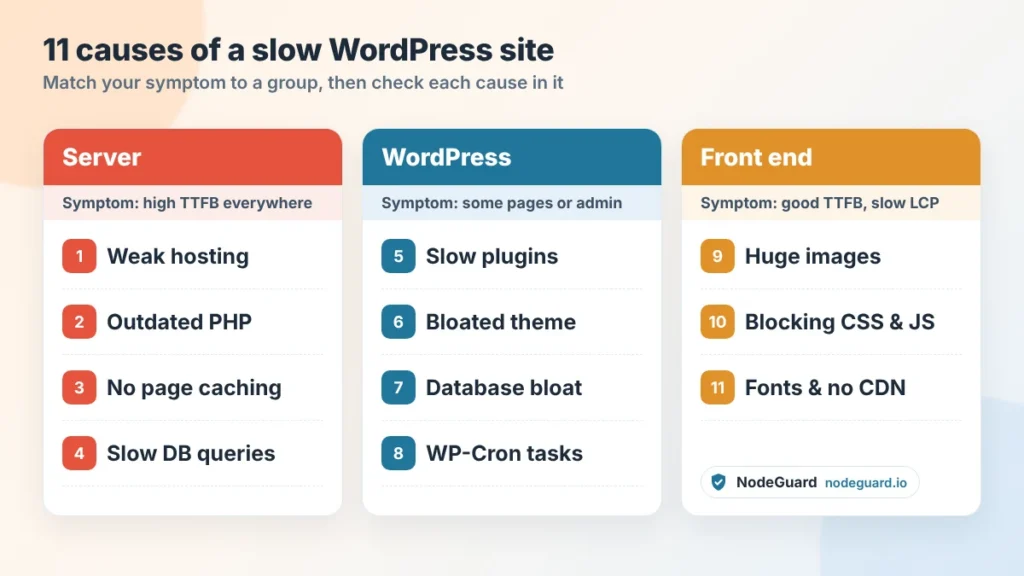
Keep that split in mind as you go through the causes below. Causes 1 to 8 mostly raise TTFB. Causes 9 to 11 mostly slow down what happens in the browser.
Server-Side Causes That Hurt WordPress Performance
When TTFB is high, your WordPress site is taking too long to build each page. These are the usual suspects, roughly in order of how often they’re to blame.
Cause 1: Underpowered or overcrowded hosting
This is the most common reason a WordPress site is slow, and the one owners least like to hear. On cheap shared hosting, hundreds of sites share the same CPU, memory and disk. When a neighbour gets a traffic spike, your pages wait in line.
How to confirm it: your WordPress site has a high TTFB even on a simple page with caching turned on, and it varies a lot between tests or by time of day. A blank test page that’s also slow points squarely at the server.
How to fix it: move your WordPress site to hosting with dedicated resources. A VPS gives your WordPress site its own CPU and RAM, so performance stays steady no matter what other customers do. If you’re unsure which type fits, our comparison of VPS vs shared hosting explains the trade-offs. Also choose a data center close to most of your visitors, because every kilometre adds network delay.
Cause 2: An outdated PHP version or no OPcache
WordPress is written in PHP, and each major PHP release has run it noticeably faster. Many sites still run old versions simply because nobody upgraded them. Older versions also stop getting security fixes.
How to confirm it: check Tools → Site Health → Info → Server, or run:
php -v
If you see anything older than PHP 8.2, upgrading is one of the cheapest speed wins available. While you’re there, make sure OPcache is enabled. Without it, PHP re-reads and re-compiles WordPress’s files on every single request.
php -i | grep -i "opcache.enable"
How to fix it: switch to PHP 8.3 or newer in your control panel, after testing on a staging copy. Very old plugins sometimes break on new PHP, and a plugin that can’t handle a current version is a plugin you should replace anyway.
Cause 3: No page caching
By default, WordPress builds every page from scratch for every visitor. It runs PHP, queries the database and assembles the HTML, even if the page hasn’t changed in months. That’s the main reason an uncached WordPress site feels slow under load, and why caching is the biggest single boost to WordPress performance.
How to confirm it: load a page twice and compare the TTFB. If the second load is just as slow, nothing is being cached. You can also check the response headers in DevTools for a cache header such as x-cache: HIT or a caching plugin’s signature.
How to fix it: turn on page caching, either with a caching plugin or at the server level. A cached page can be served in a few milliseconds instead of hundreds. Exclude cart, checkout and account pages if you run a shop, and skip the cache for logged-in users.
Cause 4: Slow database queries and no object cache
Some pages need data that can’t be cached as a whole page, such as search results, filtered product lists, or anything shown to logged-in users. Those pages hit the database every time, and a single slow query can add seconds.
How to confirm it: open Query Monitor’s Queries panel. Sort by time and look at the slowest queries and the component that ran them. If you see hundreds of queries on one page, or individual queries taking more than 0.05 seconds, the database is part of the problem.
How to fix it: add a persistent object cache such as Redis, which keeps the results of repeated queries in memory. Then deal with the plugin responsible for the worst queries, which brings us to the next section.
Slow Plugins, Theme Bloat and Database Leftovers
These causes live inside your WordPress site itself. They’re the reason two sites on the same server can perform completely differently.
Cause 5: Slow plugins
The number of plugins matters less than what each one does. Ten lightweight plugins can be faster than one badly written one. Slow plugins usually share a few habits: they run heavy database queries on every page, load their CSS and JavaScript everywhere instead of only where needed, or call external services while the page is being built.
Common offenders include social share counters, “related posts” plugins that search the whole database, security plugins that scan on every request, statistics plugins that store visits in your own database, and all-in-one suites that load dozens of features you never use.
How to confirm it: in Query Monitor, open Queries by Component to see how much database time each plugin uses. For an outside view, test your page speed, deactivate one suspect plugin, and test again. On a staging copy you can deactivate all plugins, then re-enable them one by one until the slowdown returns.
How to fix it: remove slow plugins you don’t truly need, replace heavy ones with lighter alternatives, and avoid having two plugins that do the same job. Fewer, better plugins always beat more.
Cause 6: A bloated theme or page builder
Multipurpose themes and visual page builders are convenient, but many load large CSS and JavaScript files on every page, add deep layers of nested markup, and bundle sliders, animations and icon sets whether you use them or not.
How to confirm it: switch your WordPress site to a default theme such as Twenty Twenty-Five on a staging copy and re-test. If speed jumps dramatically, your theme is a big part of the problem. In DevTools, look at how much of the page weight comes from the theme’s folder.
How to fix it: turn off theme features you don’t use, many themes have a performance or “modules” settings page for exactly this. For a long-term fix, move to a lightweight block theme and use the block editor instead of a heavy builder for new pages.
Cause 7: A bloated database
Over the years, the database behind your WordPress site fills up with things nobody needs: thousands of post revisions, expired transients, spam comments, and settings left behind by plugins you deleted long ago. The worst of these is autoloaded data, because WordPress loads every autoloaded option on every page request, whether it’s used or not.
How to confirm it: with WP-CLI, check how much data is autoloaded:
wp db query "SELECT ROUND(SUM(LENGTH(option_value))/1024) AS autoload_kb FROM wp_options WHERE autoload IN ('yes','on','auto-on','auto');"
Under about 800 KB is healthy. Several megabytes means autoloaded data is slowing every page. Site Health also warns you when autoloaded options get too large.
How to fix it: delete expired transients and limit how many revisions WordPress keeps:
wp transient delete --expired
define( 'WP_POST_REVISIONS', 5 );
Then find the largest autoloaded options, check which plugin created them, and remove leftovers from plugins you no longer use. Always back up the database before you delete anything.
Cause 8: WP-Cron and background tasks
WordPress runs scheduled tasks, such as publishing scheduled posts, sending emails and running backups, through a system called WP-Cron. It doesn’t run on a timer. Instead, it’s triggered by page visits, so a heavy task can land on a real visitor’s request and slow that page down. The admin Heartbeat, which checks in with the server every few seconds while you edit, can add load as well.
How to confirm it: if pages are randomly slow rather than consistently slow, background tasks are a likely cause. The free WP Crontrol plugin lists every scheduled event and how often it runs.
How to fix it: disable the visit-based trigger and run cron from the server on a schedule instead:
define( 'DISABLE_WP_CRON', true );
*/5 * * * * cd /var/www/example.com && wp cron event run --due-now > /dev/null 2>&1
Also move heavy jobs such as backups and broken-link scans to quiet hours, or off the server entirely.
Front-End Causes That Inflate Page Load Time
If your TTFB is fine but the page still feels slow, the server has done its job and the browser is struggling. These causes increase page load time after the first byte arrives.
Cause 9: Oversized, uncompressed images
Images are usually the heaviest part of a page and the biggest single factor in page load time. A single photo straight from a phone can be 4 MB and 4,000 pixels wide, displayed in a space 800 pixels wide. Multiply that by a gallery or a blog index and you have a slow WordPress site on any connection.
How to confirm it: PageSpeed Insights lists “Properly size images” and “Serve images in next-gen formats” with the exact savings for each file. In DevTools, sort the Network tab by size and see what’s at the top.
How to fix it: resize images to the size they’re actually shown, compress them, and serve WebP or AVIF instead of large JPEGs and PNGs. WordPress lazy-loads images below the fold automatically, but don’t lazy-load your main above-the-fold image, because that delays your LCP.
Cause 10: Render-blocking CSS and too much JavaScript
Before the browser can show anything, it has to download and process the CSS and some JavaScript in the page’s head. Every extra file there delays the first paint and adds to page load time. Third-party scripts make it worse: chat widgets, analytics tags, ad networks, tracking pixels and embedded videos each add their own requests and processing time.
How to confirm it: PageSpeed Insights flags “Eliminate render-blocking resources” and “Reduce unused JavaScript”. The Network tab shows how many requests go to other domains.
How to fix it: defer non-essential JavaScript, remove CSS and scripts on pages that don’t use them, and question every third-party script. Load chat widgets on interaction rather than on page load, and replace embedded videos with a lightweight preview image that loads the player when clicked.
Cause 11: Web fonts, distance and no CDN
Custom fonts loaded from an external service add extra connections before text can appear. Loading four font families in six weights is a common, invisible slowdown. On top of that, if your server is in one continent and your visitors are in another, every file has a long round trip.
How to confirm it: count the font files in the Network tab. Then test your WordPress site from a location near your audience and one far away. A big difference means distance is part of the problem.
How to fix it: host fonts locally, use one or two families, and load only the weights you use. Put a CDN in front of your WordPress site so images, CSS and JavaScript are served from a location close to each visitor.
Quick Reference: Symptom, Cause and Fix
Use this table once you’ve measured your WordPress site. Find the row that matches what you’re seeing and start there.
| Symptom | Most likely cause | First fix |
|---|---|---|
| Every page slow, high TTFB | Hosting or no page caching | Enable page caching, then review hosting |
| High TTFB that varies a lot | Overcrowded shared server | Move to dedicated resources |
| Some pages slow, others fine | Slow plugins or heavy page layouts | Check Query Monitor by component |
| Admin area slow | Database bloat, background tasks | Clean autoload data, fix WP-Cron |
| Random slow requests | WP-Cron or scheduled jobs | Run cron from the server |
| Good TTFB, slow LCP | Large images, render-blocking files | Compress images, defer scripts |
| Fast nearby, slow far away | Server distance | Add a CDN |
How to Keep Your WordPress Site Fast
Fixing a slow WordPress site once is satisfying. Keeping it fast is about habits.
Test your WordPress site before and after every big change. Record your TTFB and LCP before you install a plugin, switch themes or launch a redesign, then test again afterwards. If speed drops, you know exactly why.
Audit plugins every quarter. Remove anything you’re not using. Deactivated plugins don’t slow your pages, but they’re still a security risk and clutter your database.
Keep PHP, WordPress and plugins updated. Updates often include WordPress performance improvements, not just security fixes.
Watch your hosting as you grow. A plan that was fine at 1,000 visits a month may struggle at 50,000. If TTFB creeps up as traffic grows and caching is already in place, it’s time for more resources. A NodeGuard Cloud VPS runs on NVMe storage with full root access, so you can scale up and tune PHP, caching and the database yourself.
Use a staging site. Test updates and new plugins on a copy of your WordPress site first. It’s the easiest way to avoid slowing down your live WordPress site by accident.
Frequently Asked Questions
Why is my WordPress site slow all of a sudden?
A sudden slowdown usually follows a change. Check what was updated or installed recently: a new plugin, a theme update, a PHP change by your host, or a traffic spike. If nothing changed on your WordPress site, a busy neighbour on shared hosting or a resource problem on the server is the likely cause, so check your TTFB and contact your host.
Do too many plugins make WordPress slow?
Not on their own. What matters is what each plugin does. A few slow plugins that run heavy queries or load large scripts on every page cause more harm than many small, well-built ones. Use Query Monitor to see which plugins actually cost you time.
Why is my WordPress admin dashboard slow but the site is fast?
Visitors usually see cached pages of your WordPress site, but the admin area is never cached, so it shows the real cost of your plugins and database. Common causes are plugins doing work on every admin page, large autoloaded options, the Heartbeat and overdue cron tasks.
Is a slow WordPress site bad for SEO?
Yes, to a degree. Google uses page experience signals, including Core Web Vitals, when evaluating pages. Speed won’t rescue weak content, but a slow WordPress site loses visitors before they read anything, and that hurts every other goal you have.
Can my hosting really be the reason my site is slow?
Often, yes. If your WordPress site has a high TTFB even on a simple page with caching enabled, the server is the bottleneck, and no plugin can fully fix that. Dedicated resources, a current PHP version and fast NVMe storage make a bigger difference than any optimization plugin.
Conclusion
So, why is my WordPress site slow? Now you have a method to answer that for your own WordPress site instead of guessing. Measure first. Use TTFB to decide whether the problem is on the server or in the browser. Then work through the matching causes: hosting, PHP and caching on the server; slow plugins, theme bloat, database leftovers and WP-Cron inside WordPress; and images, scripts, fonts and distance on the front end.
Most slow sites have two or three of these problems at once, so fix them one at a time and re-test after each change. Once you know what’s slowing you down, our step-by-step guide on how to speed up a WordPress website walks you through every fix in detail. And if your tests keep pointing at the server, a NodeGuard Cloud VPS gives your WordPress site the dedicated resources it needs.