WordPress powers a huge share of the web, and most of those sites sit on shared hosting where you control almost nothing. Running it on your own server changes that. This guide shows you how to install WordPress on an Ubuntu VPS with Nginx, step by step, so you end up with a site that is fast, secure and fully under your control.
Nginx is an excellent match for WordPress. It serves images, stylesheets and scripts straight from disk with very little memory, and it hands only the dynamic requests to PHP. On a small virtual server, that efficiency means more visitors per euro and faster pages for every one of them.
We will go from a fresh server to a working WordPress dashboard in twelve clear steps. Every command works on Ubuntu 26.04 LTS and Ubuntu 24.04 LTS, and we point out the few places where the two releases differ. Along the way you will create the WordPress database, write a clean Nginx server block, enable free HTTPS and lock down the settings that attackers target first.
Set aside about 30 minutes. You only need basic comfort with the command line.
What You Need Before You Install WordPress
Before you install WordPress, make sure you have these four things ready:
- An Ubuntu VPS running Ubuntu 26.04 LTS or 24.04 LTS, with at least 1 GB of RAM. A brand-new blog runs fine on 1 GB; a busy site or an online shop is happier with 2 to 4 GB.
- A sudo user and SSH access. Do not work as root. If your server is brand new, follow our guide on how to set up an Ubuntu VPS first. It covers updates, a sudo user, SSH keys and basic hardening.
- A domain name with an A record pointing to your server’s IP address. You need this for HTTPS in Step 11. DNS changes can take a few minutes to spread, so create the record now.
- About 2 GB of free disk space for WordPress, its database and your first uploads.
WordPress Server Requirements in 2026
At the time of writing, the current release is WordPress 7.1. The official WordPress requirements page recommends PHP 8.3 or newer, MariaDB 10.11 or newer (or MySQL 8.0 or newer) and HTTPS. The good news is that Ubuntu’s default packages already meet those targets, so you do not need any third-party repositories:
| Component | Ubuntu 26.04 LTS | Ubuntu 24.04 LTS |
|---|---|---|
| Nginx | 1.28 | 1.24 |
| PHP | 8.5 | 8.3 |
| MariaDB | 11.8 | 10.11 |
Both releases receive security updates for years, which is exactly what you want under a production website.
How WordPress Runs on Nginx
It helps to understand how the pieces fit together before you install WordPress, because almost every error you will ever see comes from one of the links in this chain.
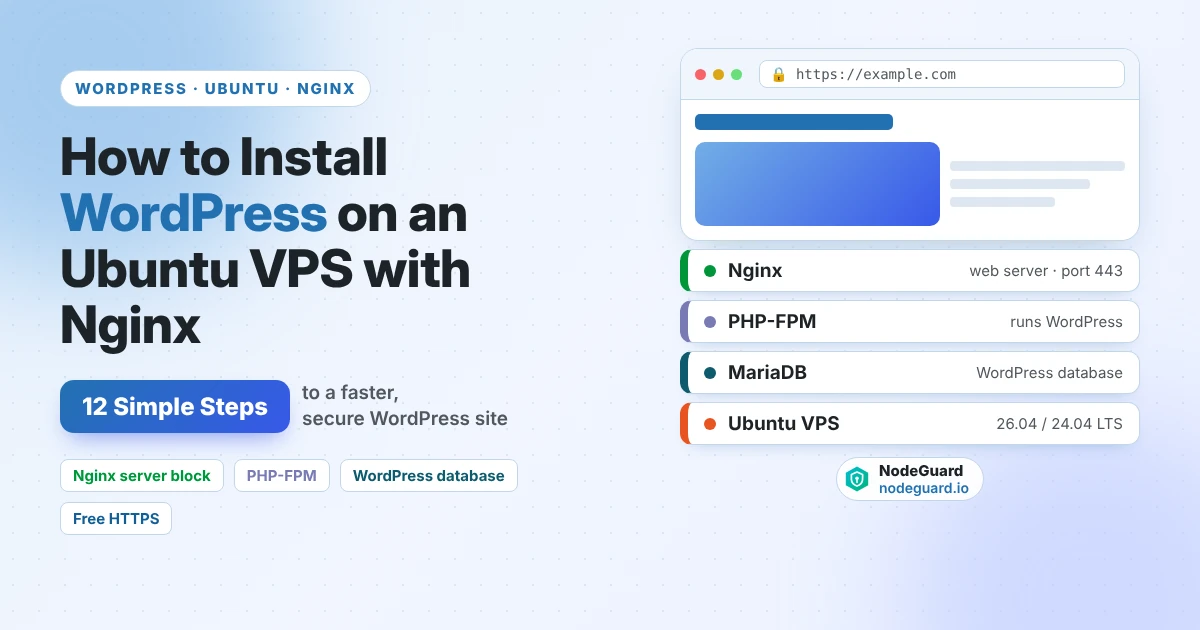
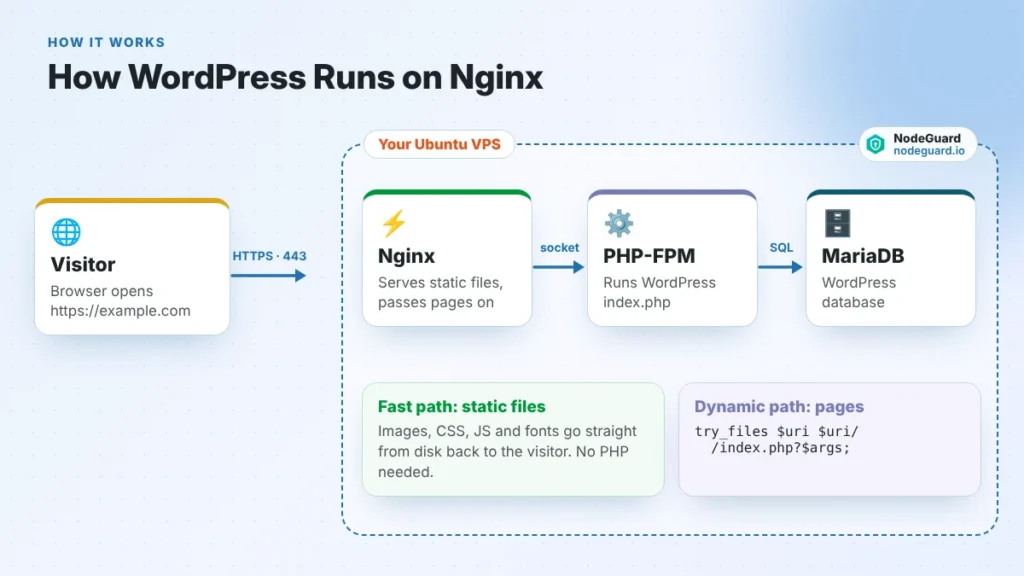
When a visitor opens your site, the browser connects to Nginx on port 443. If the request is for a static file, such as an image or a CSS file, Nginx sends it straight back from disk. That is the fast path, and on a typical WordPress page it covers most of the requests.
If the request is for a page or a post, there is no matching file on disk, because WordPress builds its pages on the fly. Nginx then passes the request to index.php, and hands it to PHP-FPM over a local Unix socket. PHP-FPM runs WordPress, which reads your posts, settings and users from the WordPress database in MariaDB. WordPress assembles the HTML, returns it to Nginx, and Nginx delivers it to the browser.
Unlike Apache, Nginx does not read .htaccess files. Every rule a WordPress plugin would normally write to .htaccess, such as pretty permalinks, lives in your Nginx server block instead. That is why the server block in Step 10 matters so much, and why we explain it line by line later.
How to Install WordPress on an Ubuntu VPS with Nginx: 12 Simple Steps
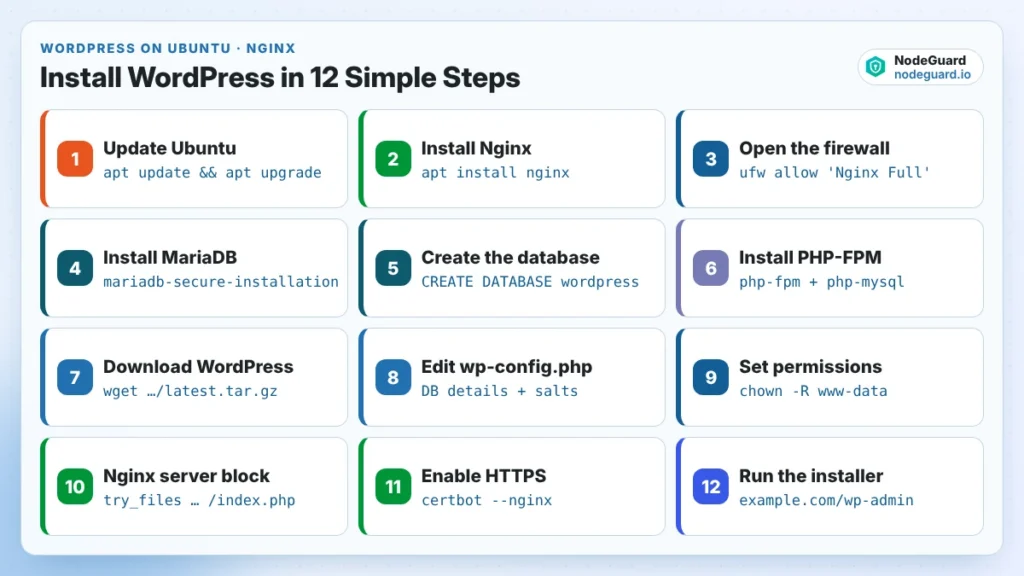
Steps 1 to 6 build the web server underneath WordPress. If you already followed our guide on how to install a LEMP stack on Ubuntu, you can skim them and jump to Step 5 to create the WordPress database.
Throughout this guide, replace example.com with your own domain.
Step 1: Update Your Ubuntu VPS
Log in over SSH as your sudo user and bring every package up to date:
sudo apt update && sudo apt upgrade -y
If the upgrade installed a new kernel, reboot with sudo reboot and log back in. Starting from a fully patched Ubuntu VPS avoids version mismatches later.
Step 2: Install Nginx
Install the web server and make sure it starts at boot:
sudo apt install -y nginx
sudo systemctl enable --now nginx
Check that it is running with systemctl status nginx --no-pager. For a deeper look at the Nginx file layout and its commands, see our guide on how to install Nginx on Ubuntu.
Step 3: Allow Web Traffic Through the Firewall
If UFW is active on your server, open ports 80 and 443 while keeping SSH allowed:
sudo ufw allow OpenSSH
sudo ufw allow 'Nginx Full'
sudo ufw enable
sudo ufw status
Port 80 is needed even if you only want HTTPS, because Let’s Encrypt uses it to verify your domain and Nginx uses it to redirect visitors to HTTPS. Our guide on how to configure UFW firewall on Ubuntu explains each rule in detail.
Open http://YOUR_SERVER_IP in a browser. The “Welcome to nginx!” page confirms that Nginx is reachable.
Step 4: Install and Secure MariaDB
Install the database server:
sudo apt install -y mariadb-server
Then run the security script, which removes the test database and anonymous accounts:
sudo mariadb-secure-installation
Press Enter for the current root password, answer n to switching to unix_socket authentication and n to changing the root password (on Ubuntu, the database root account already uses socket login, so only the system’s root user can use it), then answer Y to the remaining four questions.
Step 5: Create the WordPress Database and User
WordPress should never connect as the database root user. Give it a dedicated WordPress database and a user that can touch nothing else. Open the MariaDB shell:
sudo mariadb
Run these statements, choosing your own names and a long, random password:
CREATE DATABASE wordpress CHARACTER SET utf8mb4 COLLATE utf8mb4_unicode_ci;
CREATE USER 'wpuser'@'localhost' IDENTIFIED BY 'USE-A-LONG-RANDOM-PASSWORD';
GRANT ALL PRIVILEGES ON wordpress.* TO 'wpuser'@'localhost';
FLUSH PRIVILEGES;
EXIT;
The utf8mb4 character set stores every character WordPress can display, including emoji and non-Latin scripts. Write the database name, user and password down somewhere safe; you need them in Step 8.
Step 6: Install PHP-FPM and the PHP Extensions WordPress Needs
Install PHP-FPM together with the extensions WordPress and popular plugins rely on:
sudo apt install -y php-fpm php-mysql php-curl php-gd php-intl php-mbstring php-xml php-zip php-imagick php-bcmath
php-mysql lets WordPress talk to the WordPress database, php-gd and php-imagick handle image resizing, and the rest cover international text, XML feeds, ZIP uploads and maths functions used by shop plugins. You do not need a separate OPcache package: on Ubuntu 26.04 it is built into PHP 8.5, and on 24.04 it is installed with PHP-FPM automatically.
Check your version with php -v. You should see PHP 8.5 on Ubuntu 26.04 or PHP 8.3 on Ubuntu 24.04.
WordPress uploads, themes and plugin installs often exceed PHP’s small default limits. Create a small settings file for PHP-FPM instead of editing the main php.ini (replace 8.5 with 8.3 on Ubuntu 24.04):
sudo tee /etc/php/8.5/fpm/conf.d/99-wordpress.ini > /dev/null <<'EOF'
upload_max_filesize = 64M
post_max_size = 64M
memory_limit = 256M
max_execution_time = 120
EOF
sudo systemctl restart php8.5-fpm
A separate file survives package upgrades and makes your changes easy to find later.
Step 7: Download WordPress
Always download WordPress from the official site, never from a third-party mirror. Fetch the latest release, unpack it and move it into your web root:
cd /tmp
wget https://wordpress.org/latest.tar.gz
tar -xzf latest.tar.gz
sudo mkdir -p /var/www/example.com
sudo cp -a /tmp/wordpress/. /var/www/example.com/
rm -rf /tmp/wordpress /tmp/latest.tar.gz
The latest.tar.gz link always points at the newest stable version, so you start fully patched.
Step 8: Configure wp-config.php
WordPress reads its database details and security keys from wp-config.php. Create it from the sample file:
cd /var/www/example.com
sudo cp wp-config-sample.php wp-config.php
sudo nano wp-config.php
Find the database section and fill in the values from Step 5:
define( 'DB_NAME', 'wordpress' );
define( 'DB_USER', 'wpuser' );
define( 'DB_PASSWORD', 'USE-A-LONG-RANDOM-PASSWORD' );
define( 'DB_HOST', 'localhost' );
Next, replace the eight placeholder security keys. They protect login cookies, so they must be unique to your site. Generate a fresh set:
curl -s https://api.wordpress.org/secret-key/1.1/salt/
Delete the eight put your unique phrase here lines in wp-config.php and paste the generated block in their place. While the file is open, add this line just above the “That’s all, stop editing!” comment:
define( 'DISALLOW_FILE_EDIT', true );
It turns off the built-in theme and plugin code editor in the dashboard. If an attacker ever steals an admin password, that editor is the first thing they use to plant malicious code.
Step 9: Set the Correct File Ownership and Permissions
PHP-FPM runs as the www-data user on Ubuntu, so WordPress files must belong to it. That lets WordPress install plugins, themes and updates directly, without ever asking you for FTP details:
sudo chown -R www-data:www-data /var/www/example.com
sudo find /var/www/example.com -type d -exec chmod 755 {} \;
sudo find /var/www/example.com -type f -exec chmod 644 {} \;
sudo chmod 640 /var/www/example.com/wp-config.php
Folders get 755, files get 644, and wp-config.php gets 640 so other users on the server cannot read your database password. Never use 777, whatever an old forum post tells you.
Step 10: Create the Nginx Server Block for WordPress
Now connect Nginx to WordPress. Create a new Nginx server block for your domain:
sudo nano /etc/nginx/sites-available/example.com
Paste in this configuration:
server {
    listen 80;
    listen [::]:80;
    server_name example.com www.example.com;

    root /var/www/example.com;
    index index.php index.html;

    client_max_body_size 64M;

    # Block PHP inside uploads and hidden files (must come before the PHP block)
    location ~* /wp-content/uploads/.*\.php$ { deny all; }
    location ~ /\.(?!well-known) { deny all; }
    location = /xmlrpc.php { deny all; }

    location / {
        try_files $uri $uri/ /index.php?$args;
    }

    location ~ \.php$ {
        include snippets/fastcgi-php.conf;
        fastcgi_pass unix:/run/php/php-fpm.sock;
    }

    location ~* \.(css|js|gif|ico|jpe?g|png|svg|webp|avif|woff2?)$ {
        expires 30d;
        access_log off;
        log_not_found off;
    }
}
Check the PHP-FPM socket name with ls /run/php/. If there is no php-fpm.sock shortcut, use the versioned name instead, for example unix:/run/php/php8.5-fpm.sock (or php8.3-fpm.sock on Ubuntu 24.04).
Enable the site, remove the default welcome page, then test and reload:
sudo ln -s /etc/nginx/sites-available/example.com /etc/nginx/sites-enabled/
sudo rm -f /etc/nginx/sites-enabled/default
sudo nginx -t
sudo systemctl reload nginx
Never skip nginx -t. It catches typos before they can take your site offline.
Step 11: Enable Free HTTPS with Let’s Encrypt
Install Certbot and its Nginx plugin, then request a certificate for both versions of your domain:
sudo apt install -y certbot python3-certbot-nginx
sudo certbot --nginx -d example.com -d www.example.com
Certbot verifies your domain, installs the certificate, adds the listen 443 ssl lines to your Nginx server block and sets up an automatic redirect from HTTP to HTTPS. Renewal runs on its own through a systemd timer; confirm it works with sudo certbot renew --dry-run.
Do this before you run the installer. WordPress stores your site address in the database, and starting on HTTPS saves you from mixed-content warnings later.
Step 12: Run the WordPress Web Installer
Open https://example.com in your browser. WordPress asks you to choose a language, then shows its famous five-minute install screen. Fill in:
- Site title: you can change it later.
- Username: anything except
admin, which is the first name bots try. - Password: keep the strong one WordPress suggests and store it in a password manager.
- Email: an address you check, because password resets go there.
Click Install WordPress, log in at https://example.com/wp-admin, and you are done. You now know how to install WordPress on an Ubuntu VPS with Nginx, from the first update to the first login.
Understanding Your Nginx Server Block Line by Line
Copying a configuration is easy; knowing what it does is what lets you fix it at 2 a.m. Here is what each part of the Nginx server block does:
rootandindextell Nginx where WordPress lives and to look forindex.phpfirst.client_max_body_size 64Mmatches the PHP limit from Step 6. Without it, Nginx rejects large uploads with a “413 Request Entity Too Large” error before PHP ever sees them.try_files $uri $uri/ /index.php?$argsis the heart of WordPress on Nginx. It serves a real file if one exists, then a real folder, and otherwise passes the request to WordPress with its query string. This single line replaces the rewrite rules WordPress writes to.htaccesson Apache, and it is what makes pretty permalinks work.- The uploads rule blocks PHP execution inside
/wp-content/uploads/. Uploads should only ever contain media, so a PHP file there is almost always malware. Nginx checks regular-expression locations in order, which is why these deny rules sit above the PHP block. - The hidden-files rule blocks
.git,.envand similar files while still allowing/.well-known/, which Let’s Encrypt needs. - Blocking
xmlrpc.phpshuts a door that bots use for brute-force login attempts. Remove that line only if you use the Jetpack plugin or a mobile app that depends on XML-RPC. - The static-files block tells browsers to cache images, fonts, CSS and JavaScript for 30 days and keeps those requests out of your logs.
When you host a second site on the same Ubuntu VPS, copy this Nginx server block, change server_name and root, and give it its own WordPress database and user.
Pretty Permalinks with Your Nginx Server Block (Including Subfolder Installs)
Pretty permalinks turn addresses like example.com/?p=123 into clean, readable URLs such as example.com/my-first-post/. They are better for visitors and for search engines, because the address itself describes the page.
On Nginx, there is nothing to install and no .htaccess to edit. WordPress only needs every unknown address passed to index.php, and the try_files line in your Nginx server block already does that. Choose Post name under Settings → Permalinks, click Save Changes, and your URLs are clean straight away.
If WordPress lives in a subfolder, such as example.com/blog, the root rule is not enough. Keep root /var/www/example.com;, place WordPress in /var/www/example.com/blog, and add a block that sends unknown addresses to the subfolder’s own index.php:
location /blog/ {
    try_files $uri $uri/ /blog/index.php?$args;
}
Without it, the blog’s home page loads but every post returns a 404. Test the result by opening a post, or run curl -I https://example.com/blog/my-first-post/ and look for 200 OK.
Backing Up and Protecting Your WordPress Database
Your posts, pages, users and settings all live in the WordPress database, so it deserves the most protection.
Keep MariaDB private. By default, MariaDB on Ubuntu listens only on 127.0.0.1. Check with sudo ss -tlnp | grep 3306 and never open port 3306 in your firewall when WordPress and MariaDB run on the same server.
Back it up every day. A simple, reliable export looks like this:
sudo mariadb-dump --single-transaction wordpress | gzip > ~/wordpress-$(date +%F).sql.gz
Schedule it with cron, keep at least a week of copies, and store some of them off the server, because a backup on the same disk does not survive a disk failure. Back up /var/www/example.com/wp-content too, since your themes, plugins and uploads live there.
Change the table prefix on new sites. If you have not run the installer yet, changing $table_prefix in wp-config.php from wp_ to something like ng7x_ makes automated SQL injection attacks a little less likely to hit the right tables.
Essential Settings After You Install WordPress
A fresh install works, but a few minutes of setup makes it faster, safer and friendlier to search engines:
- Set permalinks. Go to Settings → Permalinks and choose Post name. Thanks to the
try_filesline, this works immediately on Nginx with no extra rules. - Check the site address. Under Settings → General, both addresses should start with
https://. - Delete what you do not use. Remove the sample post, the sample page, the “Hello Dolly” plugin and every inactive theme except one default theme as a fallback.
- Turn on automatic updates. Minor WordPress releases update themselves by default. Enable auto-updates for trusted plugins on the Plugins screen as well, because outdated plugins are the most common way WordPress sites get hacked.
- Add login protection. Enable two-factor authentication with a reputable plugin, and consider Fail2Ban on the server to block repeated failed logins.
Speed Up WordPress on Your Ubuntu VPS
Nginx and PHP-FPM are already fast, but caching makes the biggest difference.
Use a page cache. A caching plugin stores finished pages so PHP and the WordPress database are skipped for repeat visitors. For maximum speed, Nginx’s own FastCGI cache can serve cached pages without touching PHP at all.
Add an object cache. Install Redis with sudo apt install -y redis-server php-redis, restart PHP-FPM, and enable it with a Redis object cache plugin. Busy pages then hit the WordPress database far less often.
Tune PHP-FPM for your RAM. The default pool settings in /etc/php/8.5/fpm/pool.d/www.conf are conservative. On a 2 GB Ubuntu VPS, pm.max_children = 10 is a sensible starting point for most WordPress sites; raise it gradually while watching memory with free -h.
Serve modern images. Current WordPress versions accept WebP and AVIF uploads, which are often much smaller than JPEG at the same quality. Converting large photos before you upload them cuts page weight more than almost any plugin.
Optional: Install WordPress Faster with WP-CLI
Once you have done this by hand, you may want to install WordPress faster next time. WP-CLI is the official command-line tool for WordPress, and it can download, configure and install a site in seconds. Install it once:
curl -O https://raw.githubusercontent.com/wp-cli/builds/gh-pages/phar/wp-cli.phar
chmod +x wp-cli.phar
sudo mv wp-cli.phar /usr/local/bin/wp
After you finish Steps 1 to 6 and Step 10, you can replace Steps 7, 8 and 12 with three commands, run as www-data:
cd /var/www/example.com
sudo -u www-data wp core download
sudo -u www-data wp config create --dbname=wordpress --dbuser=wpuser --prompt=dbpass
sudo -u www-data wp core install --url=https://example.com --title="My Site" --admin_user=yourname --admin_email=you@example.com --prompt=admin_password
The --prompt options ask for the passwords interactively, so they never end up in your shell history. WP-CLI also makes daily tasks easy: wp plugin update --all, wp core update and wp db export all work the same way.
Troubleshooting Common WordPress and Nginx Errors
Most problems after you install WordPress come from a handful of causes:
- 502 Bad Gateway: Nginx cannot reach PHP-FPM. Check that the service runs with
systemctl status php8.5-fpmand that the socket path in your Nginx server block matches whatls /run/php/shows. - Error establishing a database connection: the details in
wp-config.phpdo not match Step 5. Test them withmariadb -u wpuser -p wordpress. If that login fails, WordPress will fail too. - Pages other than the home page return 404: the
try_filesline is missing or wrong. Fix it, runsudo nginx -tand reload. - WordPress asks for FTP details when installing a plugin: the files are not owned by
www-data. Re-run thechowncommand from Step 9. - 413 Request Entity Too Large: raise
client_max_body_sizein Nginx and the upload limits in your PHP settings file, then reload both services. - A blank white screen: add
define( 'WP_DEBUG', true );anddefine( 'WP_DEBUG_LOG', true );towp-config.php, reload the page and readwp-content/debug.log. Turn debugging off again when you are done.
The Nginx error log at /var/log/nginx/error.log is your best friend for all of these. Read it with sudo tail -n 50 /var/log/nginx/error.log.
Frequently Asked Questions
Is Nginx better than Apache for WordPress?
For most sites, yes. Nginx uses less memory under load and serves static files faster, which matters on a VPS with limited RAM. The main trade-off is that Nginx ignores .htaccess, so plugin rewrite rules must be added to the Nginx server block by hand. For standard WordPress sites, the configuration in this guide covers everything you need.
How much RAM does WordPress need on a VPS?
A new blog runs comfortably on 1 GB of RAM. Plan on 2 GB for a growing site with caching and a handful of plugins, and 4 GB or more for WooCommerce or a membership site, where many pages cannot be cached.
Can I host several WordPress sites on one Ubuntu VPS?
Yes. Give each site its own folder under /var/www, its own Nginx server block, its own WordPress database and user, and its own certificate. For stronger isolation, run each site in a separate PHP-FPM pool under its own system user.
Should I use MariaDB or MySQL for WordPress?
Either works. MariaDB is Ubuntu’s default, is fully compatible with WordPress and is the database most hosting providers choose. If you prefer MySQL, install mysql-server in Step 4; Ubuntu 26.04 ships MySQL 8.4 LTS. The rest of the guide stays the same.
How do I update WordPress after installing it?
Minor and security releases install themselves automatically. For major versions, take a backup of the WordPress database and wp-content, then click Update now under Dashboard → Updates, or run wp core update with WP-CLI. Keep Ubuntu itself patched with sudo apt update && sudo apt upgrade too.
Conclusion: Your WordPress Site Is Live
You now know how to install WordPress on an Ubuntu VPS with Nginx from start to finish. You updated the server, installed Nginx, MariaDB and PHP-FPM, created a dedicated WordPress database, configured wp-config.php, set safe permissions, wrote an Nginx server block built for WordPress, enabled free HTTPS and ran the installer. You also know how to back it up, speed it up and fix the errors that catch most beginners.
That is a professional setup that you understand from top to bottom, which is the real advantage of running WordPress on your own server.
If you need a fast home for it, a NodeGuard Cloud VPS gives you full root access, a clean Ubuntu image and the resources to grow with your traffic. Prefer to focus on content and leave the server work to us? NodeGuard managed WordPress hosting takes care of updates, security and backups for you.
Further Reading
- WordPress server requirements
- WordPress Hosting Handbook
- Nginx official documentation
- Certbot instructions from the EFF
- WP-CLI official site