If you want to host WordPress, Laravel, or any PHP application on your own server, learning how to install a LEMP stack on Ubuntu is the most useful skill you can pick up. LEMP stands for Linux, Engine-X (Nginx), MariaDB and PHP. Together they turn a bare Ubuntu server into a fast, modern web server that can run almost any PHP website you throw at it.
This guide walks you through the whole process in eight clear steps, from a fresh server to a working PHP page that talks to its own database. Every command works on Ubuntu 26.04 LTS and Ubuntu 24.04 LTS, and wherever the two releases differ, we point it out. You will also learn how the pieces fit together, how to secure the MariaDB server, how to tune PHP-FPM, and how to fix the errors beginners hit most often.
Set aside about 20 minutes. By the end, you will have a production-ready LEMP stack that you understand, not just a pile of copied commands.
What Is a LEMP Stack?
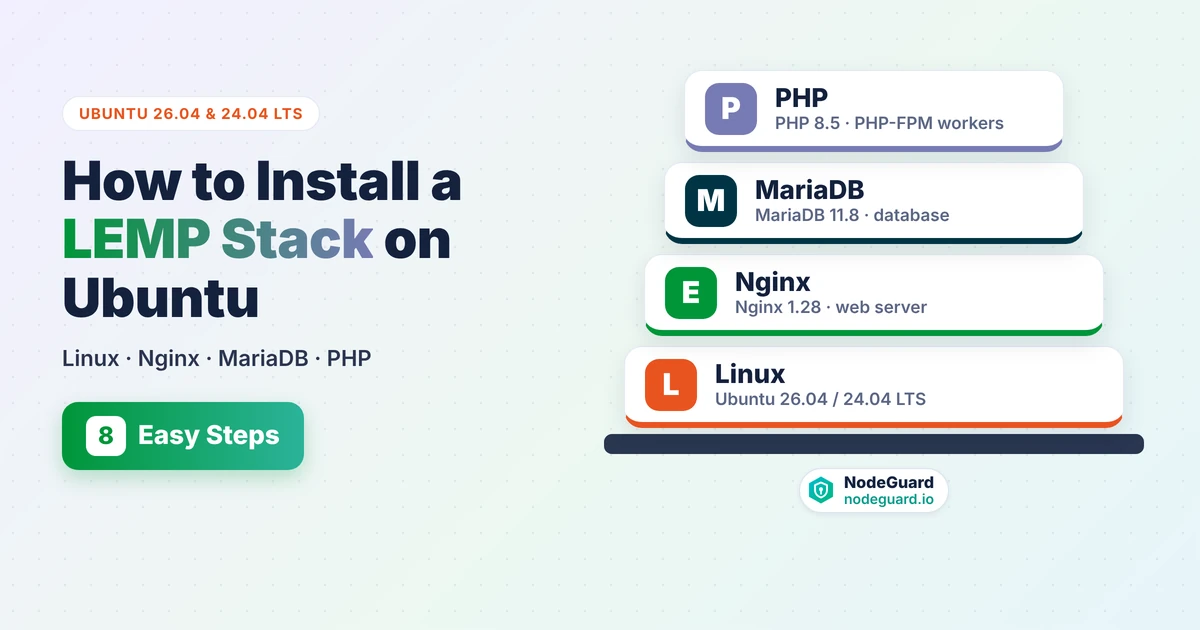
A LEMP stack is a group of four open-source programs that work together to serve dynamic websites. Each layer has one clear job:
- Linux is the operating system. In this guide, that is Ubuntu, one of the most popular server distributions in the world.
- Nginx (pronounced “engine-x”) is the web server. It accepts requests from visitors’ browsers, serves static files such as images and CSS directly, and hands PHP requests to the next layer.
- MariaDB is the database. It stores your posts, users, orders and settings. MariaDB started as a community fork of MySQL and remains a drop-in replacement for it, so any application that supports MySQL works with MariaDB.
- PHP is the programming language that generates your pages. On a LEMP stack, PHP runs through PHP-FPM (FastCGI Process Manager), a separate service that keeps a pool of PHP workers ready to answer Nginx.
How the LEMP Stack Handles a Request
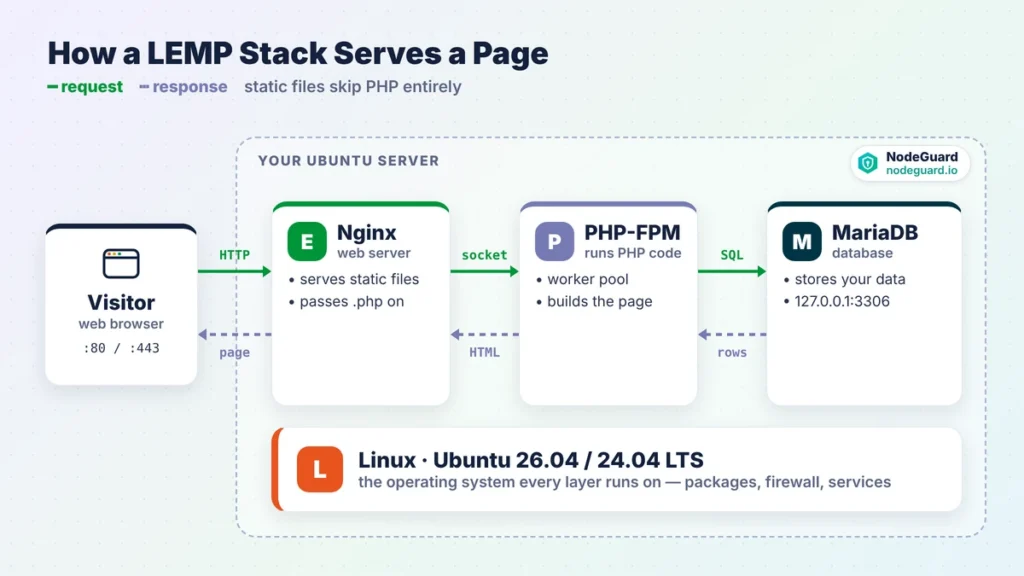
When someone visits your site, the request follows a simple path. The browser connects to Nginx on port 80 or 443. If the visitor asked for a static file, Nginx sends it straight back, which is extremely fast. If the visitor asked for a PHP page, Nginx passes the request to PHP-FPM over a local Unix socket. PHP-FPM runs your code, which usually queries MariaDB for data, builds the HTML page and returns it to Nginx. Nginx then delivers the finished page to the browser.
This split is the secret behind the speed of a LEMP stack. Nginx never runs PHP itself, so it stays lightweight and can handle thousands of connections at once, while PHP-FPM focuses only on running code.
LEMP vs LAMP: Which Stack Should You Choose?
If you have researched web hosting before, you have probably seen LAMP as well. The only difference is the web server: LAMP uses Apache, while LEMP uses Nginx. The LEMP vs LAMP choice comes down to how you want your web server to behave.
Choose a LEMP stack if:
- You want the best performance on a small VPS with limited RAM. Nginx uses an event-driven design, so it handles many simultaneous visitors with very little memory.
- Your site serves lots of static content, such as images, scripts and downloads.
- You plan to use Nginx as a reverse proxy or load balancer later.
Choose LAMP if:
- Your application depends on
.htaccessfiles, which Apache reads on every request and Nginx ignores. - You are moving an older site that was built around Apache modules.
For most new projects, including WordPress, the LEMP vs LAMP decision favours LEMP. Popular applications publish ready-made Nginx rules, and the memory you save on a 1 or 2 GB server can go to PHP workers and the database instead. That is why this guide focuses on Nginx.
Before You Begin: Prerequisites
You need only a few things to follow this tutorial:
- An Ubuntu server. Ubuntu 26.04 LTS or 24.04 LTS, with at least 1 GB of RAM. A small cloud VPS is perfect. If you do not have one yet, a NodeGuard Cloud VPS gives you a clean Ubuntu server in minutes.
- A user with sudo access. Avoid working as root day to day. If your server is brand new, follow our guide on how to set up an Ubuntu VPS first to create a sudo user and lock down SSH.
- A domain name (optional). You can test everything with your server’s IP address. You only need a domain pointed at the server when you add free SSL in the final section.
Connect to your server over SSH and you are ready to go.
How to Install a LEMP Stack on Ubuntu: 8 Easy Steps
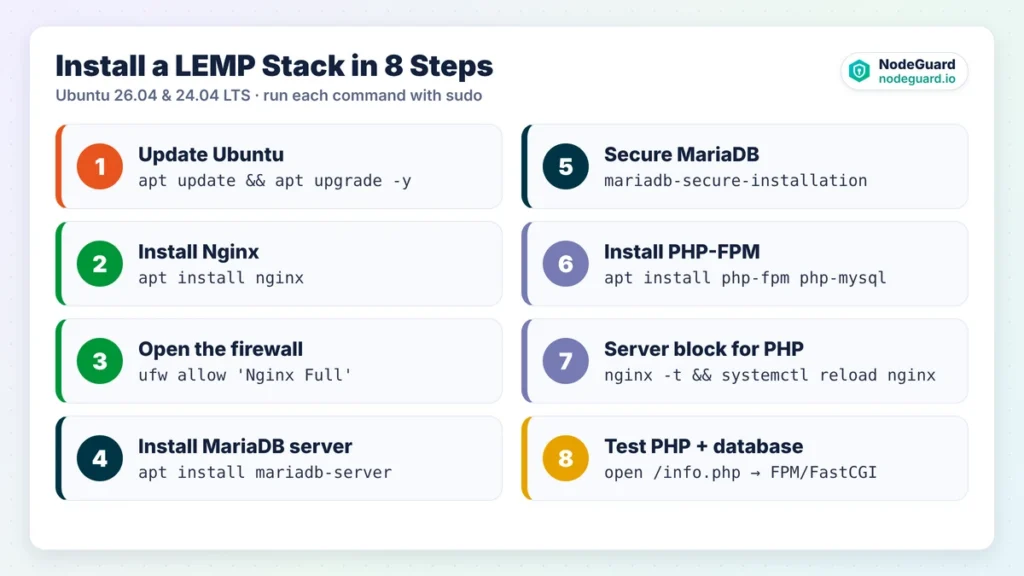
Here is the full process at a glance. Each step builds on the previous one, so work through them in order and check the result before moving on.
Step 1: Update Your Ubuntu Server
Always start with fresh package lists and the latest security patches. This prevents dependency conflicts during the installation.
sudo apt update && sudo apt upgrade -y
If the upgrade installed a new kernel, reboot with sudo reboot and reconnect before continuing.
Step 2: Install the Nginx Web Server
Nginx is in Ubuntu’s default repositories, so a single command installs it:
sudo apt install -y nginx
Ubuntu starts and enables Nginx automatically. Confirm it is running and check the version:
systemctl status nginx --no-pager
nginx -v
You should see active (running). Ubuntu 26.04 ships Nginx 1.28, and Ubuntu 24.04 ships Nginx 1.24. Both work perfectly for this guide. For a deeper look at the Nginx layer itself, including its file layout and server blocks, see our tutorial on how to install Nginx on Ubuntu.
Step 3: Allow Web Traffic Through the Firewall
If you use UFW, the firewall that ships with Ubuntu, open the web ports now. The Nginx package registers a UFW profile called Nginx Full, which covers both HTTP (port 80) and HTTPS (port 443):
sudo ufw allow OpenSSH
sudo ufw allow 'Nginx Full'
sudo ufw enable
sudo ufw status
Allowing OpenSSH first matters: enabling UFW without it can lock you out of your own server. If you are new to UFW, our guide on how to configure UFW firewall on Ubuntu explains every rule.
Now open http://YOUR_SERVER_IP in a browser. The “Welcome to nginx!” page means the first two layers of your LEMP stack, Linux and Nginx, are working.
Step 4: Install the MariaDB Server
Next, install the database layer. The mariadb-server package includes everything the MariaDB server needs, and mariadb-client gives you the command-line tools:
sudo apt install -y mariadb-server mariadb-client
Check that the service is running:
systemctl status mariadb --no-pager
mariadb --version
Ubuntu 26.04 installs MariaDB 11.8, and Ubuntu 24.04 installs MariaDB 10.11. Both are long-term support releases that receive security updates for years.
Step 5: Secure MariaDB and Create a Database User
A fresh MariaDB server includes a test database and anonymous accounts that you should remove. MariaDB ships a script that does this for you:
sudo mariadb-secure-installation
Older guides call this script mysql_secure_installation. Ubuntu 26.04 may only include the mariadb- name, which also works on 24.04, so use that. Answer the prompts like this:
- Enter current password for root: press Enter (there is none yet).
- Switch to unix_socket authentication:
n. On Ubuntu, the root account already uses socket authentication, which means only the system’s root user can log in as the database root. - Change the root password:
n, for the same reason. - Remove anonymous users, disallow root login remotely, remove the test database, reload privilege tables:
Yto all four.
Your applications should never connect as root. Create a dedicated database and user for each site instead. Open the MariaDB shell:
sudo mariadb
Then run these statements, replacing the names and password with your own:
CREATE DATABASE appdb;
CREATE USER 'appuser'@'localhost' IDENTIFIED BY 'USE-A-STRONG-PASSWORD';
GRANT ALL PRIVILEGES ON appdb.* TO 'appuser'@'localhost';
FLUSH PRIVILEGES;
EXIT;
This user can manage only its own database, which limits the damage if one application is ever compromised.
Step 6: Install PHP-FPM and Common Extensions
Now install PHP. On a LEMP stack you install php-fpm, not the Apache module, plus the extensions most applications need:
sudo apt install -y php-fpm php-mysql php-cli php-curl php-gd php-mbstring php-xml php-zip php-intl
The php-mysql package lets PHP talk to MariaDB. The other extensions cover images, international text, XML and ZIP archives, which WordPress and most frameworks expect. Check which version you received:
php -v
Ubuntu 26.04 installs PHP 8.5, and Ubuntu 24.04 installs PHP 8.3. The PHP-FPM service name includes the version, so check it with a wildcard:
systemctl status 'php*-fpm' --no-pager
ls /run/php/
The last command lists the PHP-FPM socket, such as php8.5-fpm.sock or php8.3-fpm.sock, plus a version-free php-fpm.sock shortcut. Nginx will use that socket in the next step.
Step 7: Configure an Nginx Server Block for PHP
Nginx does not run PHP until you tell it where to send PHP requests. You do that in a server block, the Nginx equivalent of a virtual host. Create a folder for your site first:
sudo mkdir -p /var/www/example.com/public
sudo chown -R $USER:$USER /var/www/example.com
Then create the server block file:
sudo nano /etc/nginx/sites-available/example.com
Paste this configuration, replacing example.com with your domain or server IP:
server {
    listen 80;
    listen [::]:80;
    server_name example.com www.example.com;

    root /var/www/example.com/public;
    index index.php index.html;

    location / {
        try_files $uri $uri/ /index.php?$query_string;
    }

    location ~ \.php$ {
        include snippets/fastcgi-php.conf;
        fastcgi_pass unix:/run/php/php-fpm.sock;
    }

    location ~ /\.(?!well-known) {
        deny all;
    }
}
Here is what the important lines do. The try_files line sends requests for pages that do not exist as files to index.php, which is how WordPress and Laravel create clean URLs. The location ~ \.php$ block catches every PHP file, loads Ubuntu’s ready-made FastCGI settings from snippets/fastcgi-php.conf, and forwards the request to PHP-FPM through its socket. The last block hides files such as .env and .git from visitors, while still allowing the .well-known folder that SSL certificates need.
If ls /run/php/ did not show a php-fpm.sock shortcut, use the versioned socket name instead, for example unix:/run/php/php8.5-fpm.sock.
Enable the site, disable the default welcome page, then test and reload Nginx:
sudo ln -s /etc/nginx/sites-available/example.com /etc/nginx/sites-enabled/
sudo rm /etc/nginx/sites-enabled/default
sudo nginx -t
sudo systemctl reload nginx
Never skip nginx -t. It checks your configuration for mistakes, and reloading only after a clean test means a typo can never take your site down.
Step 8: Test PHP and the Database Connection
Time to prove that every layer of the LEMP stack works together. First, create a quick PHP test page:
echo "<?php phpinfo();" > /var/www/example.com/public/info.php
Visit http://example.com/info.php. You should see the PHP information page, with FPM/FastCGI listed next to “Server API”. That confirms Nginx is handing PHP to PHP-FPM correctly.
Next, test the database link. Create a second file:
nano /var/www/example.com/public/dbtest.php
Add this code, using the credentials you created in Step 5:
<?php
$db = new mysqli('localhost', 'appuser', 'USE-A-STRONG-PASSWORD', 'appdb');
if ($db->connect_error) {
    die('Connection failed: ' . $db->connect_error);
}
echo 'LEMP stack is working! Connected to MariaDB ' . $db->server_info;
Load http://example.com/dbtest.php. A success message means Linux, Nginx, MariaDB and PHP are all talking to each other. Your LEMP stack is complete.
Delete both test files right away, because they reveal details attackers love:
rm /var/www/example.com/public/info.php /var/www/example.com/public/dbtest.php
Securing the MariaDB Server for Production
The secure installation script covers the basics, but a few extra checks make your MariaDB server much harder to attack.
Keep it listening locally. By default, the MariaDB server on Ubuntu listens only on 127.0.0.1, so the outside world cannot reach it. Confirm this with:
sudo ss -tlnp | grep 3306
You should see 127.0.0.1:3306. If your website and database live on the same server, leave it that way and never open port 3306 in your firewall.
Use one user per application. As in Step 5, give each site its own database and its own user. Never reuse the same password across applications.
Size the buffer pool. The most important performance setting for MariaDB is innodb_buffer_pool_size, which controls how much data stays in memory. On a small VPS that also runs Nginx and PHP, a quarter to a third of total RAM is a sensible start. Add it to /etc/mysql/mariadb.conf.d/50-server.cnf under the [mysqld] section, for example innodb_buffer_pool_size = 256M on a 1 GB server, then restart with sudo systemctl restart mariadb.
Back up regularly. A simple nightly dump protects you from accidental deletions and bad updates:
sudo mariadb-dump --single-transaction appdb | gzip > appdb-$(date +%F).sql.gz
Copy those backups off the server. A backup stored only on the machine it protects is not really a backup.
Tuning PHP-FPM for Better Performance
Out of the box, PHP-FPM works, but its defaults are cautious. A little tuning helps your server use its memory well and avoid slowdowns under traffic.
The main settings live in the pool file. On Ubuntu 26.04, open /etc/php/8.5/fpm/pool.d/www.conf. On 24.04, the path uses 8.3 instead. The most important value is pm.max_children, the maximum number of PHP workers that can run at the same time. If it is too low, visitors wait in a queue. If it is too high, the server runs out of memory.
A simple rule of thumb: divide the RAM you can spare for PHP by the average size of one PHP worker. A typical WordPress worker uses 40 to 60 MB. On a 2 GB VPS where you leave about 1 GB for PHP, that gives roughly 15 to 20 children. A balanced starting point looks like this:
pm = dynamic
pm.max_children = 15
pm.start_servers = 4
pm.min_spare_servers = 2
pm.max_spare_servers = 6
pm.max_requests = 500
The pm.max_requests line restarts each worker after 500 requests, which prevents slow memory leaks in plugins from building up.
You will also want to raise a few limits in php.ini (at /etc/php/8.5/fpm/php.ini on 26.04) if you plan to upload themes, plugins or media:
upload_max_filesize = 64M
post_max_size = 64M
memory_limit = 256M
Nginx has its own upload limit, so add client_max_body_size 64M; inside your server block too. Then restart PHP-FPM and reload Nginx:
sudo systemctl restart 'php*-fpm'
sudo nginx -t && sudo systemctl reload nginx
OPcache, which stores compiled PHP code in memory, is enabled by default on Ubuntu, so your PHP-FPM workers already skip recompiling scripts on every request.
Add Free SSL to Your LEMP Stack
Every modern site needs HTTPS. Browsers warn visitors about insecure pages, and search engines prefer secure ones. Once your domain points at the server, Let’s Encrypt and Certbot give you a free certificate in about a minute:
sudo apt install -y certbot python3-certbot-nginx
sudo certbot --nginx -d example.com -d www.example.com
Certbot reads your server block, obtains the certificate, adds the HTTPS settings and can redirect all HTTP traffic to HTTPS for you. It also installs a timer that renews the certificate automatically before it expires. You can confirm renewal works with sudo certbot renew --dry-run.
Troubleshooting Common LEMP Stack Errors
Even a careful installation can hit a snag. These are the problems people run into most often, and how to fix each one. Your first stop should always be the Nginx error log:
sudo tail -n 30 /var/log/nginx/error.log
502 Bad Gateway. Nginx cannot reach PHP-FPM. Either the service is stopped or the socket path in your server block is wrong. Run systemctl status 'php*-fpm', then compare the fastcgi_pass line with the output of ls /run/php/.
The browser downloads the PHP file instead of running it. Nginx is serving the file as plain text, which means your location ~ \.php$ block is missing or the request is landing in a different server block. Check that your site is linked in sites-enabled, that the default site is removed, and that nginx -t passes.
403 Forbidden. Nginx found the folder but no index file, or it cannot read the files. Make sure index.php exists in your web root and that the files are readable by the www-data user.
“Access denied for user” in your application. The database credentials are wrong, or the user was created for a different host. A user created as 'appuser'@'localhost' must connect using localhost, not the server’s public IP.
Changes to PHP settings have no effect. PHP-FPM reads its configuration only when it starts. Restart it after editing php.ini or the pool file, and make sure you edited the fpm copy of php.ini, not the cli one.
Frequently Asked Questions
Is a LEMP stack good for WordPress?
Yes. A LEMP stack is one of the best ways to run WordPress. Nginx serves images and static files very efficiently, PHP-FPM keeps workers ready for dynamic pages, and MariaDB is fully compatible with WordPress. Add a caching plugin and you have a fast, affordable setup.
Can I use MySQL instead of MariaDB?
You can. Ubuntu 26.04 includes MySQL 8.4 in its repositories alongside MariaDB 11.8. Replace mariadb-server with mysql-server in Step 4, and use mysql_secure_installation in Step 5. The rest of the guide stays the same, because PHP’s mysqli and PDO drivers work with both databases.
How much RAM does a LEMP stack need?
A LEMP stack runs comfortably on 1 GB of RAM for a small site or a test environment. For a busy WordPress site or an online shop, 2 to 4 GB gives PHP-FPM and the MariaDB server room to grow. Nginx itself uses very little memory.
Which PHP version will I get?
Ubuntu 26.04 LTS installs PHP 8.5, and Ubuntu 24.04 LTS installs PHP 8.3. Both receive security updates through Ubuntu for the life of the release. Check that your application supports the version before you move a live site.
Do I still need to manage the server after installing LEMP?
Yes. Install security updates regularly, keep backups of your databases and files, and watch your logs. A firewall and a tool such as Fail2Ban, which blocks repeated failed logins, add strong protection with very little effort.
Conclusion: Your LEMP Stack Is Ready
You now know how to install a LEMP stack on Ubuntu from start to finish. You updated the server, installed Nginx, opened the firewall, set up and secured the MariaDB server, installed PHP-FPM, connected everything with a server block and proved it works with a live database test. You also learned how to tune PHP-FPM, protect your data, add free SSL and fix the most common errors.
That is a solid foundation for WordPress, Laravel, an online shop or your own PHP application. The best next step is to put it to work: install your application, point your domain at the server and enable HTTPS.
If you need a fast, reliable home for your new LEMP stack, a NodeGuard Cloud VPS gives you full root access, a clean Ubuntu image and the resources to grow as your traffic does.
Further reading:
- Nginx official documentation
- MariaDB documentation
- PHP-FPM configuration manual
- Certbot instructions from the EFF
- Ubuntu Server documentation