Linux Commands for System Administrators: What You Need to Know
Linux system administration happens largely from the command line.
Whether you’re troubleshooting a production server, checking disk usage, investigating an application failure, or diagnosing a network problem, knowing the right Linux commands for system administrators can save significant time.
But being a good Linux administrator isn’t simply about memorizing hundreds of commands. It’s about knowing a smaller set of powerful tools well enough to combine them when troubleshooting real systems.
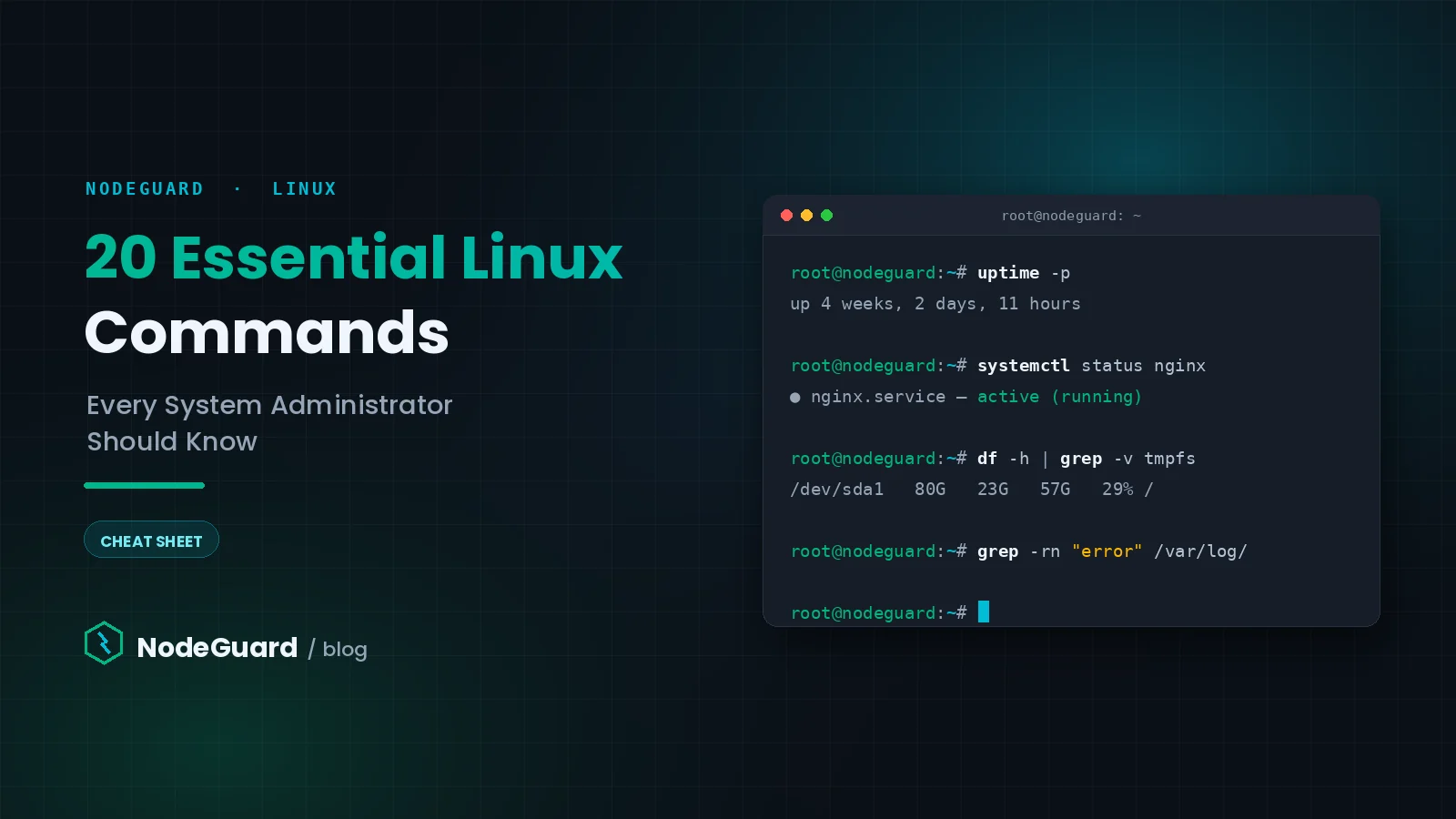
In this guide, we’ll cover 20 essential Linux commands every system administrator should know, with practical examples you can use on real servers.
The examples are suitable for both major Linux distribution families:
- Ubuntu and Debian
- RHEL, AlmaLinux, and Rocky Linux
Most commands work identically across both families. Where package management differs, we’ll show examples for each.
Note: Some commands require root privileges. Use
sudowhere appropriate, and be especially careful with commands that modify permissions, ownership, processes, or files on production systems.
1. ls — List Files and Directories
The ls command displays files and directories and is one of the commands you’ll use most frequently when navigating a Linux server.
A basic directory listing:
ls
For system administration, however, you’ll usually want more information:
ls -lah
Here:
-ldisplays detailed information.-aincludes hidden files.-hdisplays file sizes in human-readable units.
For example:
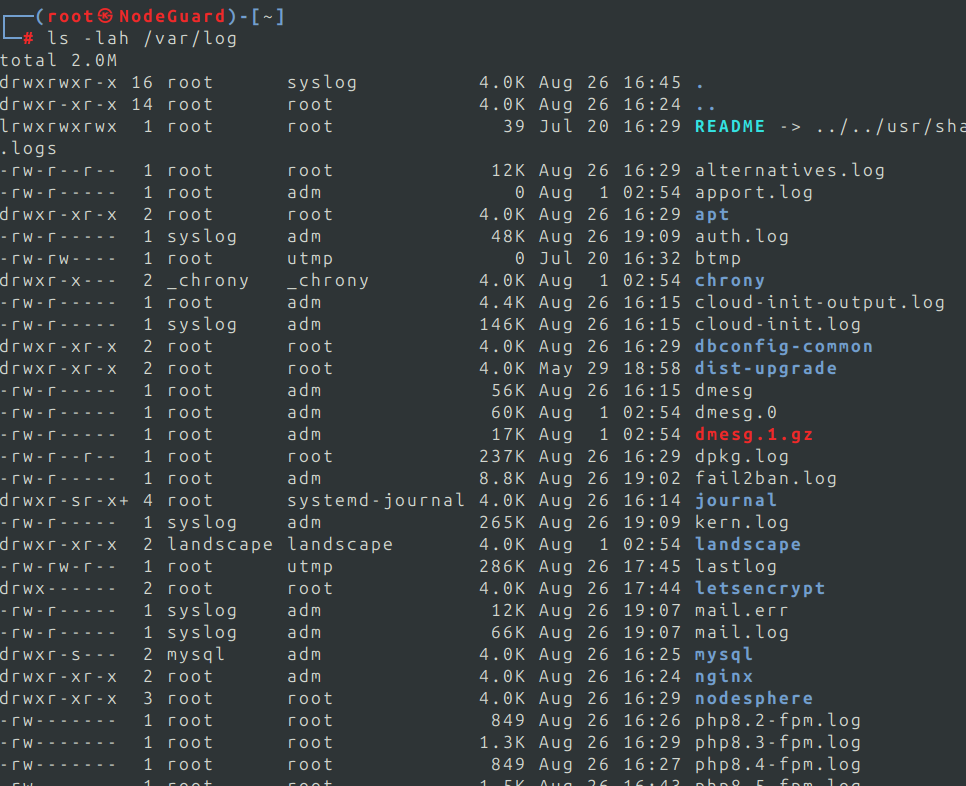
ls -lah /var/log
You can also sort files by modification time:
ls -lht /var/log
This is particularly useful when you’re trying to identify recently modified log files.
GNU ls supports detailed listings, hidden-file visibility, sorting and numerous other options that make it useful for server investigation.
Admin tip: When troubleshooting an application, ls -lah is often one of the first commands worth running. It can immediately reveal incorrect ownership, permissions, unexpectedly large files, or missing configuration files.
2. cp — Copy Files and Directories
cp copies files or directories.
To copy a configuration file:
cp nginx.conf nginx.conf.backup
For directories, use recursive mode:
cp -r /etc/nginx /root/nginx-backup
When working with important server configuration files, preserving attributes can be useful:
cp -a /etc/nginx /root/nginx-backup
The archive option preserves important file attributes while recursively copying directory contents.
A common administration habit is creating a backup before modifying configuration:
cp /etc/ssh/sshd_config /etc/ssh/sshd_config.bak
Then edit the original file.
GNU Coreutils defines cp as the standard file and directory copying utility.
Admin tip: Before changing an important configuration file manually, create a timestamped backup:
cp sshd_config sshd_config.$(date +%F-%H%M).bak
3. mv — Move or Rename Files
The mv command performs two closely related tasks:
- Moving files or directories
- Renaming files or directories
Rename a file:
mv old-config.conf new-config.conf
Move a file:
mv application.log /var/log/myapp/
Move several files into another directory:
mv *.log /var/log/archive/
Because mv can overwrite an existing destination, administrators should be careful when moving important configuration or data files.
mv is part of GNU Coreutils’ standard file-manipulation utilities.
4. rm — Remove Files and Directories
rm deletes files:
rm old.log
To delete a directory and its contents recursively:
rm -r old-directory/
For interactive confirmation:
rm -i important-file.conf
One command deserves particular caution:
rm -rf directory/
-r recursively removes directory contents, while -f suppresses normal confirmation behavior.
There is generally no convenient “undo” after deleting server files with rm.
Admin tip: Before recursively deleting anything important, verify your current location and target:
pwd
ls -lah directory/
Then run the deletion command only after confirming the path.
5. find — Locate Files
Linux servers can contain hundreds of thousands of files. find allows you to locate files according to attributes such as name, type, ownership, size, or modification time.
Find a configuration file:
find /etc -name "nginx.conf"
Perform a case-insensitive search:
find /etc -iname "*nginx*"
Find files larger than 1 GB:
find / -type f -size +1G 2>/dev/null
Find files modified during the last 24 hours:
find /var/log -type f -mtime -1
Find files owned by a particular user:
find /home -user nodeguard
This becomes extremely valuable when troubleshooting disk usage, abandoned application data, old backups, or unexpected files.
Admin tip: Combine find with other commands for powerful troubleshooting workflows.
For example:
find /var/log -type f -size +500M -exec ls -lh {} \;
This finds large log files and displays their sizes.
6. grep — Search Inside Files and Command Output
If find locates files, grep helps you find information inside them.
Search a configuration file:
grep "PermitRootLogin" /etc/ssh/sshd_config
Perform a case-insensitive search:
grep -i "error" application.log
Search recursively:
grep -R "database.example.com" /etc/
Show matching line numbers:
grep -n "ERROR" application.log
One of grep’s greatest strengths is combining it with pipes.
For example:
ps aux | grep nginx
or:
journalctl -u nginx | grep -i error
grep searches input for matching patterns and prints matching lines, making it particularly powerful when combined with command pipelines.
Admin tip: When investigating logs, try:
grep -Ei "error|failed|critical|warning" application.log
This searches several common problem indicators simultaneously.
7. tail — Monitor the End of Files
tail displays the last portion of a file.
By default:
tail application.log
displays its final 10 lines.
Specify the number of lines:
tail -n 50 application.log
For administrators, the most useful option is often:
tail -f application.log
The -f option follows the file and displays new entries as they’re written.
For example:
tail -f /var/log/nginx/error.log
You can then reproduce a website problem while watching errors appear in real time.
The current GNU implementation of tail supports both selecting the number of lines and continuously following files as they change.
Admin tip: Combine tail and grep:
tail -f application.log | grep -i error
This gives you a live stream containing only matching log entries.
8. chmod — Change File Permissions
Linux file permissions determine who can read, write, or execute a file.
Check permissions:
ls -l script.sh
You might see:
-rwxr-xr-x
Permissions can be changed numerically:
chmod 755 script.sh
or symbolically:
chmod u+x script.sh
Common permission values include:
| Permission | Meaning |
|---|---|
644 | Owner read/write; everyone else read |
600 | Owner read/write only |
755 | Owner full access; others read/execute |
700 | Owner full access only |
For example:
chmod 600 private-key
is commonly appropriate for files that shouldn’t be accessible to other users.
GNU chmod changes file access permissions and supports both symbolic and numeric permission modes.
Admin tip: Avoid solving application problems by blindly running:
chmod -R 777
It often masks the actual ownership or application configuration problem while creating unnecessary security exposure.
9. chown — Change File Ownership
Where chmod controls permissions, chown controls ownership.
Change the owner:
chown nodeguard file.txt
Change both owner and group:
chown nodeguard:nodeguard file.txt
Change ownership recursively:
chown -R www-data:www-data /var/www/example.com
On RHEL-family systems, a web application might instead use a user such as apache, depending on how the service is configured.
Incorrect ownership is a common cause of:
- Web application errors
- Upload failures
- Permission-denied messages
- Backup failures
- Web server access problems
GNU chown can change user ownership, group ownership, or both, including recursive operation.
10. df — Check Filesystem Disk Usage
When a Linux server unexpectedly stops writing logs, databases fail, or applications behave strangely, disk space should be one of your first checks.
Run:
df -h
The -h option displays human-readable sizes.
For filesystem types as well:
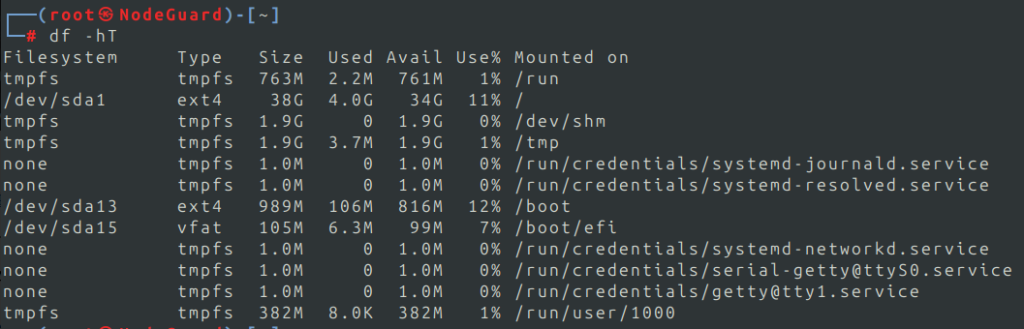
df -hT
Example output may include:
Filesystem     Type  Size  Used Avail Use% Mounted on
/dev/sda2      xfs    80G   61G   19G  77% /
Pay particular attention to filesystems approaching 100% utilization.
You can inspect a specific mount point:
df -h /var
df reports filesystem space usage and is part of GNU Coreutils’ filesystem-space utilities.
Important: df tells you which filesystem is full. The next command, du, helps identify what is consuming the space.
11. du — Find What’s Consuming Disk Space
Once df tells you that a filesystem is running out of space, use du to investigate directories.
Check total size:
du -sh /var/log
Check individual directories:
du -sh /var/*
Sort them by size:
du -sh /var/* | sort -h
Another useful command:
du -xh /var | sort -h | tail -20
This can help identify large directories beneath /var.
GNU du estimates filesystem space consumed by files and directories.
Admin workflow:
df -h
shows /var is full.
Then:
du -sh /var/* | sort -h
might show /var/log consuming most of the space.
You now know where to investigate.
12. free — Check Memory Usage
Use free for a quick overview of system memory:
free -h
It displays information about physical memory and swap.
A typical output includes:
               total        used        free      shared  buff/cache   available
Mem:            15Gi        5Gi        1Gi        500Mi        9Gi         9Gi
Swap:            2Gi        0Gi        2Gi
Administrators should pay attention to the available memory figure rather than judging Linux memory usage only by the free column. Linux intentionally uses otherwise-unused RAM for caching.
The free utility reads memory information from /proc/meminfo and reports physical and swap memory together with kernel cache information.
Admin tip: For an easy-to-read snapshot:
free -h
For repeated updates:
free -h -s 2
13. ps — Inspect Running Processes
ps gives you a snapshot of processes running on the server.
A commonly used form is:
ps aux
Search for a particular service:
ps aux | grep nginx
A more targeted example:
ps -ef | grep sshd
You can also sort processes according to CPU usage:
ps aux --sort=-%cpu | head
or memory:
ps aux --sort=-%mem | head
ps provides a snapshot of active processes; unlike top, it doesn’t continuously refresh the display.
This makes ps particularly useful in scripts and command pipelines.
14. top — Monitor System Activity in Real Time
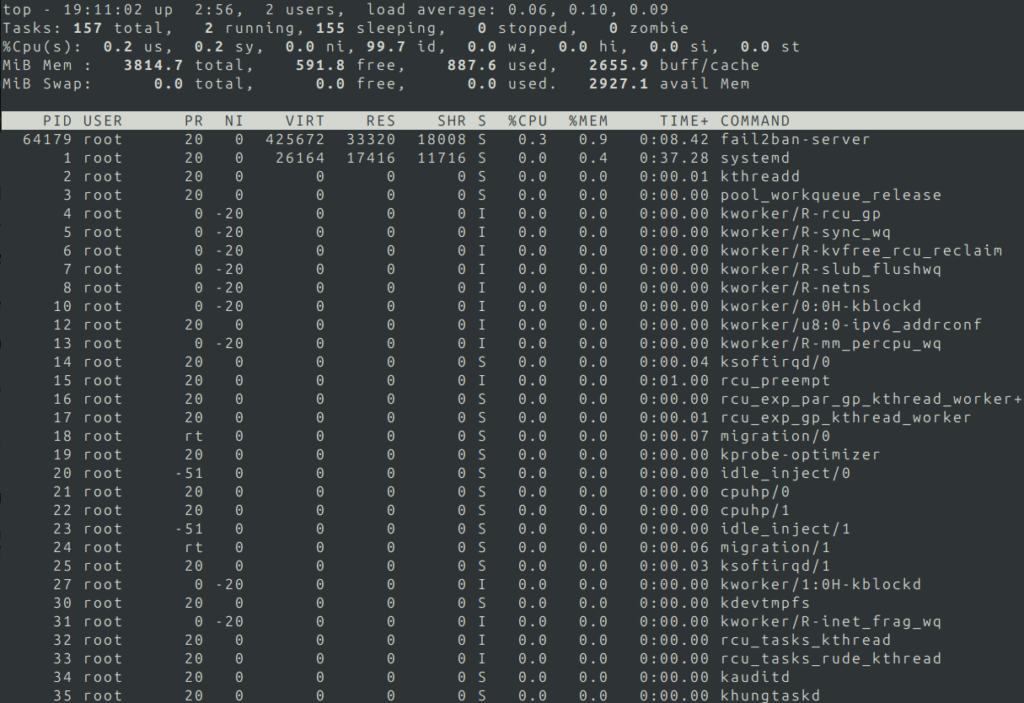
While ps provides a snapshot, top continuously updates process and system information.
Run:
top
You’ll see information including:
- Load average
- CPU usage
- Memory usage
- Running processes
- Process IDs
- Per-process CPU consumption
- Per-process memory consumption
Useful interactive keys include:
P— sort by CPUM— sort by memory1— show individual CPU coresk— send a signal to a processq— quit
top provides a dynamic view of Linux processes along with system summary information.
Admin tip: High load doesn’t automatically mean high CPU usage. Check CPU utilization, I/O behavior, process states, memory pressure, and workload together before drawing conclusions.
15. kill — Send Signals to Processes
When a process stops responding, you may need to terminate or signal it.
First identify its PID:
ps aux | grep application
Then:
kill 1234
Without specifying another signal, kill normally sends SIGTERM, giving the application an opportunity to shut down cleanly.
If the process refuses to terminate:
kill -9 1234
sends SIGKILL, which forces termination.
However, kill -9 should not be your default response.
Start with:
kill PID
and escalate only if the process doesn’t terminate.
You can list available signals with:
kill -l
Admin tip: Before killing a production process, determine what started it. If it’s managed by systemd, restarting the service through systemctl is often more appropriate than manually killing its processes.
16. systemctl — Manage Linux Services
Most modern Linux server distributions use systemd to manage services.
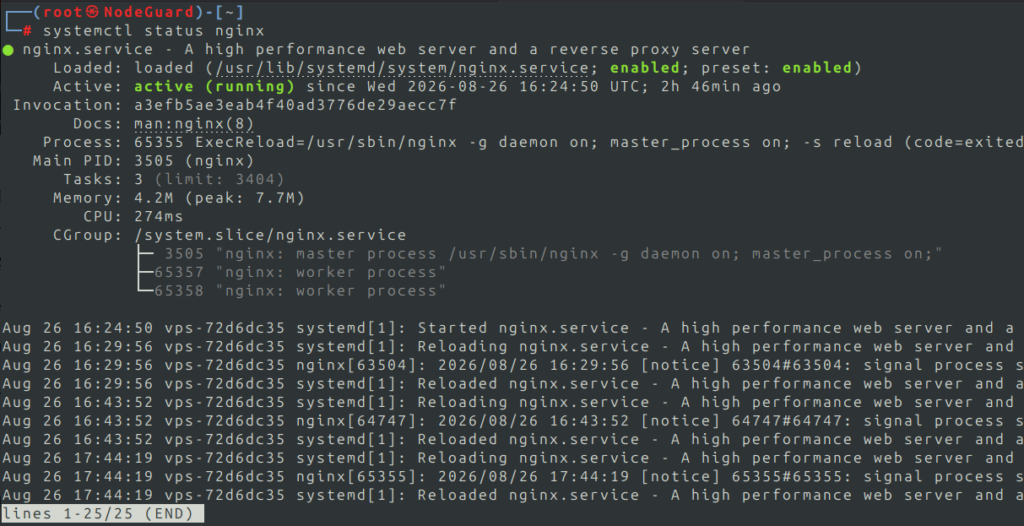
Check the status of a service:
systemctl status nginx
Start it:
sudo systemctl start nginx
Stop it:
sudo systemctl stop nginx
Restart it:
sudo systemctl restart nginx
Reload configuration without a full restart when supported:
sudo systemctl reload nginx
Enable a service at boot:
sudo systemctl enable nginx
Check whether it’s enabled:
systemctl is-enabled nginx
For Apache, the service name usually differs between the two distribution families:
Ubuntu/Debian:
systemctl status apache2
RHEL/AlmaLinux/Rocky Linux:
systemctl status httpd
systemctl is the primary interface used to inspect and control systemd-managed units and services on systemd-based Linux systems.
17. journalctl — Investigate System and Service Logs
If systemctl status tells you a service failed, journalctl is often your next command.
View system logs:
journalctl
View logs for a particular service:
journalctl -u nginx
Display recent entries:
journalctl -u nginx -n 100
Follow logs in real time:
journalctl -u nginx -f
Show logs from the current boot:
journalctl -b
Show kernel messages:
journalctl -k
Show errors since the current boot:
journalctl -p err -b
journalctl reads logs collected by systemd-journald and supports filtering by units, boots, kernel messages and other journal fields. For additional filtering and output options, see the official journalctl documentation.
A very useful troubleshooting combination is:
systemctl status nginx
journalctl -u nginx --since "30 minutes ago"
This lets you first determine the service state and then investigate what happened around the time of failure.
18. ip — Inspect and Manage Linux Networking
The ip command is one of the most important Linux networking tools.
Display IP addresses:
ip addr
A shorter form is:
ip a
Display interfaces:
ip link
Display the routing table:
ip route
Show a concise interface summary:
ip -br addr
You may see something like:
lo       UNKNOWN   127.0.0.1/8
eth0     UP        192.168.1.20/24
Check the route Linux would use to reach an IP:
ip route get 8.8.8.8
The ip utility can display and manipulate routing, network devices, interfaces, addresses, neighbors and other networking objects.
Admin tip: When troubleshooting connectivity, begin with:
ip -br addr
ip route
Before assuming a firewall or remote service is broken, confirm that the server has the expected IP configuration and routing.
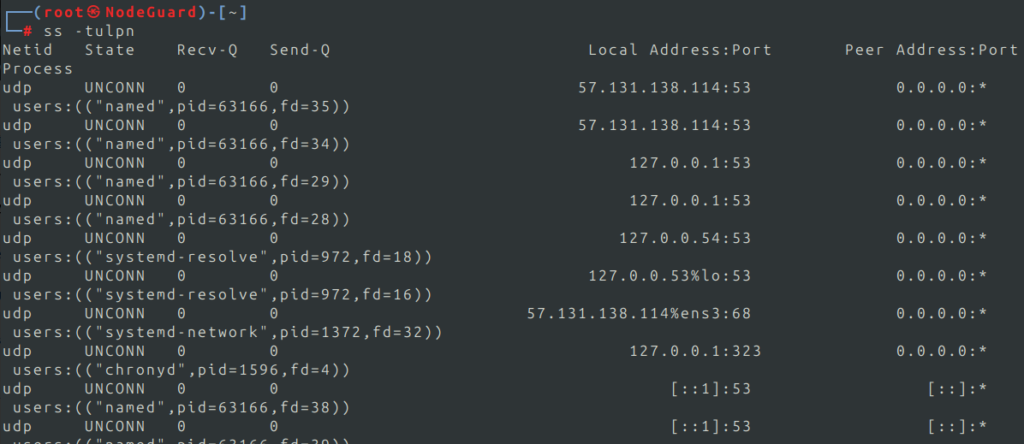
19. ss — Inspect Network Connections and Listening Ports
ss is invaluable when investigating network services.
Show listening TCP and UDP sockets:
ss -tulpn
Common options:
-t— TCP-u— UDP-l— listening sockets-p— process information-n— don’t resolve service names
Check whether anything is listening on port 443:
ss -ltnp | grep :443
Display established TCP connections:
ss -tn state established
Count established connections:
ss -tn state established | wc -l
ss displays socket statistics and can filter sockets according to protocol and TCP state. You can find the complete list of options in the ss Linux manual page.
This command answers one of the most common server troubleshooting questions:
“Is my application actually listening on the expected port?”
For example:
ss -ltnp | grep :8080
If nothing appears, the application may not be listening at all.
20. apt and dnf — Manage Linux Packages
Package management is one of the areas where Debian-based and RHEL-based systems differ.
Ubuntu and Debian: apt
Update repository metadata:
sudo apt update
Install a package:
sudo apt install nginx
Upgrade packages:
sudo apt upgrade
Remove a package:
sudo apt remove nginx
Search for packages:
apt search nginx
apt provides a high-level command-line interface to Debian’s package management system.
RHEL, AlmaLinux and Rocky Linux: dnf
Update packages:
sudo dnf upgrade
Install a package:
sudo dnf install nginx
Remove a package:
sudo dnf remove nginx
Search:
dnf search nginx
Display package information:
dnf info nginx
RHEL uses DNF for managing content available through RPM repositories, including installing, updating and removing packages.
Quick Comparison
| Task | Ubuntu/Debian | RHEL/Alma/Rocky |
|---|---|---|
| Refresh package metadata | apt update | dnf check-update |
| Install package | apt install nginx | dnf install nginx |
| Upgrade packages | apt upgrade | dnf upgrade |
| Remove package | apt remove nginx | dnf remove nginx |
| Search packages | apt search nginx | dnf search nginx |
| Package information | apt show nginx | dnf info nginx |
Knowing both package managers is valuable for administrators who work across mixed Linux environments.
Putting the Commands Together: A Real Troubleshooting Example
The real power of Linux administration comes from combining commands, rather than running each one in isolation.
Imagine users report that a website hosted on your Linux server has stopped responding.
Step 1: Check the service
systemctl status nginx
Suppose Nginx shows as running.
Step 2: Check whether it is listening
ss -ltnp | grep :443
Nothing appears.
Step 3: Check the logs
journalctl -u nginx -n 100
You discover a configuration error.
Step 4: Check available disk space
df -h
Perhaps /var is 100% full.
Step 5: Find what’s consuming it
du -sh /var/* | sort -h
You discover several gigabytes of application logs.
Step 6: Examine them
tail -n 100 /var/log/application.log
and:
grep -i error /var/log/application.log
This is what effective Linux administration looks like.
You aren’t simply memorizing commands. You’re using each tool to answer a specific troubleshooting question and progressively narrowing down the root cause.
Linux Command Cheat Sheet for System Administrators
| Command | Primary Use |
|---|---|
ls | List files and directories |
cp | Copy files and directories |
mv | Move or rename files |
rm | Remove files and directories |
find | Locate files |
grep | Search text and command output |
tail | View and follow log files |
chmod | Change permissions |
chown | Change ownership |
df | Check filesystem usage |
du | Find disk-space consumers |
free | Check memory |
ps | Inspect processes |
top | Monitor system activity |
kill | Signal or terminate processes |
systemctl | Manage services |
journalctl | Read systemd logs |
ip | Inspect networking and routes |
ss | Inspect sockets and ports |
apt / dnf | Manage software packages |
Bookmarking a table like this is useful, but the fastest way to learn Linux administration is to practice the commands until you understand not only what they do, but when to use them.
Frequently Asked Questions
What Linux commands should every system administrator know?
At minimum, Linux administrators should be comfortable navigating files, searching data, inspecting processes, checking system resources, reading logs, managing services, troubleshooting networks, and managing packages.
Commands such as grep, find, df, du, ps, top, systemctl, journalctl, ip, and ss are particularly valuable during real server troubleshooting.
Are Linux commands the same on Ubuntu and RHEL?
Many fundamental Linux commands work the same way across distributions, including ls, grep, find, df, du, ps, ip, and systemctl.
One important difference is package management.
Ubuntu and Debian normally use:
apt
while RHEL, AlmaLinux and Rocky Linux use:
dnf
What is the best way to learn Linux commands?
Practice them on a Linux virtual machine or VPS rather than relying entirely on memorization.
Try realistic tasks such as:
- Finding large files
- Checking memory usage
- Finding a failed service
- Reading its logs
- Checking open ports
- Searching configuration files
- Investigating high CPU usage
Learning Linux through troubleshooting scenarios builds much stronger administration skills than memorizing isolated commands.
Which command shows running processes in Linux?
Use:
ps
for a process snapshot or:
top
for an interactive, continuously updating view.
How do I check which ports are open on a Linux server?
Use:
ss -tulpn
This displays listening TCP and UDP sockets and, when permissions allow, the processes associated with them.
How do I check disk space on Linux?
Start with:
df -h
to check filesystem utilization.
If a filesystem is running low on space, use:
du -sh /path/*
to identify which directories are consuming the storage.
Final Thoughts
You don’t need to memorize every Linux command available to become an effective system administrator.
Instead, master the commands that help you answer the questions administrators face every day:
What is running?
ps
top
Why did the service fail?
systemctl
journalctl
Where did my disk space go?
df
du
What’s happening on the network?
ip
ss
Where is the problem in the logs?
grep
tail
Once these tools become second nature, troubleshooting Linux servers becomes significantly faster and more systematic.
Mastering these Linux commands for system administrators will make everyday troubleshooting and server management faster and more systematic.
And remember: the best Linux administrators don’t simply know commands — they understand which question each command can answer.
Build Your Next Linux Server with NodeGuard
Want a clean Linux environment to put these commands into practice?
Deploy a NodeGuard Cloud VPS and get full root access, fast NVMe storage, modern virtualization, and the freedom to build and manage your server your way.
[Explore NodeGuard VPS Hosting →]